3
Step 3: Enter your company’s rules
a. Read the information at the top of the ‘Shifts_Setup’ spread sheet and
then, starting with Shift one, enter the employees’ Start time, Lunch start,
Lunch end, and End time. Enter this information for each day worked.
Leave the scheduled days off blank.
b. Leave the ‘Cutoff’ time at midnight unless your employees work across
midnight. If so, see ‘Cutoff’ Time’ in the back of the manual.
c. When finished, Save the file back to the USB stick.
d. Now open the ‘Global_Setup’ file in Excel. There are two tabs: Holidays
and Punch. Click on Punch.
e. Read the information at the top of the Punch Early/Late Setup spread
sheet and then set the six settings according to your company’s policies.
f. Next, click on the Holidays Setup tab.
g. Enter your company’s holiday’s names and dates.
h. Save the file back to the USB stick.
i. Eject and remove the USB stick from your computer.
Step 4: Upload the files back to the clock
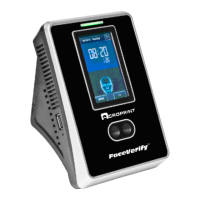
a. Plug the USB stick into the side of the clock
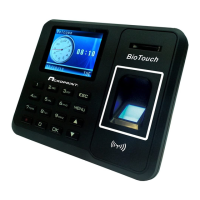
b. Press the ‘Menu’ button, then select Shift and press ‘OK’, then select
Upload Shift and ‘OK’.
c. When complete, select Upload Setup and ‘OK’.
d. When complete, press ‘ESC’ repeatedly to exit the menus or simply allow
the menus to time out.
e. Eject and remove the USB stick from the clock.


 To Next Page