Acuity Brands | One Lithonia Way Conyers, GA 30012 | Phone: 800.535.2465 | www.acuitycontrols.com | © 2019 Acuity Brands Lighting, Inc. | All rights reserved. | Rev. 11/14/2019
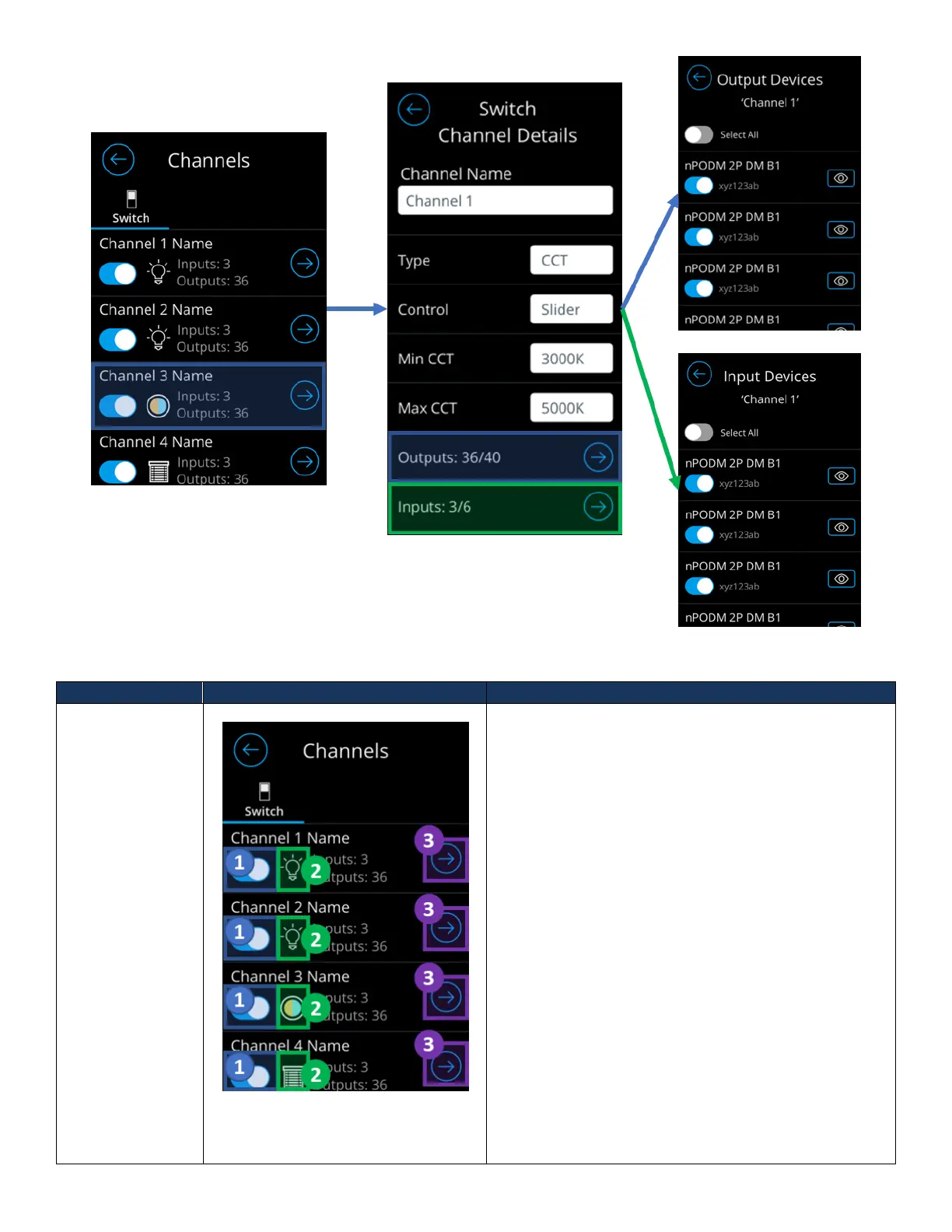
Figure 26 - Channels workflow
From the channels home screen, users are able to view
all 16 channels, their names, number of inputs
broadcasting and outputs tracking. Users are also able
to enable, and disable, a channel from being viewable in
the main dashboard screens.
1. Channel display toggle – Used to enable/disable
a channel from appearing in main dashboard
screens and configurations. These screens
include, the Lights Control Dashboard, Shades
Control Dashboard and scene configuration
screens.
a. Only channels of type “Light” and
“Shade” can be viewable in the
aforementioned screens. Users must
change channels from type “None” to
allow them to be viewable when the
channel is enabled.
2. Channel Type Indicator – Used to indicate the
type of channel.
a. Lightbulb – Channel of type “Light”
b. Shade – Channel of type “Shade”
c. CCT – Channel of type “CCT”



 To Next Page