EasyManua.ls Logo

Adastra RMD Series - User Manual

Adastra RMD Series
8 pages
Print Icon
To Next Page IconTo Next Page
Loading...
RMD-SERIES
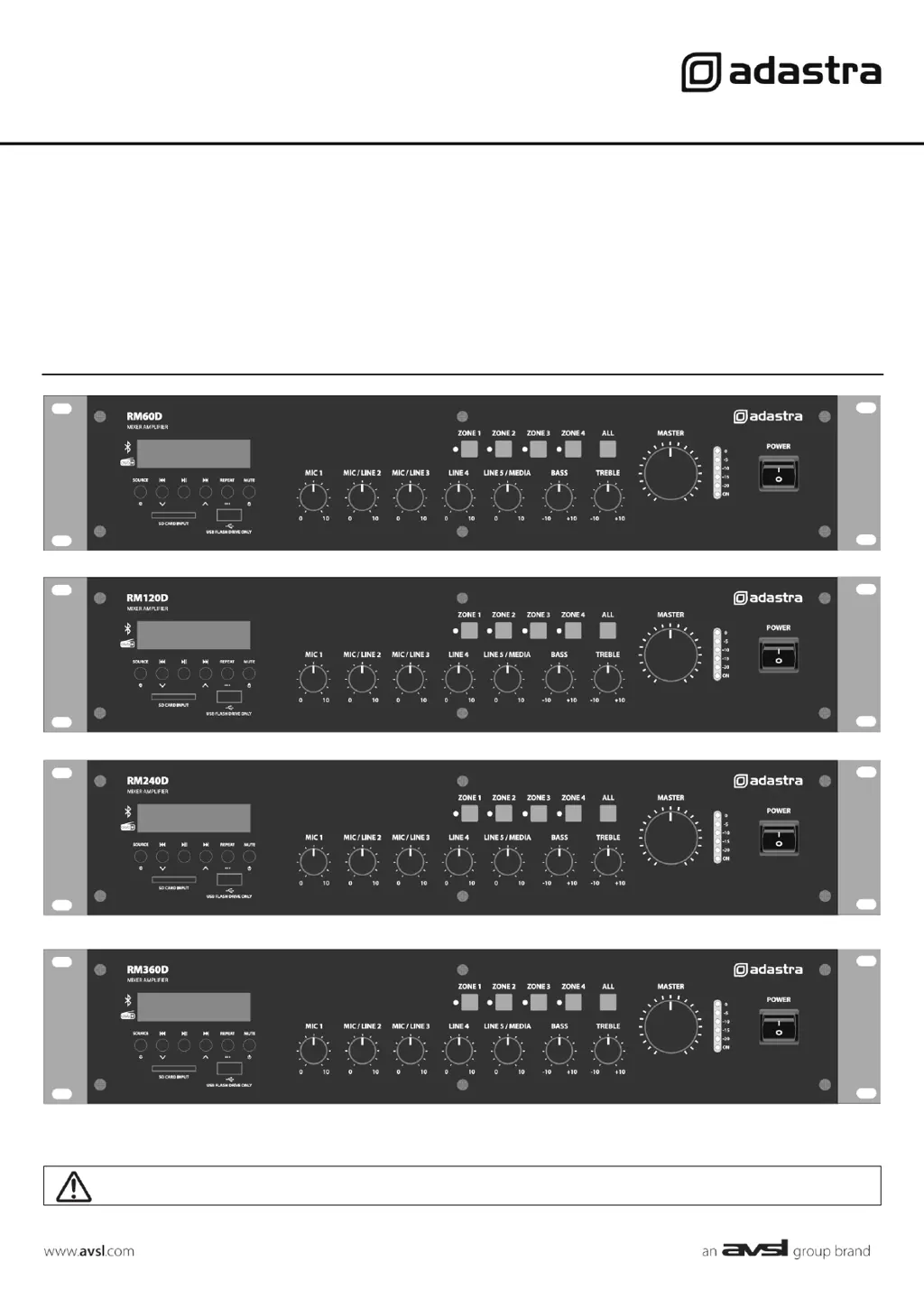
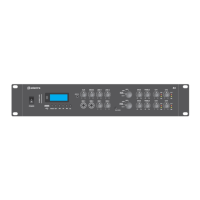
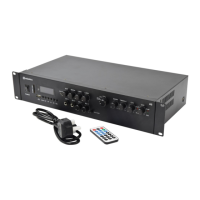
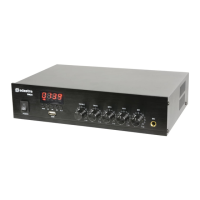
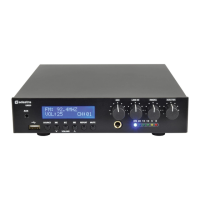
5-INPUT MIXER-AMPLIFIER with Bluetooth, DAB+/FM, USB/SD player
RM60D: 953.223UK
RM120D: 953.224UK
RM240D: 953.225UK
RM360D: 953.226UK
User Manual
Version 1.0
Caution: Please read this manual carefully before operating
Damage caused by misuse is not covered by the warranty

Questions and Answers

  • W
    William Stanley Jr.Aug 12, 2025
    Why is my Adastra Amplifier output too loud?
    • J
      Jessica RileyAug 12, 2025
      If the output from your Adastra Amplifier is too loud or distorted, you should reduce the MIC, LINE IN, USB/SD, and/or MASTER level. Also, make sure that Hi-Z line level inputs are not connected via the MIC input.
  • C
    Cassandra JohnsonAug 16, 2025
    What to do if my Adastra Amplifier is overheating?
    • S
      Susan HowellAug 16, 2025
      If your Adastra Amplifier is overheating, take the following steps: * Ensure the cooling vents are free from any obstructions like debris and dust. * Verify that 4, 8, or 16 speakers are not connected to the 100V terminals. * Make sure the total 100V speaker wattage is lower than the amplifier's rating. * Confirm that 100V and 4, 8, or 16 speakers are not connected simultaneously. * Check that the total load connected to the 4 - 16 output is not less than 4.
  • A
    Ashley JenkinsAug 19, 2025
    How to fix Bluetooth connection issues with Adastra Amplifier?
    • M
      Mary BryantAug 20, 2025
      If you're having trouble connecting a Bluetooth device to your Adastra Amplifier: * First, ensure that Bluetooth is enabled on the sending device. * Make sure the sending device is within the Bluetooth range (5-10m). * Check that “adastra ****” is the connected device. * If there are multiple “adastra ****” devices, check each one individually.
  • T
    Tiffany SinghAug 23, 2025
    Why is my Adastra Amplifier output too quiet?
    • S
      Shannon JohnsonAug 23, 2025
      If the output from your Adastra Amplifier is too quiet or inaudible, try the following: * Increase the MIC, LINE IN, USB/SD, and/or MASTER level. * Check for quiet recording of media files on USB. * Check that the VOX override is not unintentionally suppressing audio playback.
  • K
    Kevin JordanAug 27, 2025
    What to do if I get feedback from the microphone on my Adastra Amplifier?
    • D
      Dr. Stanley DaughertyAug 27, 2025
      If you're experiencing feedback from the microphone when using your Adastra Amplifier, face the microphone away from the speakers and monitors and reduce the level.
  • J
    Jamie GalvanAug 31, 2025
    What to do if Bluetooth device has no audio with Adastra Amplifier?
    • D
      Diane JacksonAug 31, 2025
      If you are not getting any audio from your Bluetooth device connected to the Adastra Amplifier, make sure that the volume controls are not turned down on the sending device and check the volume and Play/Pause buttons in case Bluetooth is muted.
  • B
    beckyrogersSep 3, 2025
    How to troubleshoot poor DAB/DAB+/FM reception on Adastra Amplifier?
    • M
      Michelle DominguezSep 3, 2025
      To troubleshoot poor or no DAB/DAB+/FM reception on your Adastra Amplifier, ensure that the DAB/FM aerial is connected within an area of good radio reception.
  • S
    Sandra GreenSep 7, 2025
    What to do if Adastra Amplifier does not playback from USB or SD device?
    • E
      esingletonSep 7, 2025
      If your Adastra Amplifier is not playing back from a USB or SD device, ensure that the media is formatted to FAT32 and that the files are a standard mp3/wma type.

Summary

Safety and Precautions

Safety Symbol and Message Conventions

Explains safety symbols and conventions used in the manual and on the unit.

General Safety Notice

Provides essential safety precautions and operating requirements before using the device.

Placement and Cleaning

Advises on proper placement, ventilation, and cleaning of the amplifier.

Front Panel Controls

Front Panel Controls Identification

Identifies and lists all controls and indicators on the front panel of the amplifier.

Rear Panel Connections

Rear Panel Connections Identification

Identifies and lists all input/output connectors and switches on the rear panel.

DIP Switch Settings

DIP Switch Functionality

Details the function and settings for the DIP switches affecting microphone input and VOX features.

Connection and Setup

Power Connection Options

Details connecting the amplifier to mains power or a 24V battery.

Audio Input Connections

Explains how to connect microphones and line-level audio sources to the amplifier.

Line Output Connection

Describes connecting further mixer-amplifiers or slave amplifiers via the line out.

Speaker Outputs

100 V Line Systems

Guides on connecting speakers for 100V line systems, including parallel wiring and power ratings.

Low Impedance Systems

Details connecting speakers for low impedance (4-16 Ohm) systems.

Speaker Switching Zones

Zone and ALL Switch Functionality

Explains how front panel zone switches control 100V speaker outputs.

Emergency Evacuation Wiring

Details wiring 100V speakers to unswitched terminals for emergency use.

Emergency Mute Function

24 V Mute Input

Describes the 24V mute function for emergency announcements, muting all except MIC1.

Operation

Initial Power-On and Testing

Guides on turning on the unit, testing inputs, and adjusting volume controls.

Microphone and Media Player Operation

Details operating microphone inputs and the built-in media player.

Feedback Prevention

Advises on preventing audio feedback (squealing or howling) from speakers.

Media Player and Bluetooth

Media Player Controls

Explains how to use the media player for source selection, playback, and muting.

Media Player Settings Menu

Details how to access and configure global settings for the media player.

Bluetooth Pairing and Playback

Guides on searching, pairing, and playing audio via Bluetooth.

Tuner Operation

SD and USB Audio Player

Describes playing audio files from SD cards and USB drives, including repeat modes.

DAB Tuner Operation

Explains how to use the DAB tuner, including auto-tuning and station selection.

FM Tuner Operation

Details how to use the FM tuner, including auto-tuning, presets, and scan settings.

Troubleshooting

Reception and Connectivity Issues

Addresses problems with DAB/FM reception and Bluetooth connectivity.

Audio Playback Problems

Solves issues related to audio from Bluetooth, USB, or SD devices.

Microphone and Amplifier Performance

Troubleshoots microphone output, feedback, and amplifier overheating.

Adastra RMD Series Specifications

General IconGeneral
BrandAdastra
ModelRMD Series
CategoryAmplifier
LanguageEnglish

Related product manuals