108
USING ADOBE AUDITION
Mixing multitrack sessions
Last updated 2/16/2012
More Help topics
“Multitrack routing and EQ controls” on page 111
Choosing between mono, stereo, and 5.1 tracks
Multitrack sessions support an unlimited number of mono, stereo, and 5.1 audio and bus tracks. When adding tracks,
choose a channel configuration based on the configuration of the Master track:
• For mono masters, add mono audio and bus tracks.
• For stereo masters, add stereo audio and bus tracks. except for audio tracks with mono sources (like a single
microphone).
• For 5.1 masters, add stereo audio tracks and 5.1 bus tracks (to maintain proper gain staging). If you have any 5.1
audio clips, however, add 5.1 audio tracks to contain them.
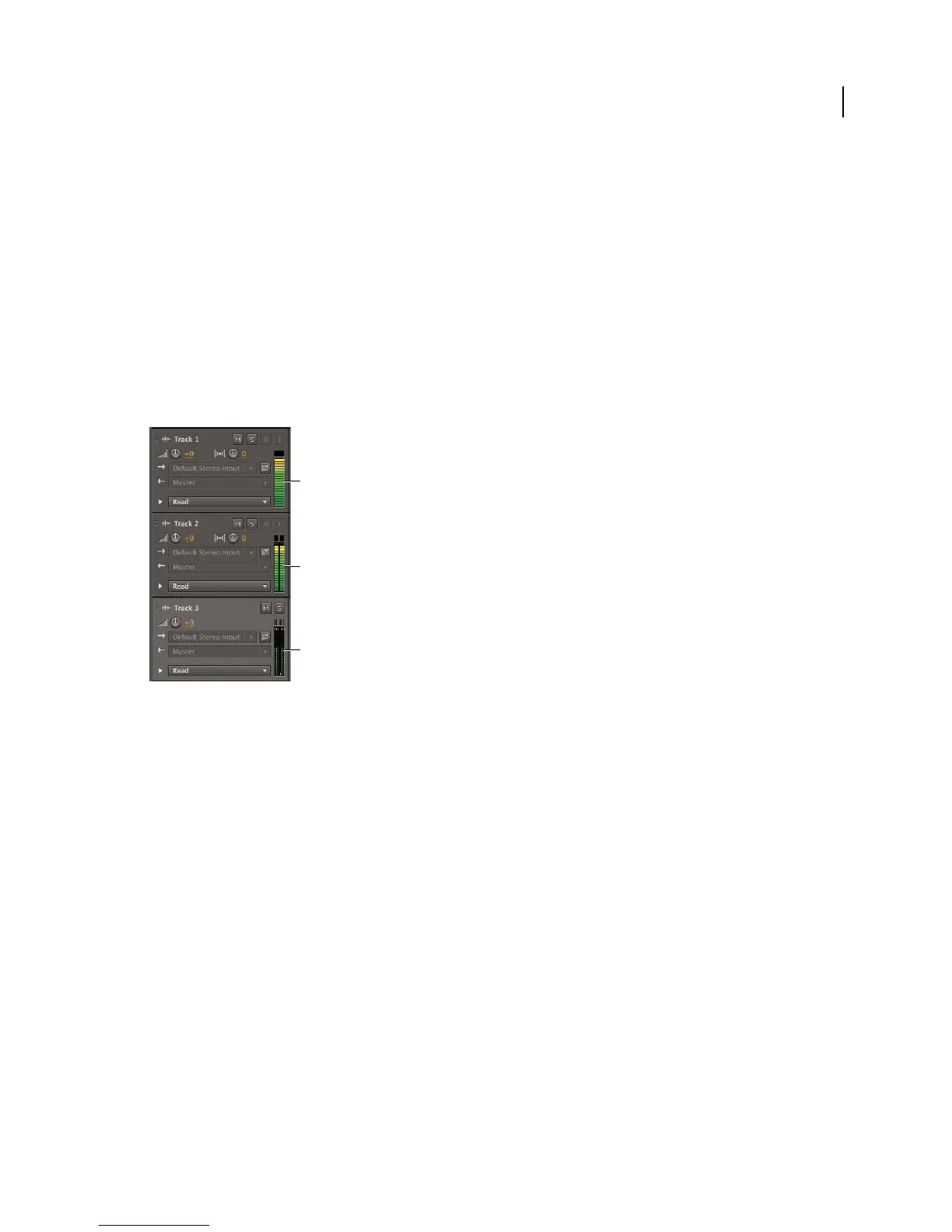
To identify track channels, note the meters in the Editor or Mixer panel:
A. Mono B. Stereo C. 5.1
Add or delete tracks
Note: A multitrack session supports only one video track, which Adobe Audition always inserts at the top of the Editor
panel.
❖ In the Editor panel or Mixer, do the following:
• To add a track, select the track you want to precede it, and then choose Multitrack > Track > Add [type of] Track.
• To delete a track, select it, and choose Multitrack > Track > Delete Selected Track.
For more information, see the following:
• “Insert an audio file into a multitrack session” on page 23
• “Insert a video file into a multitrack session” on page 130
Name or move tracks
You can name tracks to better identify them, or move them to display related tracks together.
• In the Editor panel or Mixer, type in the name text box.
A
B
C



 To Next Page