31
USING ADOBE AUDITION
Importing, recording, and playing audio
Last updated 2/16/2012
The track meters display the input, helping you optimize levels. (To disable this default and display levels only while
recording, deselect Enable Input Metering When Arming Tracks in the Multitrack preferences.)
3 To hear hardware inputs routed through any track effects and sends, click the Monitor Input button .
Note: Routing inputs through effects and sends requires significant processing. To reduce latency (an audible delay) that
disrupts timing for performers, see
“Configure audio inputs and outputs” on page 18.
4 To simultaneously record on multiple tracks, repeat steps 1-3.
5 In the Editor panel, position the current-time indicator at the desired starting point, or select a range for the
new clip.
6 At the bottom of the panel, click the Record button to start and stop recording.
More Help topics
“Monitoring recording and playback levels” on page 32
Punch into a selected range in the Multitrack Editor
If you’re dissatisfied with a time range of a recorded clip, you can select that range and punch in a new recording,
leaving the original clip intact. Though you can record into a specific range without punching in, punching in lets you
hear audio immediately before and after a range; that audio provides vital context that helps you create natural
transitions.
For particularly important or difficult sections, you can punch in multiple takes, and then select or edit takes to create
the best performance.
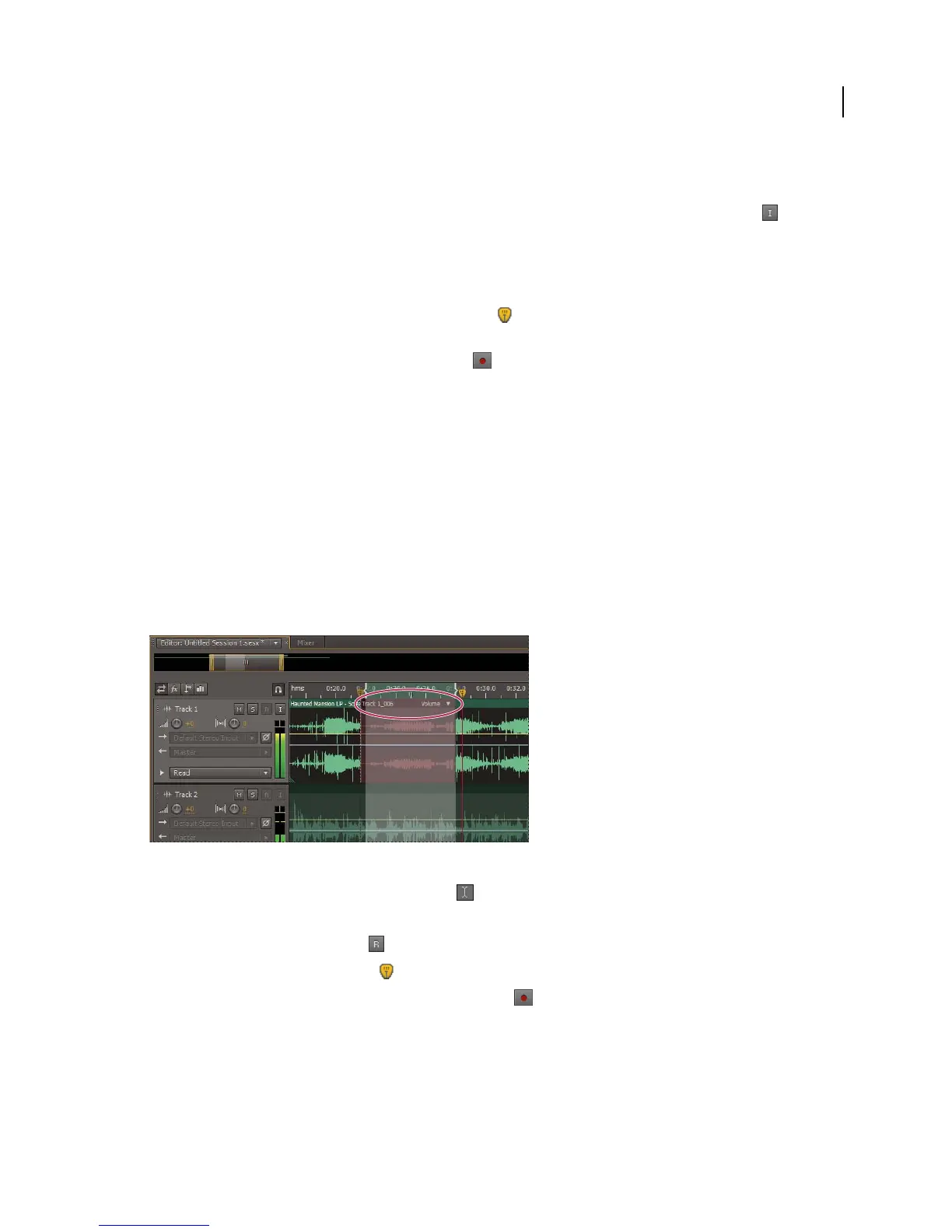
A take created by punching in
1 In the Editor panel, drag the Time Selection tool in the appropriate track to select a time range for the clip.
2 Select the correct track input. (See “Assign audio inputs and outputs to tracks” on page 112.)
3 Click the Arm For Record button for the track.
4 Position the current-time indicator a few seconds before the selected range.
5 At the bottom of the Editor panel, click the Record button .
Audition plays the audio preceding the selection, records for the duration of the selected range, and then resumes
playback.



 To Next Page