Chapter 3 ADT Pulse Enrollment
11
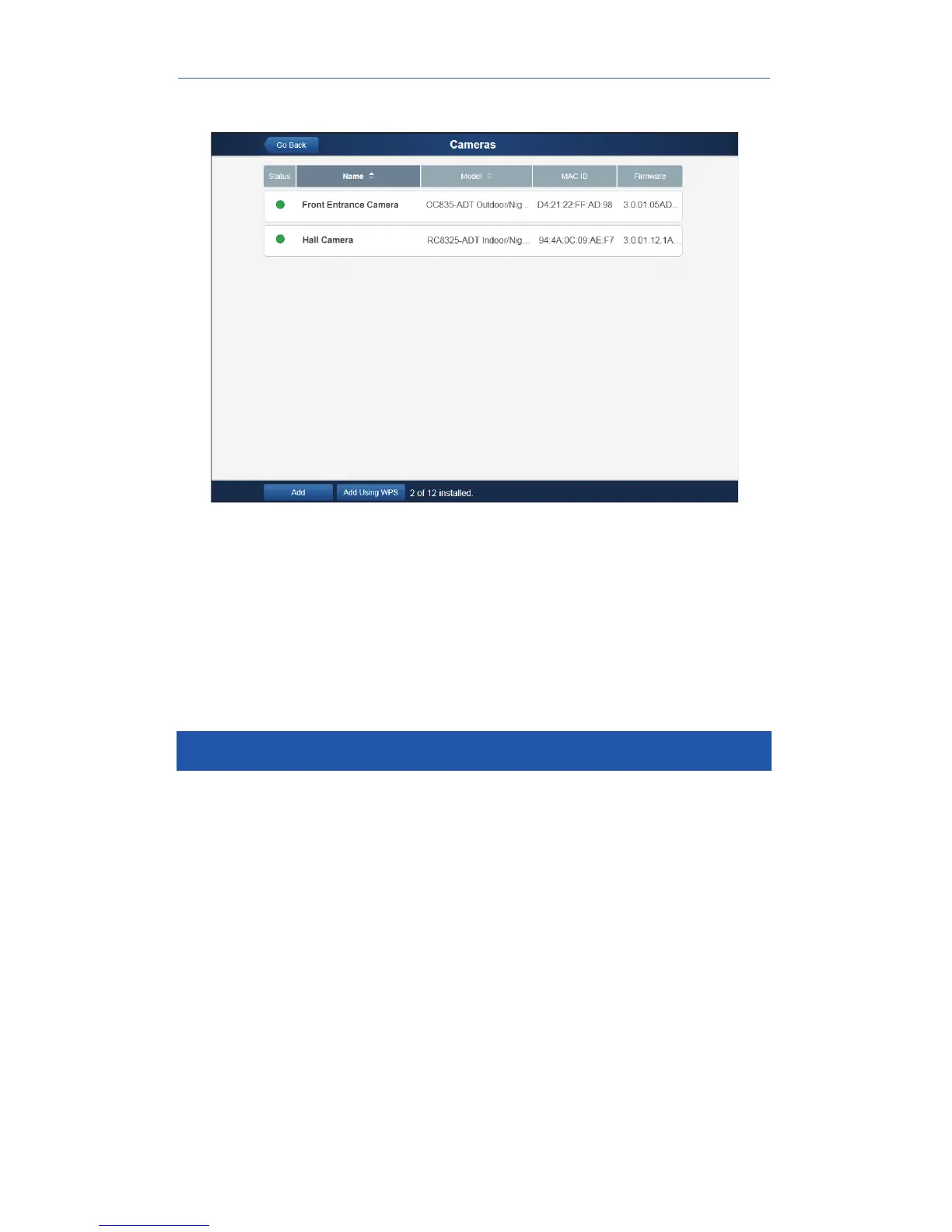
13. The Cameras screen appears, now displaying the added camera.
14. At the top left of the screen, click Go Back.
15. You are returned to the Manage Devices screen. The total number of
installed cameras has increased by one. Click Close.
16. Click Close again to confirm.
17. Disconnect the camera from the Gateway and remove from power.
18. Install the camera in its final location.
For wall mounting instructions, refer to Chapter 4.
Using WPS with PIN to Enroll the Camera
1. Set up the camera as described in Chapter 2 and temporarily locate
it near the enrollment computer and a power source.
2. Launch an Internet browser and log in to the Pulse portal or TS
installer app.
3. Enter the Manage Devices screen using one of these methods:
• For the Pulse portal, select the System tab and click
Manage Devices.
• For the TS installer app, click the Pulse Devices link.
The Manage Devices screen displays.
4. In the Manage Devices screen, click Cameras.
5. Click the Add Using WPS button, located at the bottom of the screen.


 To Next Page