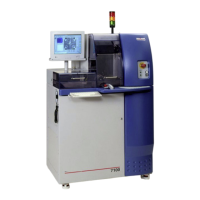
ADT 7100 User Manual Operating Procedure
to the recipe parameters, the system automatically calculates and displays the cut map
for that angle in the Main Workspace Window in the Video Workspace.
Note: For a standard GPC algorithm, the cut position can be defined as the center of a
street anywhere on the wafer. The cut map is displayed across the entire wafer.
i. Switch to the next angle by rotating the chuck counterclockwise using the Z/Theta Axis
Controls. Select then click .
j. Repeat steps b. to h. until you have aligned all of your angles.
4. The Y-offset between the camera and blade must be compensated after a blade change before
cutting can begin. This calibration is necessary to ensure that the wafer will be cut in the location
you have defined with the camera system.
a. Y-offset will automatically be initiated before cutting starts if the blade has been
changed, or you can manually initiate it by clicking Manual Y-Offset in the
toolbar. It is recommended to do the manual Y-Offset using the first angle in the recipe
(typically the angle zero).
b. While following the wizard instructions, move to an area on the wafer where you can
make a test cut. Again, make sure the cut is not close to critical features.
c. You may need to change the illumination.
d. The cut is performed, and the User is prompted to find the center of the cut.
e. Use the up and down arrows of the X/Y-Axis Controls to move the reticle to the center of
the cut. Use P (pixel move) in the X/Y-Axis Controls to enable fine alignment.
f. Click finish. The System is automatically updated. If Y-Offset was automatically initiated,
the tool would now cut the workpiece.
5. Once the wafer has been aligned, the cut map generated, and the Y-offset has been checked, you
are ready for dicing. Click the Run button or Wafer Full Cut on the toolbar.
From that point on, System operation is entirely automatic. The entire wafer will be cut as
defined in the recipe. The User only needs to intervene when changing a workpiece or replacing
the Blade.
Unloading Samples
1. If you are in Auto mode and the machine has finished cutting the workpiece, the wizard will
prompt you to remove the workpiece.
a. Follow the wizard instructions.
b. Click Finish in the wizard when prompted to do so by the System.
c. Open the Load/Unload Cover and remove the workpiece from the Cutting Chuck. Tip the
frame to the side so any residual water will not drip on the chuck.
d. You may wash or dry the wafer using the air and water tool on the left side of the saw.
Lurie Nanofabrication Facility 2-15


 To Next Page
 Loading...