3.3.7 Exit
To exit the Commission Mode and return the panel to normal operation (i.e. level 2), select the “Exit” option. The
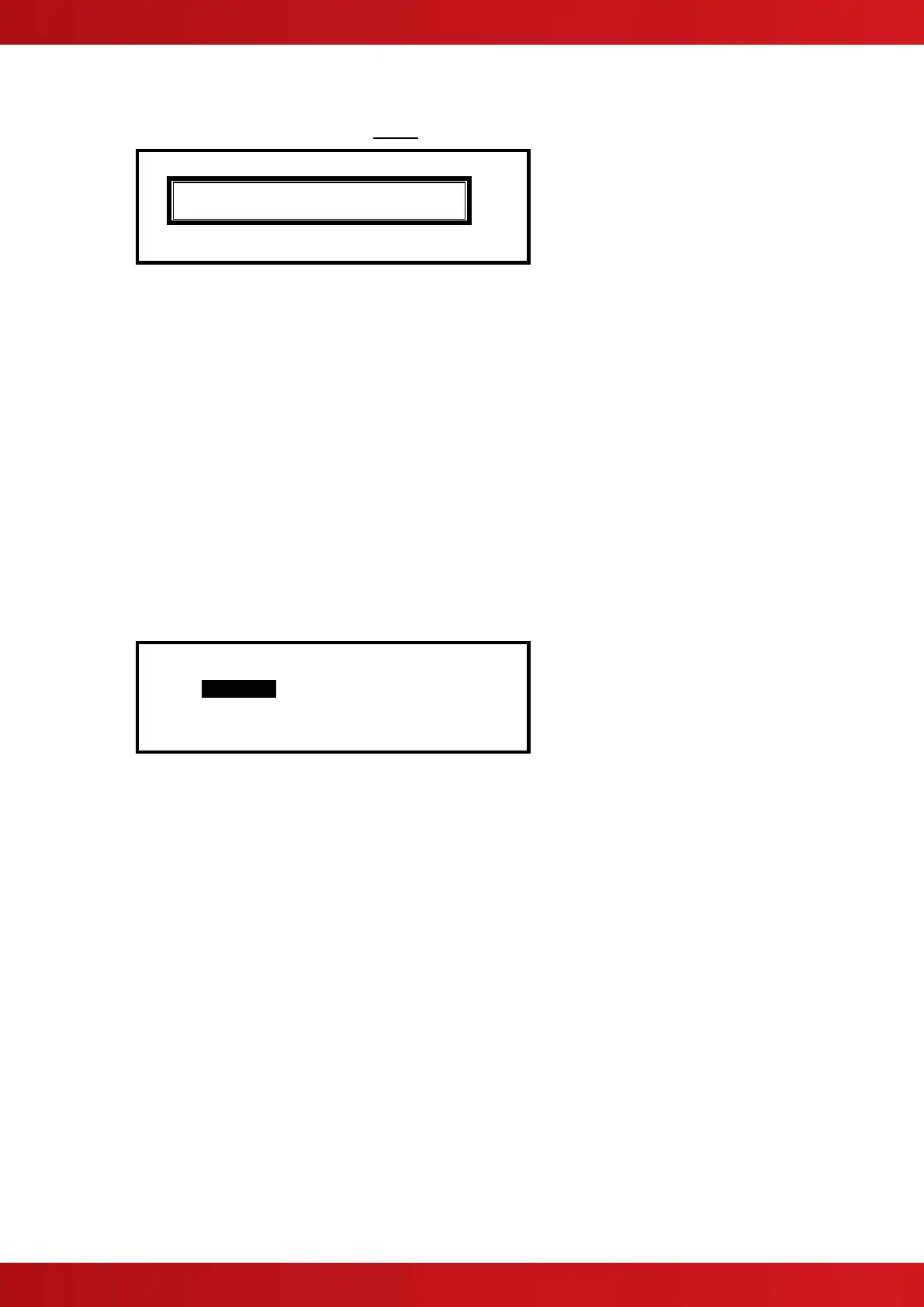
display will prompt for confirmation of the level 3 password. For example:
Please Enter Your Password
If the password is incorrect (this will be indicated) or if the password is not entered within 5-seconds, the display
will revert to the Commission Level Menu and level-2 will not be entered.
After commissioning, the panel must always be returned to level 2 (or level 1) to give normal fire coverage.
3.3.8 Outputs
The “Cause and Effect” programming is a schedule of actions that will turn on one or more outputs dependant
on a set of input events.
The Outputs Option provides the means to create simple or complex “cause and effect” programming within the
panel. Delays can be introduced to allow a phased evacuation of a building (Note this is different to an
“Investigation Delay” which is detailed in section 3.3.9).
This section describes the settings and options in detail for each parameter. Refer to Appendix 4 – Cause and
Effect Programming Example for a description of how to program a typical requirement.
More complex “Cause and Effect” programming may be undertaken using the PC Configuration tool.
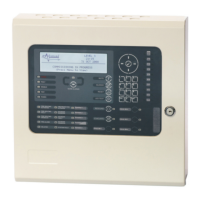
When the OUTPUTS Option is selected, the display shows the cause and effect programming for Output Group
1. For example:
[Output Group 1] [ 3.9% Mem used]
ZONE CAUSE STYLE=Delay->MODE Wait
1 ANY FIRE 00 - On
2 ANY FIRE 00 - On
3 ANY FIRE 00 - On
4 ANY FIRE 00 - On
To simplify the cause & effect programming, one or more outputs that will respond in the same way when the
same set of input events occurs can be grouped together. This association of outputs is called an Output Group.
The panel can support up to 200 of these Output Groups.
To select a different Output Group, press the button to highlight the Output Group Number field and then
enter the number of the output group required using the number buttons. The display always shows the Output
Group is shown in the top left corner.
Press the buttons to scroll through the list of zones.
Press the buttons to select the fields for a particular zone.
Press the ✔ button to select a particular field option to change its setting.



 To Next Page