You can sort the channels
by area
•
by encryption
•
by alphabet or transponder.
•
Use the navigation buttons
B
▲ or ▼ to select the option.
Press
B
► to change between the options.
Use the navigation buttons
B
▲ or ▼ to select the option.
Press “ENTER” to conrm.
B
Press “ENTER” again to start sorting. Select “Yes” in the security
B
prompt and press “ENTER“.
Repeatedly press “EXIT“ to exit the menu.
B
Channel Grouping
You can assign individual channels to dierent categories.
In the “Channel Manager” menu select the “Channel Grouping”
B
submenu.
Use the navigation buttons
B
▼ and ▲ to select the channel to be
assigned to a group.
Assign the channel to a group on the list on the right. Press the
B
corresponding numeric button. The corresponding icon is displa-
yed behind the highlighted channel.
NOTE:
The individual groups can be selected in TV mode with “ENTER” and
► and ◄.
Edit Channels
The submenu “Edit Channels“ allows you to edit the current channel or
to add a new channel to the list.
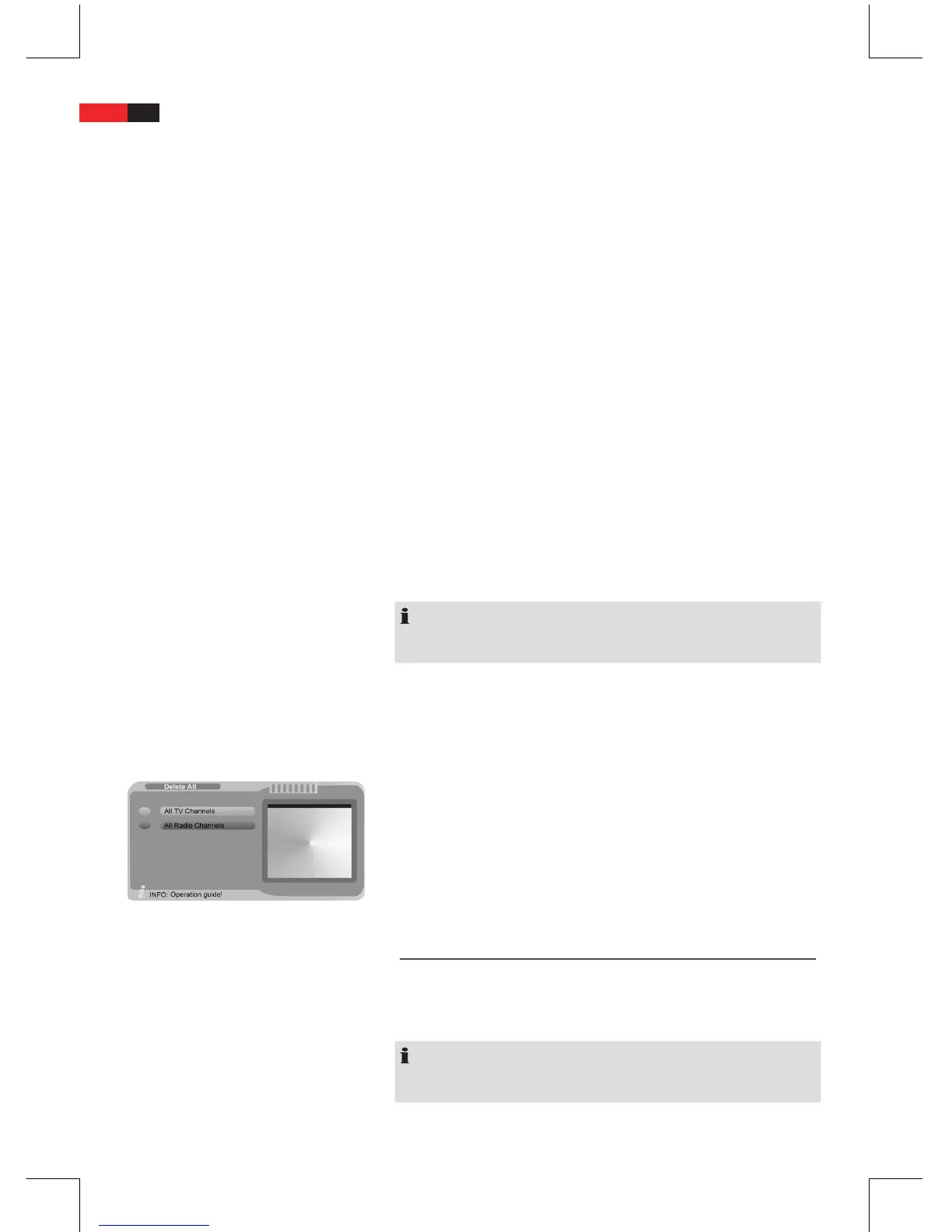
Delete All
All TV Channels / All Radio Channels
The submenu “Delete All“ allows you to delete all TV and radio chan-
nels.
Select the desired option.
B
Press the “ENTER” button. A security prompt is displayed.
B
Press
B
◄ to select “Yes“ and press “ENTER“. All saved TV or radio
channels are deleted.
Operation
Basic Operation
Toggle Between Radio and TV Modes
Press the “TV/RADIO” button to toggle between radio and TV
B
modes.
NOTE:
Radio channels are not everywhere available. Please contact your
service provider or your dealer for details.


 To Next Page