15
Saving Test Results
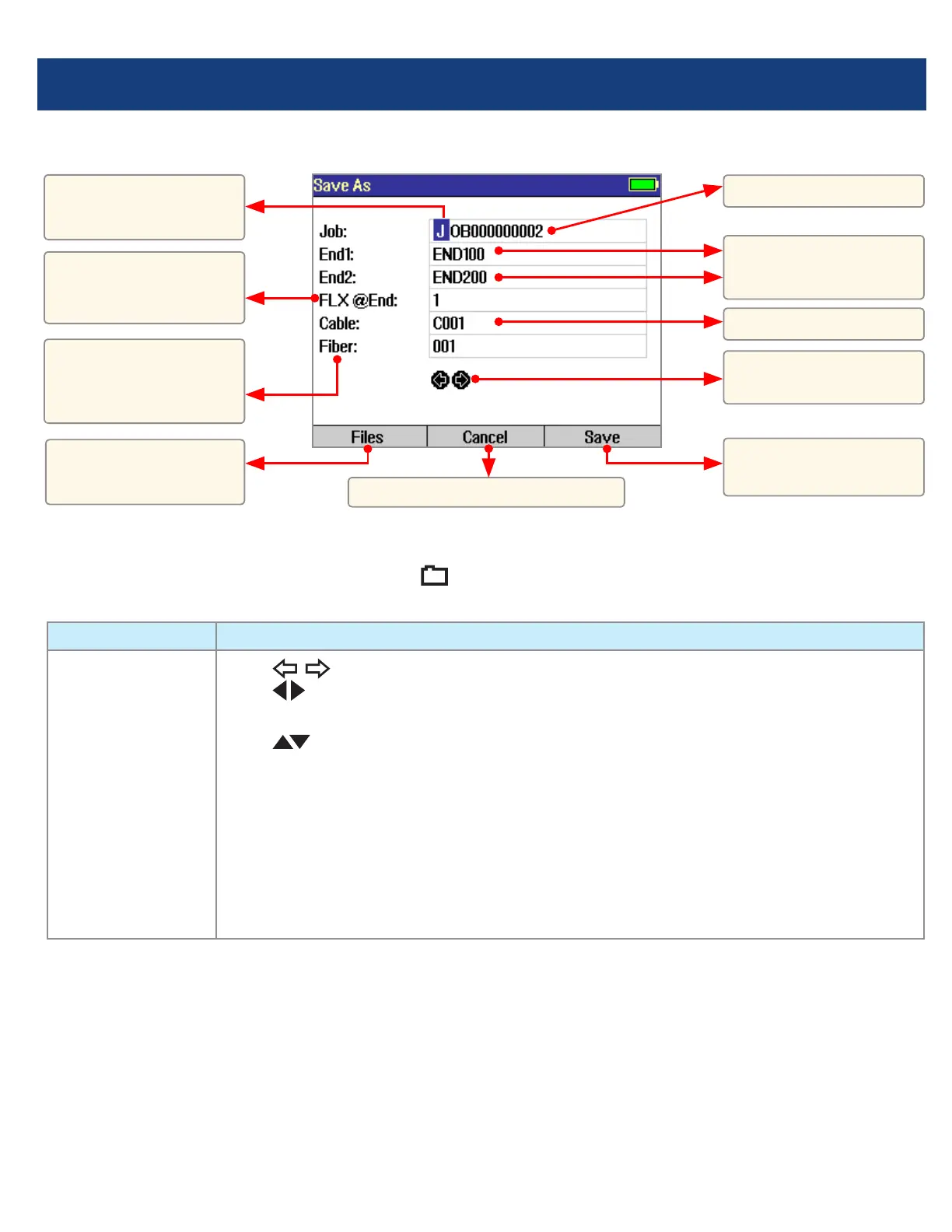
File Manager - Save As Page
Saving Results
1 Once a test is complete, press the Save key to display the [Save As] page.
2 Perform the following steps to save to an existing Job/Cable folder or save to a new folder:
EXISTING FOLDER NEW FOLDER
•Press the [Save]
soft key to save
test results with
the currently
displayed Job,
Route, Cable and
Fiber number.
•Use
keys to select the previous / next eld to edit.
•Use
keys to highlight any character position within the Job/End1/End2/Cable
name elds and Fiber number eld.
•Use
keys to change the highlighted character.
- If the Job/End1/End2/Cable name and Fiber number are edited to a name and
number that already exists in the current folder, then pressing the [Save] key will
cause the FLX380 to display “Overwrite le?”.
- If the Job/End1/End2/Cable name is edited to a new name, then pressing the
[Save] key will cause the FLX380 to create a new folder of this name.
Note: This is the only way to create new folders!
•When done, press the [Save] soft key.
Press to save test
results.
Job name.
FLX380 location:
End 1 or End 2.
Route (made up of the
two end names).
Cable name.
Previous and Next
eld.
Fiber number auto-
increments or set by
user.
Currently highlighted
character.
Press to return to Main Menu.
Press to view current
Job/Cable page.



 To Next Page