25 26
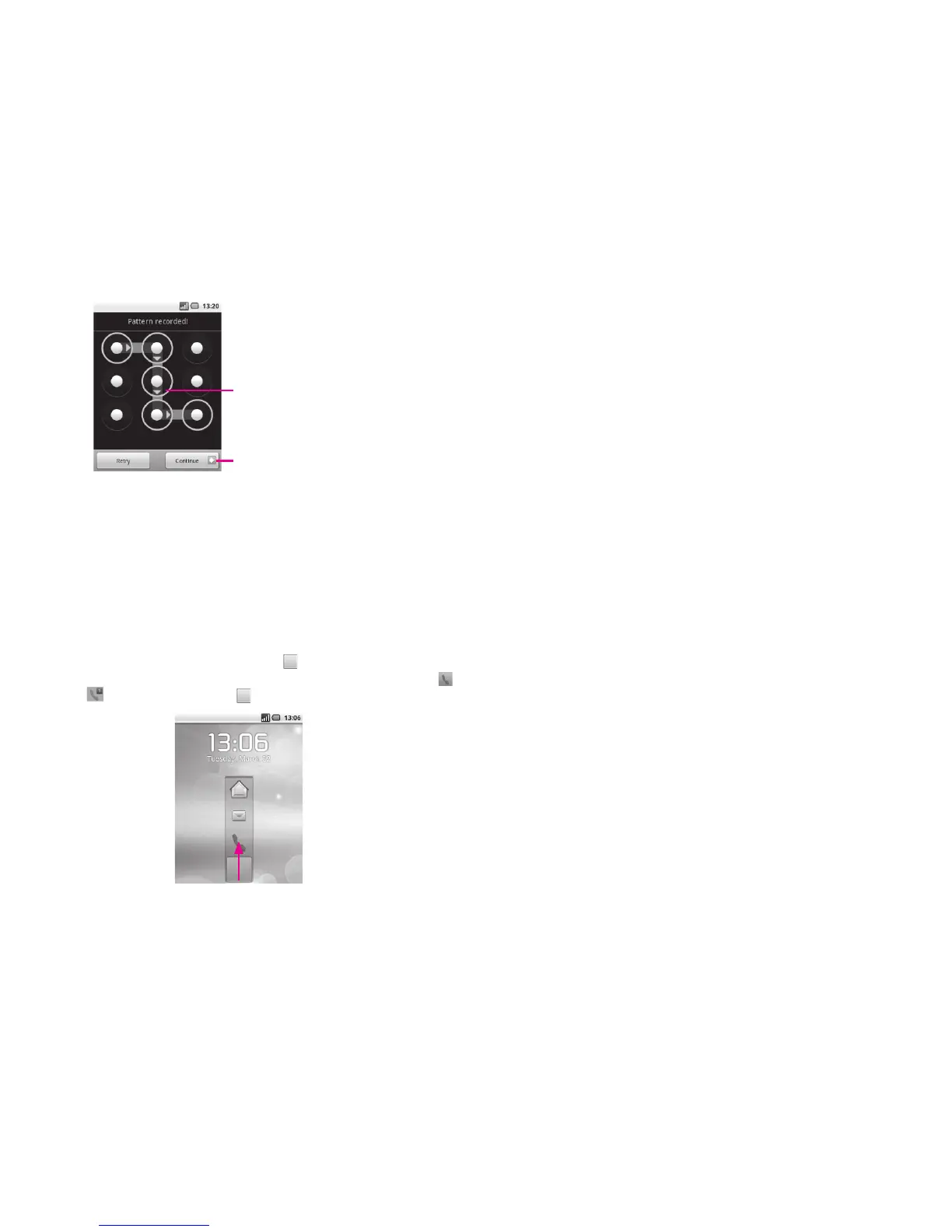
Draw your unlock pattern
Touch to confirm by drawing
pattern again
To create a screen unlock PIN/Password
Press
▪ Menu key from the home screen, touch Settings, then touch Location &
security\Set up screen lock\PIN or Password.
Set your PIN or password.
▪
To lock phone screen
Press Power key once to lock the screen.
To unlock phone screen
Draw the unlock pattern you have created or enter PIN or password to wake up the
screen. If you did not set the unlock screen, drag icon
up to Phone, Message or Home
screen, then you could enter screen above respectively. If there is a missed call, icon
will became , then you could drag icon up to enter dialer directly.
Personalize your home screen1.3.5
Add
Touch and hold an empty area or press Menu key and touch Add on the Home
screen. The Add to Home screen will appear, offering a range of options.
Shortcuts
▪ To add a shortcut to Home screen, such as
applications, bookmark, contact, etc.
Widgets
▪ To add a widget to Home screen, such as clock, music
player, etc.
Folders
▪ To add a folder to Home screen, such as new folder,
contact folder, etc.
To improve the organization of the Home screen items (shortcuts, widgets), you can
add them to a folder by touching and dragging them onto the folder of your choice.
To rename a folder, open it, touch and hold the folder’s title bar to open the Rename
folder dialog box, then enter the new folder name and confirm with OK.
Reposition
Touch and hold the item to be repositioned to activate the Move mode, drag the item
to the desired position and then release. Hold the icon on the left or right edge of the
screen to drag the item to another Home screen page.
Remove
Touch and hold the item to be removed to activate the Move mode, drag the item to
the top of the Application tab, which will then turn red, and release.



 To Next Page