99 100
Working with playlists8.4.3
Playlists allow you to conveniently organize all the songs stored in the card.
You can create a new playlist, add a song to the list, rearrange the order of the list,
and delete or rename a playlist.
To create a playlist
Press Menu key from playback screen to display the option menu, touch Add to
playlist, then touch New, enter the name and finally touch Save.
To change the order of songs in a playlist
Enter a playlist, drag a song up or down to change the order within the playlist.
To delete a song or a playlist
Locate the song or playlist you want to delete, touch and hold or press Menu key from
playback screen to display option menu, then touch Delete.
To rename a playlist
Locate the playlist you want to rename, touch and hold to display option menu, then
touch Rename. When finished, touch Save.
Google Maps9
Get My Location9.1
Choose a data source to decide My Location9.1.1
Press Menu key from Home screen, touch Settings\Location & security.
Mark the check box of
▪ Use wireless networks to set Wi-Fi and/or mobile networks
as My Location data source.
Or mark the check box of
▪ Use GPS satellites to set GPS as My Location data
source.
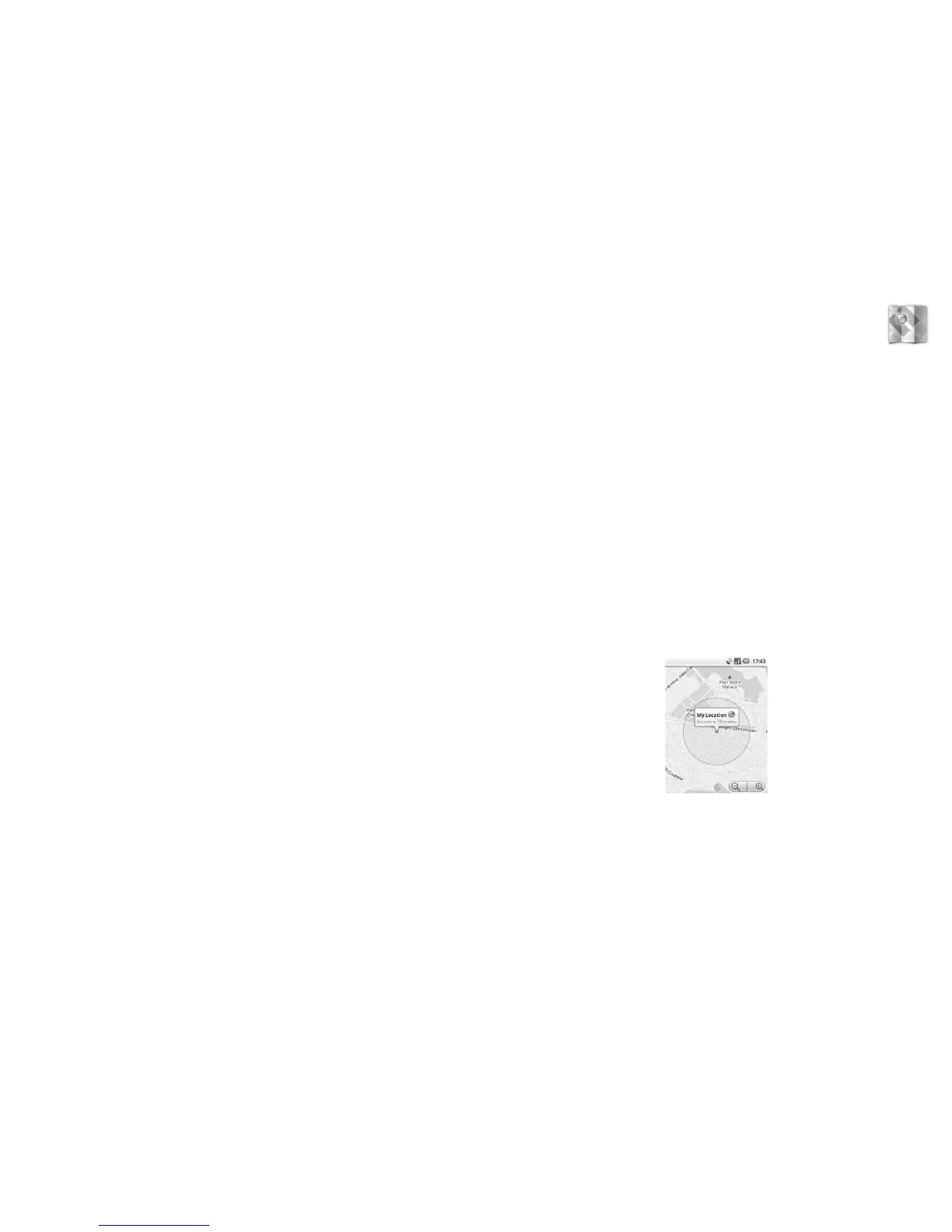
Open Google Maps and view My Location9.1.2
Touch Application tab from Home screen, then touch Maps.
Press Menu again and touch My Location.
The map will then center on a blue dot with a blue circle around. Your actual position
is within the blue circle.
To move the map, drag the map with your finger.



 To Next Page