101 102
Star a location9.3
Just like bookmarking a web address on the Internet, you can star any position on
the map for later use.
How to star (or unstar) a location9.3.1
Touch & hold a location on a map ▪
Touch the address rectangle that opens ▪
Touch the gray star at the top of the screen to star the location. (Or touch a gold ▪
star to unstar that location.)
View a list of starred items9.3.2
Press ▪ Menu key from maps screen and touch More\Starred items.
The list of your starred items and their addresses opens.
▪
Touch a location in the list to view it . ▪
Press Menu key and touch Refresh to update the list.
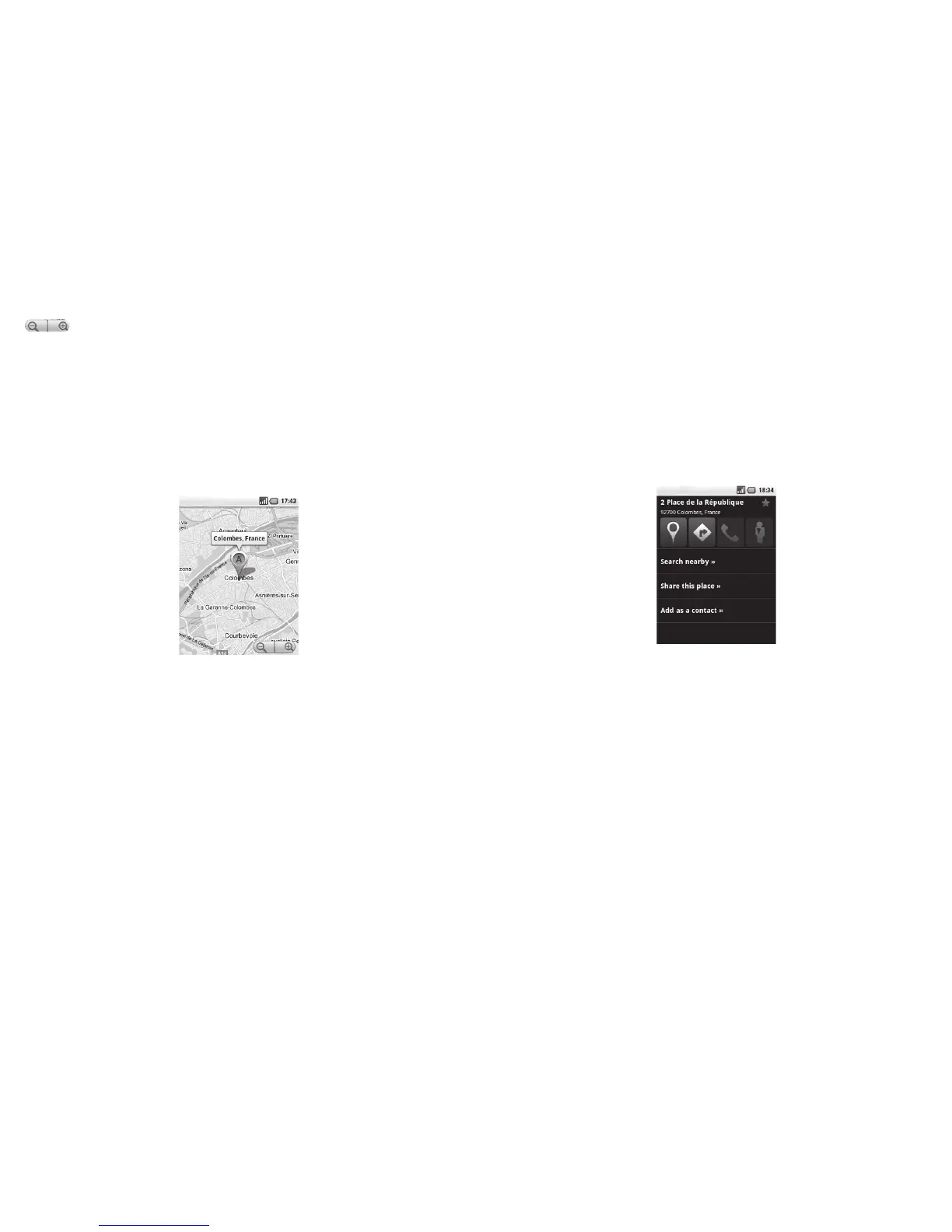
To zoom in and out of a map, touch the plus or minus side of the zoom control
, or you can also zoom in/out by double-tapping a location on screen.
To clear the map history, press Menu key and touch More\Clear Map.
Search for a location9.2
While viewing a map, press ▪ Menu key and touch Search, or you can directly press
Search key on keyboard to activate search function.
In the search box, enter an address, a city or a local business.
▪
Touch the search icon and in a while your search results will appear on the map ▪
highlighted by markers with letter labels.
You can touch a marker to open a balloon that contains a label. Touch the balloon to
open a screen with more handy information about the location.



 To Next Page