37 38
Contacts 3.3
Contacts enables quick and easy access to the people you want to reach.
You can view and create contacts on your phone and synchronize these with your
Gmail contacts or other applications on the web or on your phone.
Tip:
When using Contacts for the first time you are required to add new contacts,
import contacts from SIM card (please refer to section 3.3.5 for detailed
information), or synchronize contacts from other application accounts to your
phone.
Consult your Contacts3.3.1
To access the Contacts, touch Application tab on the Home screen, then select
Contacts.
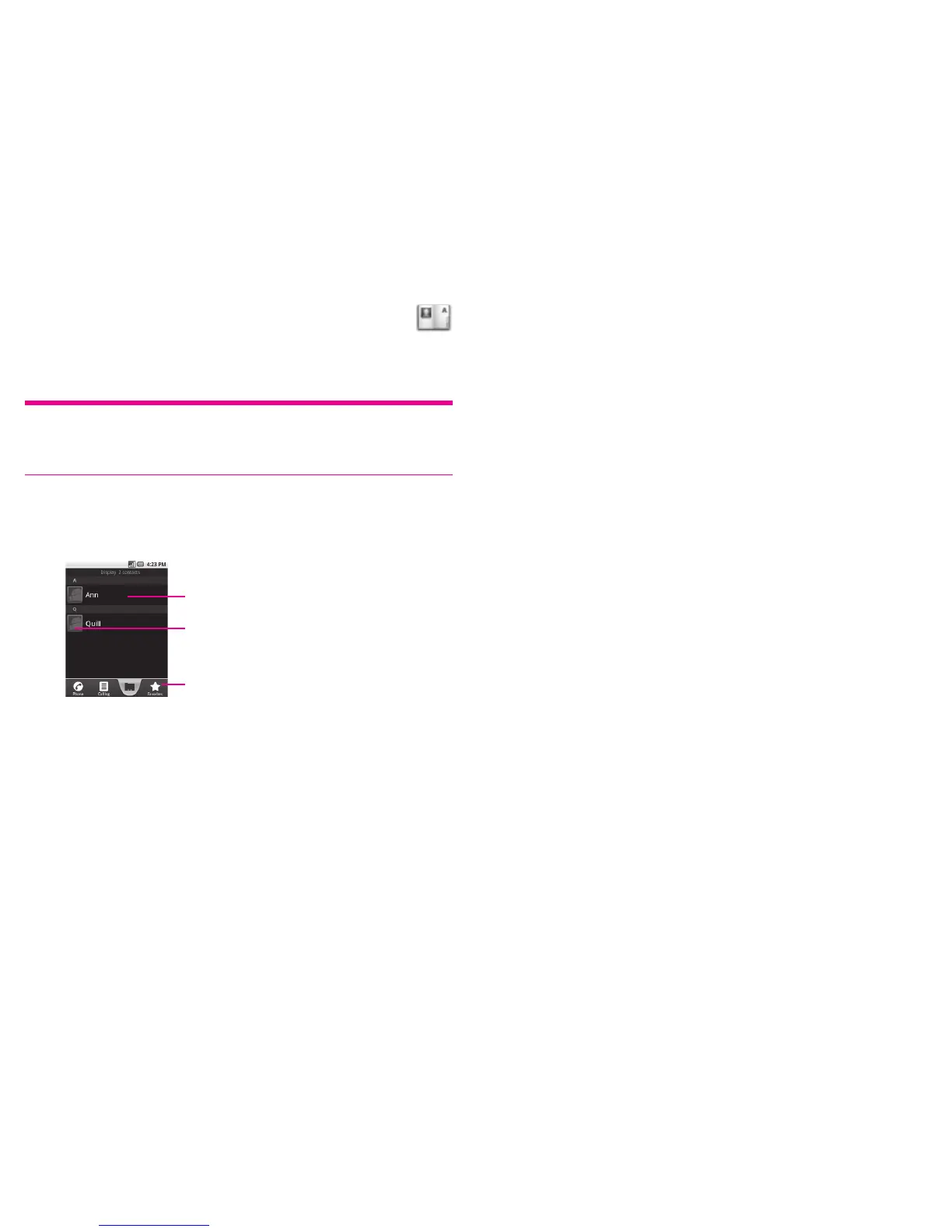
Touch to view the contact’s detailed information.
Touch icon to open Quick Contact panel.
Touch to view your favourite contacts.
Touch and hold a contact to display its option menu.
You can also press Menu key to display contacts list option menu.
Following actions are enabled:
New contact
▪ Add new contact to phone.
Display options
▪ Choose contacts to display, for example only contacts
with phones, other application contacts if any, etc.
Accounts
▪ Manage the synchronization settings for different
accounts.
Import/Export
▪ Import or export contacts between phone, SIM card,
and MicroSD card.
More\Sync
▪
contacts
Launch synchronization with the account you set.
More\Delete contacts
▪ Select and delete unwanted contacts.
SIM contacts
▪ Manage contacts stored in SIM card.



 To Next Page