EasyManua.ls Logo

Alcatel Smart Tab 7 - User Manual

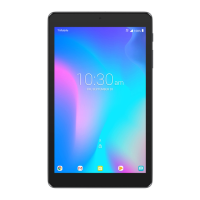
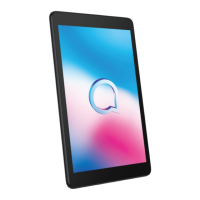
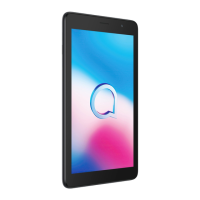
Alcatel Smart Tab 7
43 pages
Print Icon
To Next Page IconTo Next Page
Loading...

Questions and Answers

  • G
    gregorysmithAug 15, 2025
    How to fix Alcatel Smart Tab 7 that won't turn on or is frozen?
    • A
      allisonmeganAug 15, 2025
      If your Alcatel Tablet won't switch on or is frozen, charge it for at least 20 minutes to ensure it has the minimum battery power needed, and then try switching it on again. You can also try to reset it by pressing and holding the Power key. This can resolve abnormal OS booting issues caused by third-party applications. As a last resort, you can reset the tablet by pressing the Power key and the Volume up key at the same time until the screen lights up, then use the Volume keys to select 'Wipe data/Factory reset' and the Power key to confirm each selection.
  • L
    lmolinaAug 18, 2025
    What to do if my Alcatel Smart Tab 7 is not responding?
    • K
      Kelly SimmonsAug 18, 2025
      If your Alcatel Tablet has not responded for several minutes, try turning it off by pressing and holding the Power key until it shuts down, then restart it. If your tablet has a removable battery, try removing and reinserting it before restarting. If these steps don't work, you might need to reset the tablet.
  • J
    Jasmine SmithAug 22, 2025
    Why does my Alcatel Smart Tab 7 Tablet keep turning off by itself?
    • A
      anthonyfarrellAug 22, 2025
      If your Alcatel Tablet is turning off by itself, ensure the screen is locked when not in use and that the Power key isn't accidentally pressed when unlocked. Check the battery charge level and use the Alcatel charger that came with the tablet. If your tablet has a removable battery, ensure it's properly inserted and clean the battery contact if it’s dirty. If the battery has been empty for a long time, it may take about 20 minutes to show the charging indicator. Make sure charging is carried out under normal conditions (0°C (32°F) to 40°C (104°F)), and verify the voltage input is compatible. Resetting or updating the tablet may also help.
  • C
    Christie MyersAug 25, 2025
    What to do after factory reset if I can't access my Alcatel Smart Tab 7?
    • M
      Mr. Sean PatelAug 26, 2025
      After performing a factory data reset on your Alcatel Tablet, you must enter the original Google account credentials that were used on the tablet. If you don’t remember your Google account credentials, complete the Google account recovery procedures. If you still cannot access your tablet, apply to the authorized repair center, but remember that it will not be regarded as a warranty case.
  • J
    Jessica YatesAug 28, 2025
    What happens if I forget my password on Alcatel Tablet?
    • A
      Amber ThompsonAug 28, 2025
      If you forget passwords, codes, or keys on your Alcatel Tablet, perform a factory data reset. If you still cannot access your tablet, apply to the authorized repair center, but remember that it will not be regarded as a warranty case.
  • D
    David GarciaAug 31, 2025
    Why is my Alcatel Tablet battery draining so fast?
    • P
      peter56Aug 31, 2025
      If your Alcatel Tablet battery drains too fast, ensure you allow the complete charge time (minimum 150 minutes). After a partial charge, wait at least 20 minutes after removing the charger for an accurate battery level indication. Adjust the screen brightness as needed, extend the email auto-check interval, and update news/weather information manually or increase their auto-check interval. Close any background applications that are not in use.
  • S
    Stacey DaySep 4, 2025
    Why does my Alcatel Smart Tab 7 get so warm when I'm using it?
    • D
      David DiazSep 4, 2025
      If your Alcatel Tablet becomes warm after playing games, browsing the internet, or running complex apps, ending these activities will allow your tablet to return to its normal temperature.
  • M
    Matthew GlassSep 7, 2025
    Why is my Alcatel Smart Tab 7 Tablet not discoverable via Bluetooth?
    • J
      Jacqueline BurnsSep 7, 2025
      If your Alcatel Tablet can't be detected by other devices via Bluetooth, ensure that Bluetooth is turned on and that your tablet is set to be visible to other users. Also, make sure that the two devices are within Bluetooth's detection range.
  • A
    Arthur RomeroSep 10, 2025
    Why can't I use certain features on my Alcatel Smart Tab 7 Tablet?
    • K
      karen64Sep 10, 2025
      If you can't use the features described in the Alcatel Tablet manual, first check with your operator to ensure your subscription includes the service. Also, verify that the feature doesn't require an Alcatel accessory. Ensure there is enough storage space on your tablet for any downloads and select the microSD card as the storage location if necessary. Finally, check your subscription status with your operator.

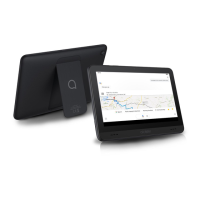
Summary

Safety and Use

Licences

General Information

Your Mobile

Keys and Connectors

Details the physical buttons, ports, and their functions on the tablet, illustrated with diagrams.

Getting Started

Guides users on initial setup, including inserting microSD cards and powering on.

Home Screen

Explains navigation, status bar, search bar, and favourite applications on the main screen.

Text Input

Using the Onscreen Keyboard

Explains how to set up and adjust the onscreen keyboard orientation.

Text Editing

Covers editing entered text, including cut, copy, and paste functionality.

Daily Board

How to Launch Daily Board

Details the steps to open and use the Daily Board feature on the tablet.

What Daily Board Shows

Lists the information displayed on the Daily Board, such as time, news, and battery status.

Daily Board Settings

Explains how to adjust settings for the Daily Board, including photo frames and quitting the feature.

Contacts

Consult Your Contacts

Guides on viewing, searching, and adding contacts from the App drawer.

Calendar, Clock, and Calculator

Calendar

Covers viewing, creating, and managing calendar events and their settings.

Clock

Explains how to view the clock, set alarms, timers, and use the stopwatch.

Calculator

Details how to use the built-in calculator application for basic arithmetic.

Getting Connected

Wi-Fi

Guides on connecting to Wi-Fi networks, adding new ones, and forgetting existing ones.

Connecting to a Bluetooth Device

Explains how to turn on Bluetooth, rename devices, pair, and disconnect Bluetooth devices.

Connecting to a Computer via USB

Details how to connect the tablet to a computer using a USB cable for file transfer.

Connecting to Virtual Private Networks

Explains how to add and connect to Virtual Private Networks (VPNs).

Multimedia Applications

Camera

Covers taking photos and videos, switching cameras, and viewing media.

Others

Support Centre

Introduces the Support Centre for FAQs, instructions, and feedback.

Other Applications

Refers to preinstalled third-party apps and how to download more via Google Play Store.

Google Applications

Chrome

Describes Chrome as a web browser for internet surfing and syncing.

Gmail

Explains Gmail as a web-based email service for sending, receiving, and managing emails.

Maps

Details Google Maps for navigation, location search, and route planning.

YouTube

Describes YouTube as a video-sharing platform for viewing and sharing videos.

Play Store

Explains the Play Store as the official app store for downloading applications and games.

Drive

Covers Drive as a file storage and synchronization service for storing and sharing files.

Play Music

Describes Play Music as a music streaming service and locker for listening to songs.

Duo

Introduces Duo as a video chat app for making video calls.

Photos

Explains Google Photos for storing, backing up, and organizing photos and videos.

Settings

Network & Internet

Covers Wi-Fi, Airplane mode, and VPN settings for connectivity.

Connected Devices

Explains how Bluetooth connects the tablet to other devices for data exchange.

Apps & Notifications

Details viewing app details, managing data usage, and granting permissions.

Battery

Guides on viewing battery consumption and management settings.

Display

Covers adjusting screen brightness, wallpaper, sleep time, and auto-rotate.

Sound

Explains how to adjust notification ringtones, music, and audio settings.

Storage

Guides on monitoring tablet storage and available space.

Security & Location

Covers device security features like screen lock, smart lock, and privacy settings.

Accounts

Covers adding, removing, and managing email and other accounts for synchronization.

Accessibility

Explains configuring accessibility plug-ins for enhanced user experience.

Digital Wellbeing

Helps monitor screen time and manage notifications to reduce interruptions.

Google

Guides on configuring Google account and services settings.

System

Covers system-related settings like languages, input, date, and time.

Making the Most of Your Tablet

Updates

Guides on updating the tablet's software via the Updates app.

Warranty

Troubleshooting

Alcatel Smart Tab 7 Specifications

General IconGeneral
Device typeMobile tablet
Form factorSlate
Product colorBlack
Display diagonal7 \
Touchscreen typeCapacitive
Display resolution600 x 1024 pixels
AccelerometerYes
Position location-
Assisted GPS (A-GPS)No
Processor cores4
Processor familyARM
Processor frequency1.3 GHz
Processor manufacturerMediaTek
Graphics cardPowerVR GE8300
Internal memory1.5 GB
User memory12 GB
Compatible memory cardsMicroSD (TransFlash)
Maximum memory card size128 GB
Internal storage capacity16 GB
Operating system installedAndroid 9.0
Rear camera typeSingle camera
Video capturing speed30 fps
Rear camera resolution (numeric)2 MP
Second rear camera aperture number2.4
Standby time400 h
Battery capacity2580 mAh
Wi-Fi standards802.11b, 802.11g, Wi-Fi 4 (802.11n)
Bluetooth version4.2
Top Wi-Fi standardWi-Fi 4 (802.11n)
Headphone connectivityMicro-USB
Weight and Dimensions IconWeight and Dimensions
Depth11.9 mm
Width176 mm
Height126.1 mm
Weight268 g

Related product manuals