27 28
1.2.3 Powering off your tablet
Press and hold the Power key until options appear, then
select Power off.
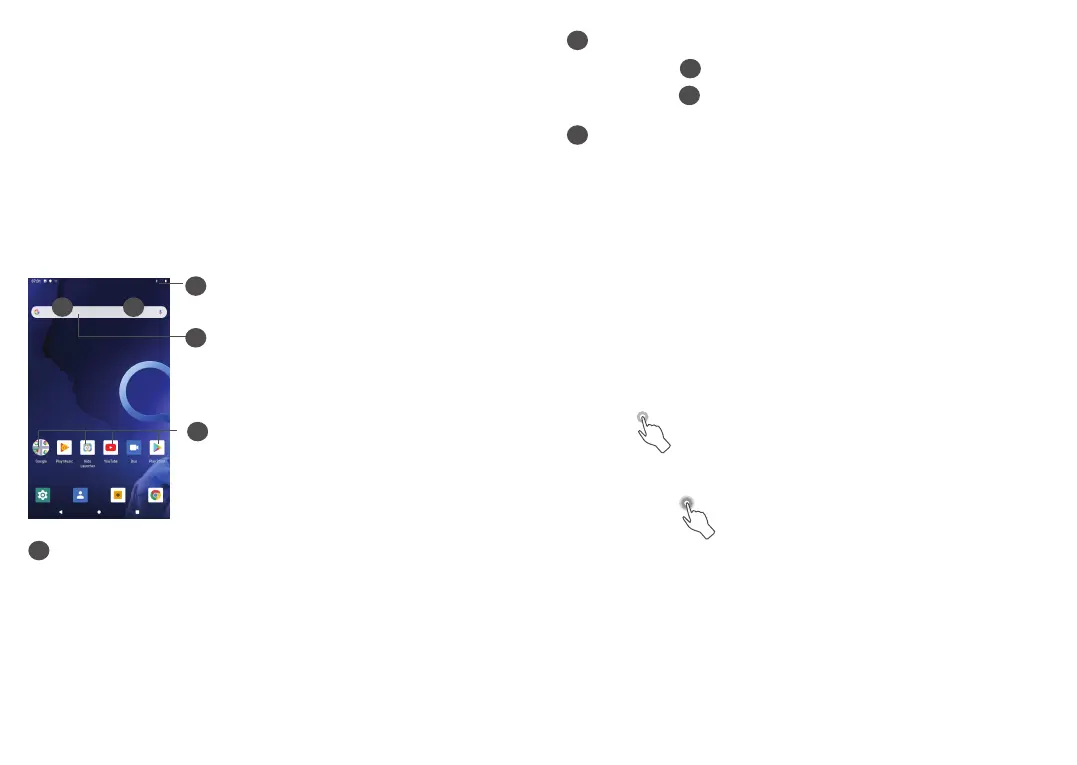
1.3 Home screen
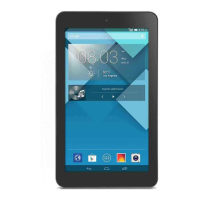
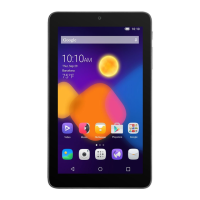
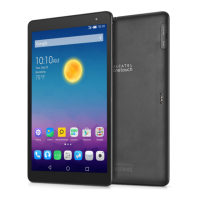
You can bring all the items (applications, shortcuts,
folders and widgets) you love or use most frequently
to your Home screen for quick access. Touch the Home
button to switch to the Home screen.
3
1
2
4
5
3
Status bar
• Status/Notification indicators
• Touch and drag down to open the Notification
panel.
4
Google Search bar
• Touch
1
to enter text search screen
• Touch
2
to enter voice search screen
5
Favourite tray applications
• Enter the application.
• Long press to move or remove applications.
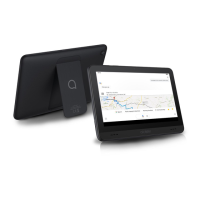
Reversible screen
The tablet supports the reversible function. From the
Home screen, slide up to open the App drawer, then
touch Settings > Display > Advanced > Auto-rotate
screen, switch the toggle to turn on/off.
1.3.1 Using the touchscreen
Touch
To access an application, touch it with your finger.
Long press
To enter the available options for an item, long press
the item. For example, select a contact in Contacts, long
press this contact, an option list will appear.


 To Next Page