29 30
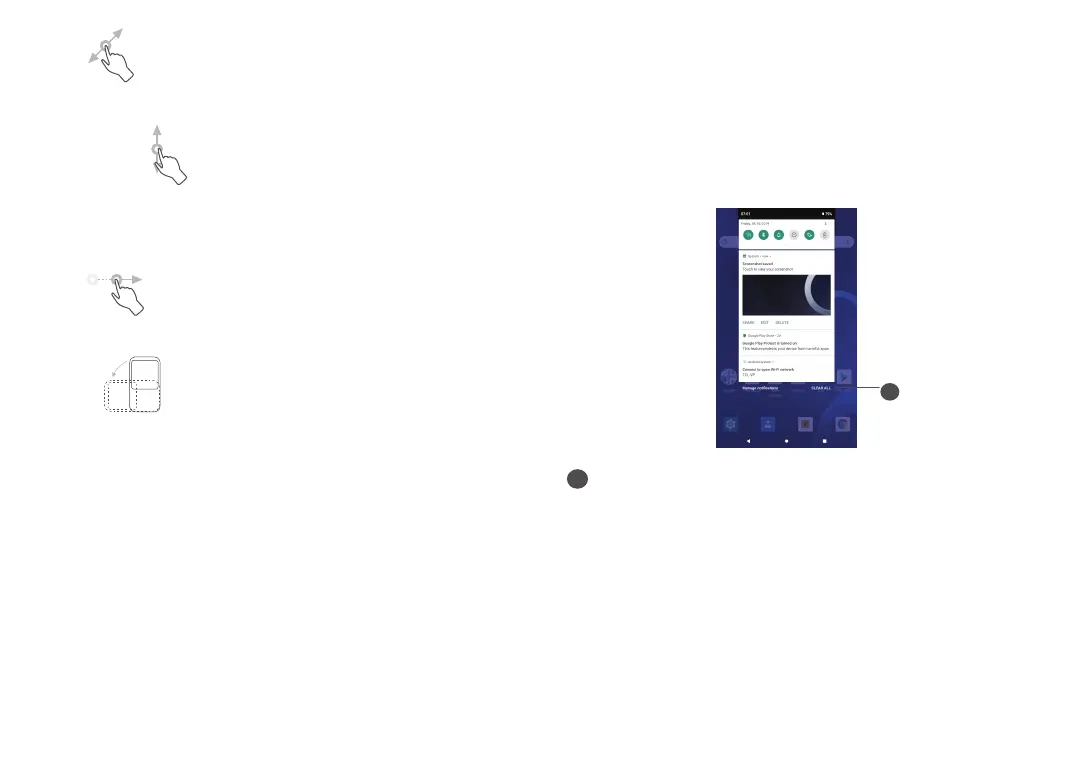
Drag
Long press an item and drag it to another location.
Slide/Swipe
Slide the screen to scroll up and down the applications,
images, and web pages. You can slide the screen
horizontally too.
Flick
Similar to swiping, flicking is a lighter and quicker stroke.
Rotate
Automatically change the screen orientation from
portrait to landscape by turning the tablet sideways to
have a better screen view.
1.3.2 Status bar
From the Status bar, you can view both tablet status
(on the right side) and notification information (on the
left side).
Drag down the status bar to view notifications and drag
again to enter the Quick settings panel.
Drag up to close it. When there are notifications, you
can touch them to access notifications.
Notification panel
When there are notifications, touch and drag down the
Status bar to open the Notification panel to read more
detailed information.
1
1
Clear all notifications (ongoing notifications will
remain)
Quick Settings panel
Drag down notification panel to open the Quick
Settings panel. You can enable or disable functions or
change modes by touching the icons.


 To Next Page