31 32
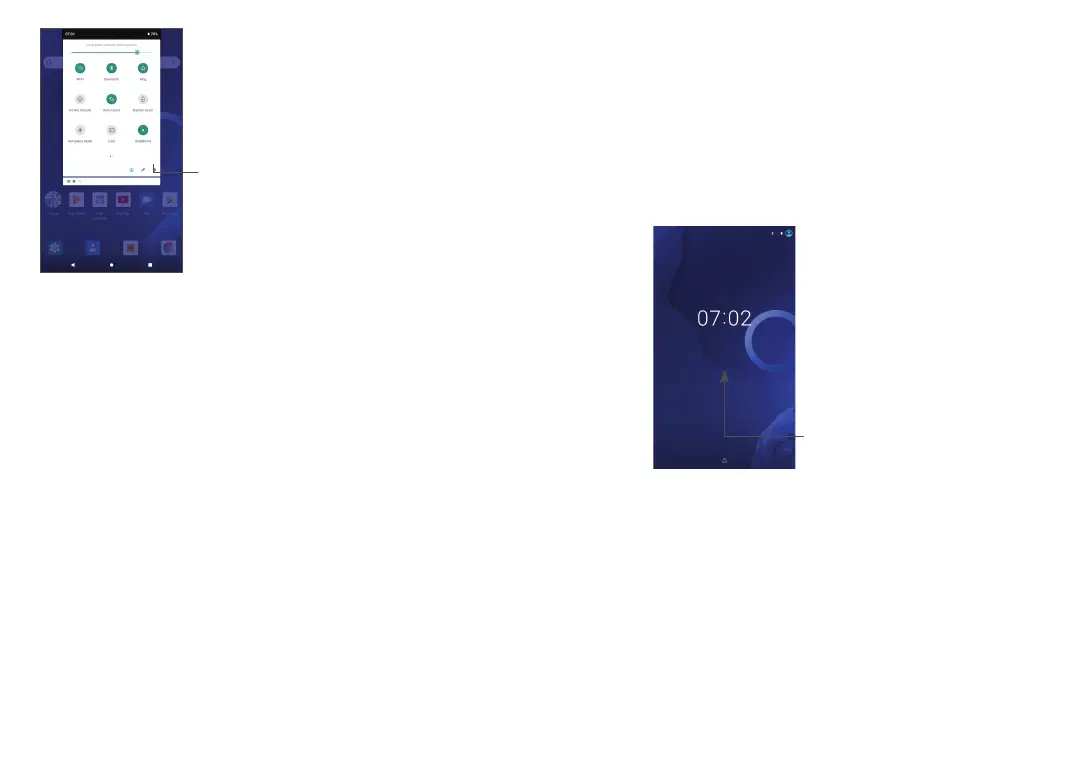
Open Settings, to view the full list
of settings.
1.3.3 Locking and unlocking your screen
To protect your tablet and privacy, you can lock the
tablet with a pattern, PIN or password, etc.
To create a screen unlock pattern
• From the Home screen, slide up to open the App
drawer, then touch Settings > Security & location >
Screen lock.
• Draw your own pattern.
To lock tablet screen
Press the Power key once to lock the screen.
To unlock the tablet screen
Press the Power key once to light up the screen, slide to
draw the unlock pattern you have created or enter your
PIN or password, etc.
If you have chosen Swipe as the screen lock, you can
press the Power key to light up the screen, then swipe
up to unlock the screen.
Swipe up to
unlock the screen
1.3.4 Personalising your Home screen
Reposition
Long press an item and drag it to the desired position
and then release. You can move items both on the
Home screen and the Favourite tray. Hold the icon on
the left or right edge of the screen to drag the item to
another Home screen.


 To Next Page