33 34
Remove
Long press an item and drag it up to the top of the
Remove icon, then release.
Create folders
To improve the organisation of shortcuts or applications
on the Home screen and the Favourite tray, you can
add them to a folder by stacking one item on top of
another. To rename a folder, open it and touch the
folder’s title bar to input the new name.
Wallpaper customisation
Long press an empty area on the Home screen, then
touch Wallpapers to customise wallpaper.
1.3.5 Widgets and recently used applications
Consult widgets
Long press the empty area on the Home screen, then
touch Widgets to display all widgets.
Touch the selected widget and slide it to move to your
preferred screen.
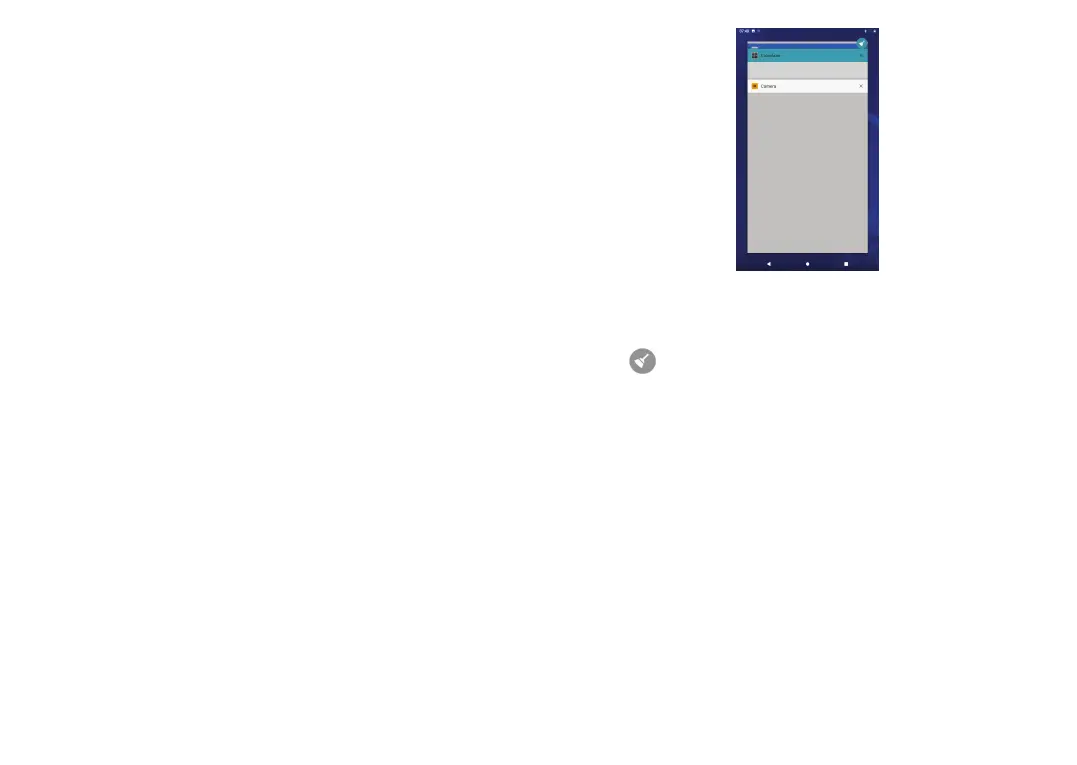
Consult recently used applications
To consult recently used applications, touch the Recent
Apps button. Touch a thumbnail in the window to open
the application.
Touch one thumbnail and slide it right/left or touch X to
close an application.
Touch
at the top of the screen to close all the
running applications.
1.3.6 Volume adjustment
Using the volume key
Press the Volume key to adjust the volume.
Using the settings menu
From the Home screen, touch Settings > Sound to set
the volume for media, alarm, notification etc.


 To Next Page