41 42
Deleted contacts will also be removed from other
applications on the tablet or web the next time
you synchronise your tablet.
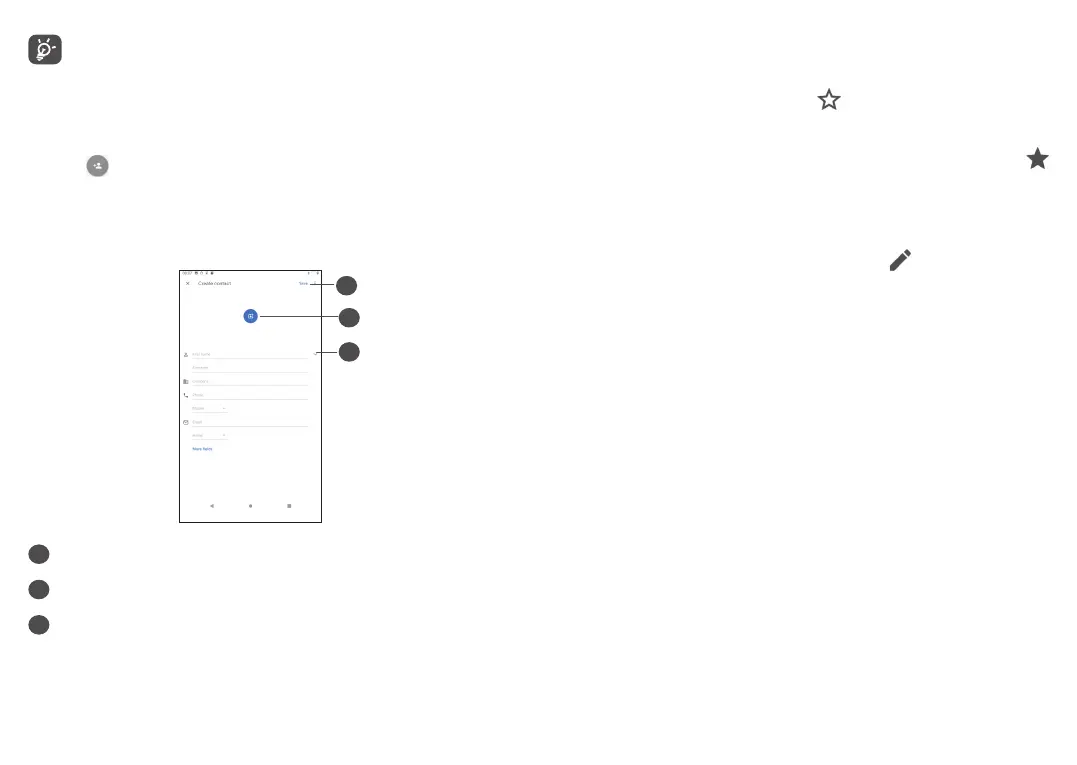
4.3.2 Adding a contact
Touch in the contact list to create a new contact.
You are required to enter the contact's name and other
contact information. By scrolling up and down the
screen, you can move from one field to another.
1
2
3
1
When finished, touch this icon to save
2
Touch to open available labels
3
Select a picture or take a photo for the contact
Add to/Remove from Favourites
(1)
To add a contact to favourites, you can touch a contact
to view details then touch
to add the contact to
favourites.
To remove a contact from favourites, touch the star
on the contact details screen.
4.3.3 Editing your contacts
To edit contact information, touch in the contact
details screen.
When finished, touch Save to save.
4.3.4 Use Quick contact for Android
Touch a contact to open Quick contact for Android.
(1)
Only contacts and account contacts can be added to
Favourites.


 To Next Page