15
T
o adjust the pad settings:
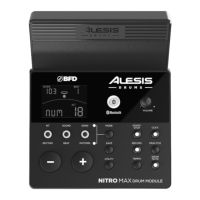
1. Make sure the module is in Normal mode (top Mode LED is lit).
2. Hit the pad whose settings you want to adjust.
3. Press the V
oice button.
4. Press –
/ + buttons to change a sound.
5. Press the V
oice button again to view and edit these settings on the display:
• N
UM / H-C**: Pad voice (drum, cymbal, or percussion sound)
• V
OL: Pad volume
• P
AN: Pad panning
• P
IT: Pad pitch
• R
EV: Pad reverb
• M
ID: MIDI note. See the (5.0) Appendix for a list of the default MIDI note
numbers for each pad.
• P
-S: Pad song switch (selects whether or not a song will play when that pad
is struck)
• P
-N***: Pad song number (selects which song will play when that pad is
struck, if P-S is set to O
N)
6. Use the –
and + buttons to adjust the value.
** If the selected pad is the Hi-Hat, you can choose one of the combinations of open and closed
hi-hat sounds (H-C, 001-007).
*** Songs 61 - 80 are pitched, nondrum samples (e.g., bass, piano, vibraphone, etc.) rather than
actual songs, so they're ideal for assigning to a pad, when selecting the "pad song number."
Songs 66 - 80 will change pitch with each hit. Songs 1 - 60 are actual songs.
T
o save your settings:
1. Press S
ave.
2. Use the –
and + buttons to select the User Kit slot you want to save it to (33 -
48).
3. Press S
ave again.
T
o cancel a change before saving, press Kit, Voice, or Song.


 To Next Page