17
Sound Menu
The Sound Menu is where you can select and import WAV files
and assign them to each layer (Wave A or Wave B) for each
pad, trigger or footswitch, edit the settings for the WAV files
and edit the waveform itself.
At any time, press the F1–Wave button to switch between
editing Wave A and Wave B.
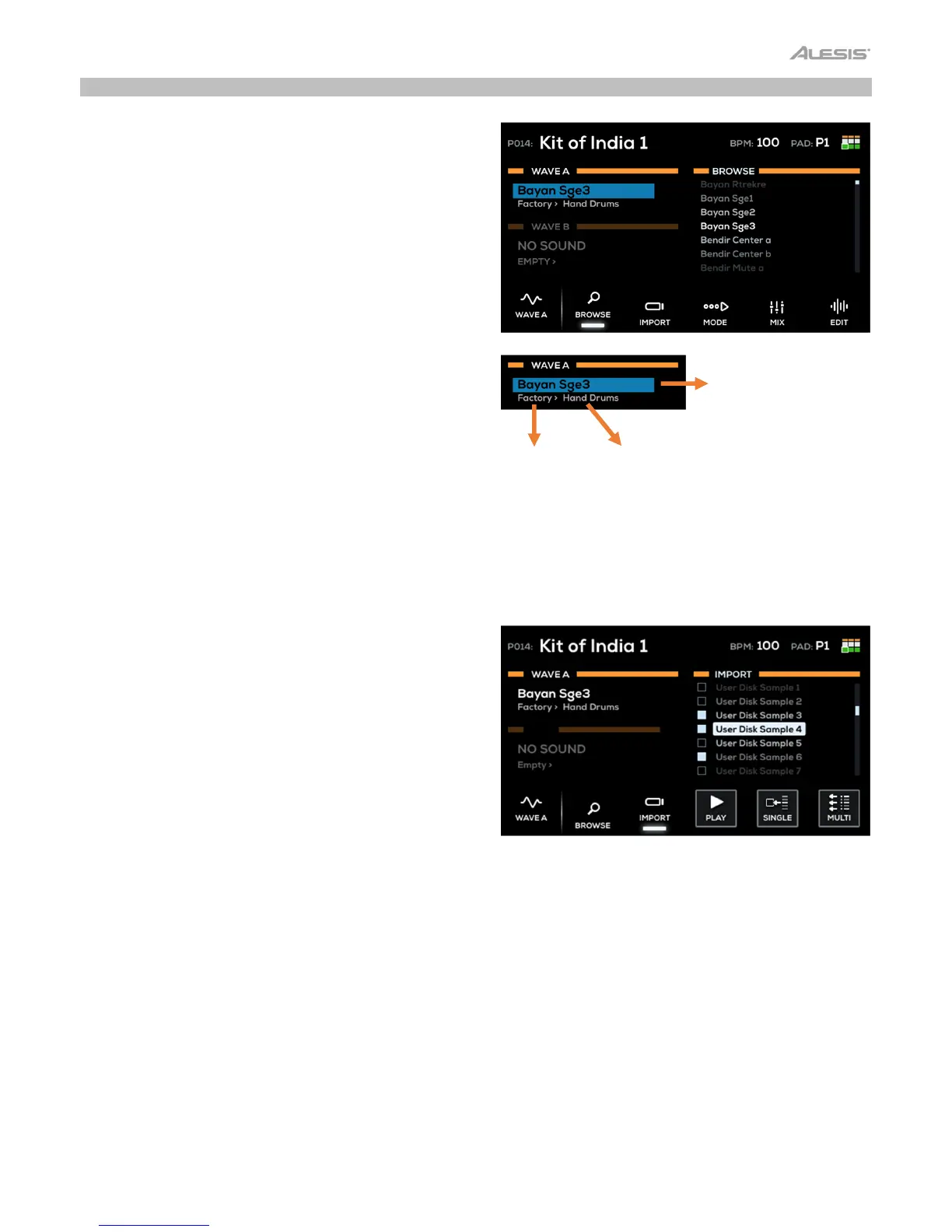
Browse
Press the F2–Browse button to open the Browse menu, where
you can search through the included Factory sounds, as well
as sounds you create or import.
The left side of this menu shows the two editable Waves. Each
Wave section contains fields for Sample Name, followed by
Library > Category. Use the Main Encoder to select the field
you would like to edit, then press it to select. Turn the Main
Encoder to browse the sounds, libraries or categories, and
press it to select.
The right side of this menu shows the list of sounds to browse.
Import
Press the F3–Import button to import WAV files from a USB
flash drive (mass storage class, FAT32 formatted) connected to
Strike Multipad. Use the Main Encoder to scroll through
samples from your USB drive on the right side of the display,
and press it to select the sample. When selected, the box to
the left of the sample name will be filled in.
• Press the F2–Browse button to exit the Import menu and
return to Browse.
• Press F4–Play to preview the highlighted sample. To stop
the preview, press F4–Stop during playback.
• Press F5–Single to load a single selected sample. This will
load the selected sample directly to the currently selected
pad, trigger or footswitch.
• Press F6–Multi to load multiple selected samples. All
selected samples will be placed into the User>New
Sample category.
Sample Name
Library
Category


 To Next Page