Chapter 3 – Description of Controls
28 Wedge Reference Manual
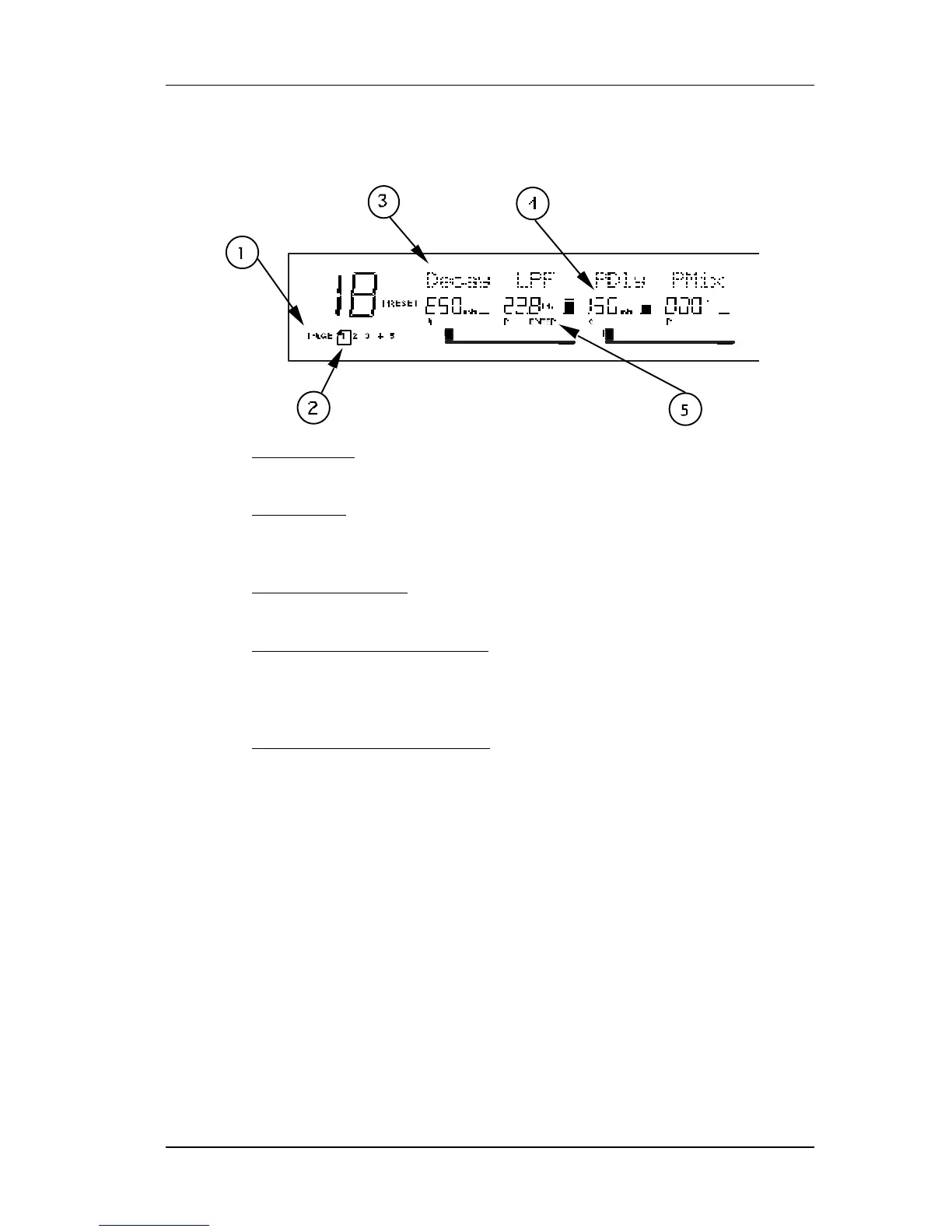
When editing a Program, the display changes slightly to indicate additional
information. Once in Edit mode, the display will look something like this:
Ê Page Numbers. Depending on the Configuration, there will be up to six pages
available in Edit mode. In this example, only five pages are available.
Ë Selected Page. The currently selected page will be indicated by a box around its
number. In this example, page 1 is currently selected. Each time you press the
[EDIT/PAGE] button, the display will advance to the next page.
Ì Parameter Name Strip. Each page in Edit mode contains up to four parameters.
whose names will appear at the top of the display, above their value settings.
Í Parameter Values and Bar Graphs. Each parameter in the selected page is
shown with both a numerical value and a bargraph. As you adjust a parameter,
both its numerical value and bargraph will change in relation to the Value
Slider’s position. The type of units will be shown as well (dB, mSec, kHz, etc.).
Î A, B, C, D and EDITED Indicators. Each parameter in the selected page is
designated by a letter (A, B, C or D), which indicates which slider ([A], [B], [C]
or [D]) should be moved to edit the desired parameter. Once a parameter has
been edited, the word “EDITED” will appear below it.
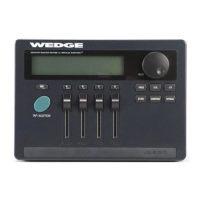
VALUE Knob
The [VALUE] knob may be used to raise or lower the selected value in the display by
turning either clockwise or counterclockwise. If the [PROG] button is lit, turning the
[VALUE] knob lets you scroll through the internal Programs. When an effect
parameter is selected (flashing in the display), turning the [VALUE] knob will alter
its value. Using the [VALUE] knob instead of the sliders can be useful if you’re
trying to enter a specific value.
EDIT/PAGE Button
The [EDIT/PAGE] button is used in Program mode to advance through the available
Edit pages. When [EDIT/PAGE] is pressed in Program mode, the Program’s
parameters will be displayed for editing. The total number of pages will appear in


 To Next Page