12 | About your monitor
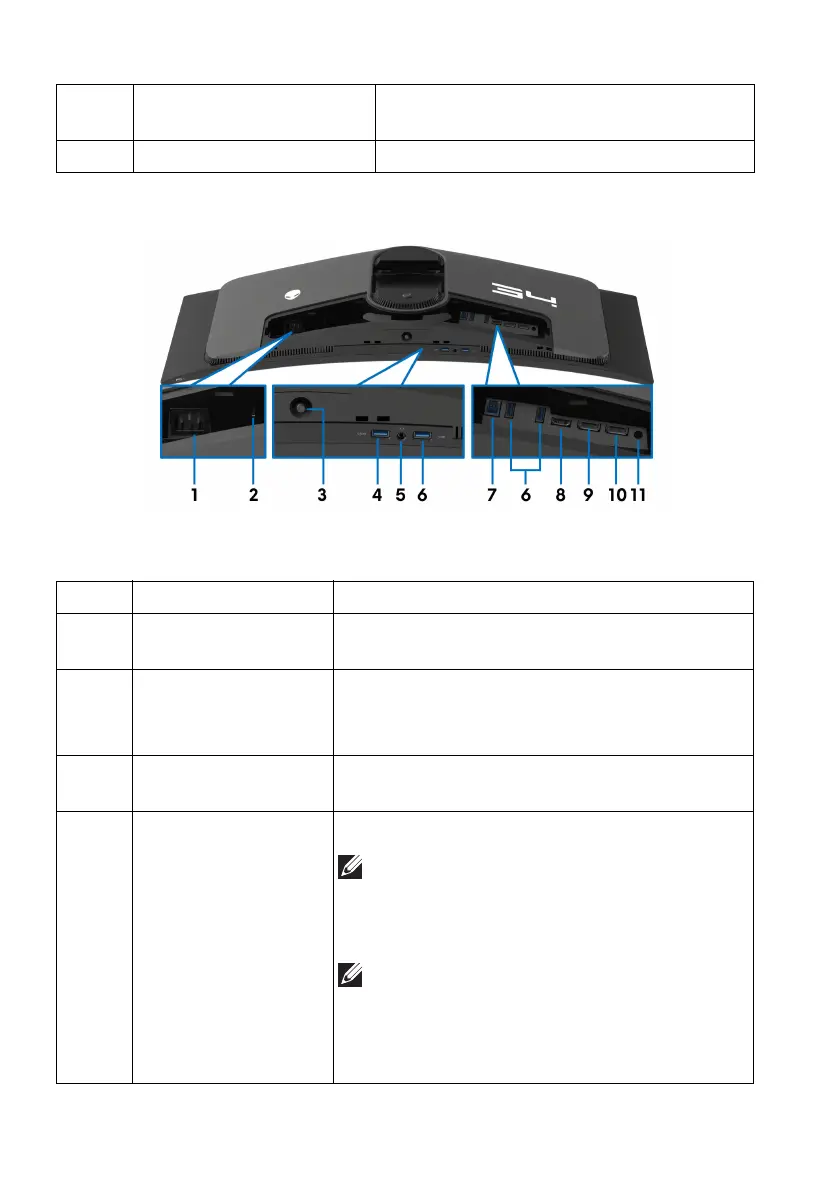
Rear and bottom view
Rear and bottom view without monitor stand
6 Cable-management slot
(a
t the back of the stand)
To organize cables by routing them
through this slot.
7 I/O cover Protects the I/O ports.
Label Description Use
1 Power connector Connect the power cable (s
hipped with your
monitor).
2 Security-lock slot
(based on Kensington
Se
curity Slot)
Secure the monitor with a security lock
(
security lock not included).
3 Joystick Use it to control the OSD menu. For more
information, see Operating the monitor.
4 SuperSpeed USB
5 Gbps (USB 3.2
Gen 1) Type-A
do
wnstream port with
Power Charging
Connect to charge your USB device.
NOTE: To use this port, you must connect
the USB cable (shipped with your
monitor) to the USB-upstream port on
the monitor and to your computer.
NOTE: To avoid signal interference, when
a wireless USB device is connected to a
USB downstream port, it is not
recommended to connect any other USB
devices to the adjacent port.








 To Next Page