9 TROUBLESHOOTING
MICROCHIP NOT DETECTED:
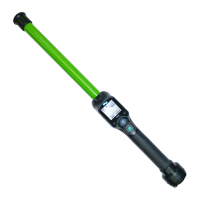
► Verify that AFX-110 is able to read microchip.
► Confirm that scanning is being performed away from metal objects and computer
equipment, including metal collars and metal tags and away from stainless steel table.
► Scan animal following patterns on page 7, with slow movements and reader touching
animal all the time. If the animal moves too quickly, the microchip may not be located
in the reading zone long enough for the ID code information to be obtained.
► Replace batteries if power is weak, as it might not be sufficient to activate the field and
reading distances can be reduced.
► Some animals might be implanted with two microchips too close to each other. In these
cases, there is a risk that reader performance might be affected. Continue to scan as
indicated on page 7, with slow movements, trying to identify one microchip at a time.
MICROCHIP IS FOUND BUT NOT STORED IN MEMORY.
► Verify scanner reads microchip
MICROCHIP IS FOUND BUT DOES NOT DISPLAY TEMPERATURE
► Verify Microchip is a temperature sensing implant from ALLFLEX or DESTRON FEARING
► Verify Temperature Scanning is enabled (see chapter 6.3).
READER DOES NOT START
► Verify batteries have been installed correctly and have full charge.
LOW BATTERIES
► If reader displays “Low battery”: Recharge the batteries
DEPLETED BATTERIES
► If reader displays “Battery depleted”: Recharge the batteries
BLUETOOTH NOT VISIBLE:
► Check Bluetooth icon appears on the reader. If not, enable Bluetooth using AFX-
100/AFX-110 Software or menu “Bluetooth settings”.
BLUETOOTH VISIBLE BUT NOT CONNECTABLE:
► Make sure your reader is configured to be visible and connectable in AFX-100/AFX-110
Software (Refer to AFX-100/AFX-110 Software User Guide for more information)
INCORRECT DATE / TIME
► Connect the reader to AFX-100/AFX-110 Software, this will synchronize automatically the
date and time with the computer.


 To Next Page