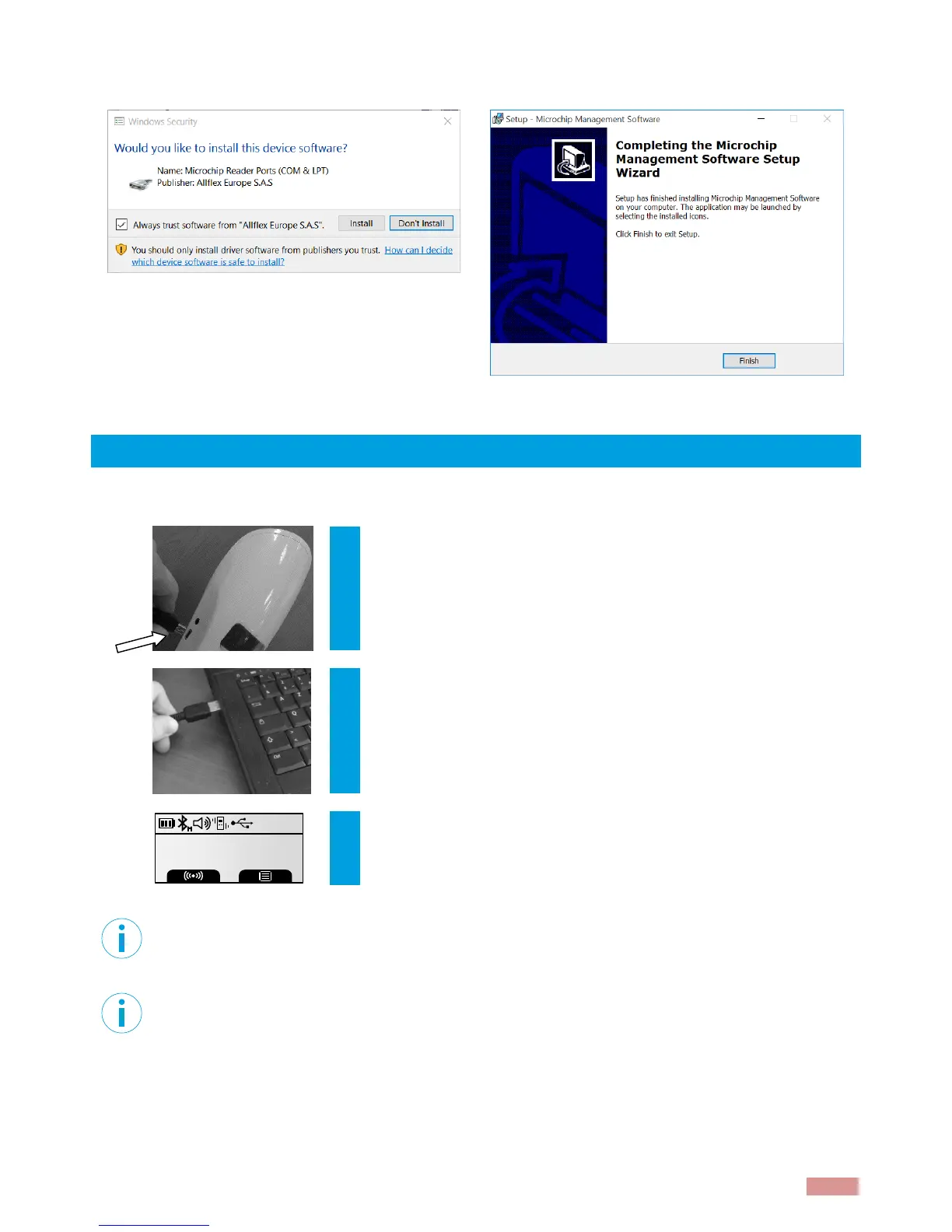
The USB drivers will then be installed. Then, check “Always trust software…” and click on Install
button. Click on Finish at the end of the process to close the installation.
5 Connecting to a PC
5.1 Using USB interface
Open the AFX-100/AFX-110 Software and connect the reader to a
PC with the USB
cable by removing the USB port cover and attaching the cable to
the AFX-110 connector. Install the USB cable by attaching it to AFX-
110.
Plug the other extremity of the USB cable into a USB port on your
computer. When reader is connected, Windows will automatically
find the driver and install the reader properly.
The reader vibrates (if vibration mode enabled) and an USB icon is
displayed on screen
Note 3 – Once the USB cable is connected, the reader is automatically powered on and it will
remain activated until the cable is disconnected. The reader will be able to read a microchip if
sufficiently charged batteries are inserted. With depleted batteries, the reader will not be able to
read a microchip, but will remain on with other functions fully active.
Note 4: If a microchip was detected and the reader is connected via its USB interface or its
Bluetooth® interface to a host computer, it will send the microchip number to the host computer.
Allflex AFX-110
10:49AM
12/19/2017


 To Next Page