53
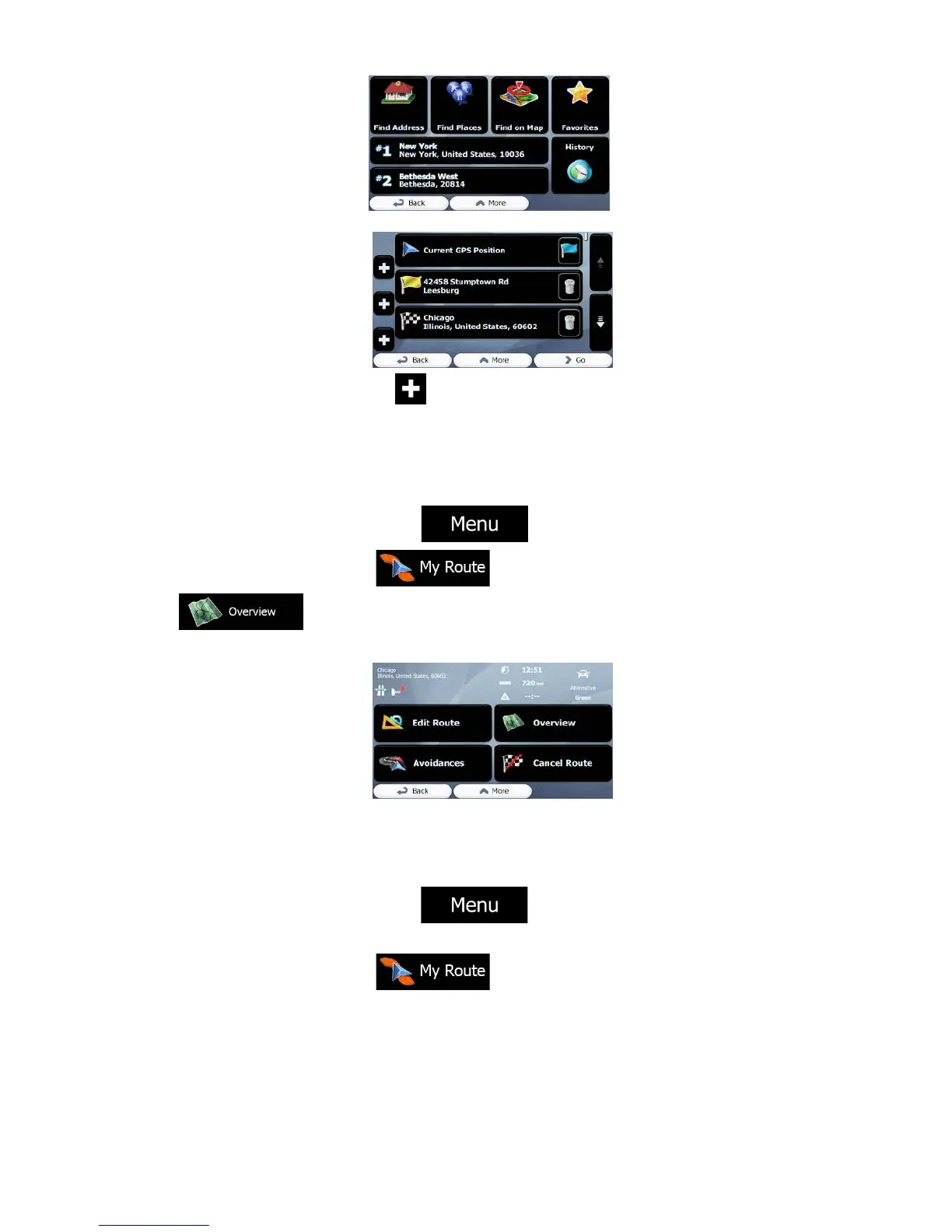
7. When the new destination is selected, the list returns.
8. To add more destinations, tap where you want to insert the new route point in
the list, and repeat the above procedure.
3.2 Viewing the entire route on the map
It is easy to get a map overview of the active route. Do as follows:
1. If you are on the Map screen, tap to return to the Navigation
menu.
2. In the Navigation menu, tap
3. Tap The active route is displayed in its full length on the map
together with additional information and controls.
3.3 Checking route parameters and accessing route related functions
You can check different parameters of the route recommended by ALPHA-NAV
navigation.
1. If you are on the Map screen, tap to return to the Navigation
menu.
2. In the Navigation menu, tap
3. The following pieces of information are displayed:
• The name and/or address of the destination.
• Warning icons (if any). They provide extra information about your route (e.g.
unpaved roads or toll roads to be taken).


 To Next Page