64
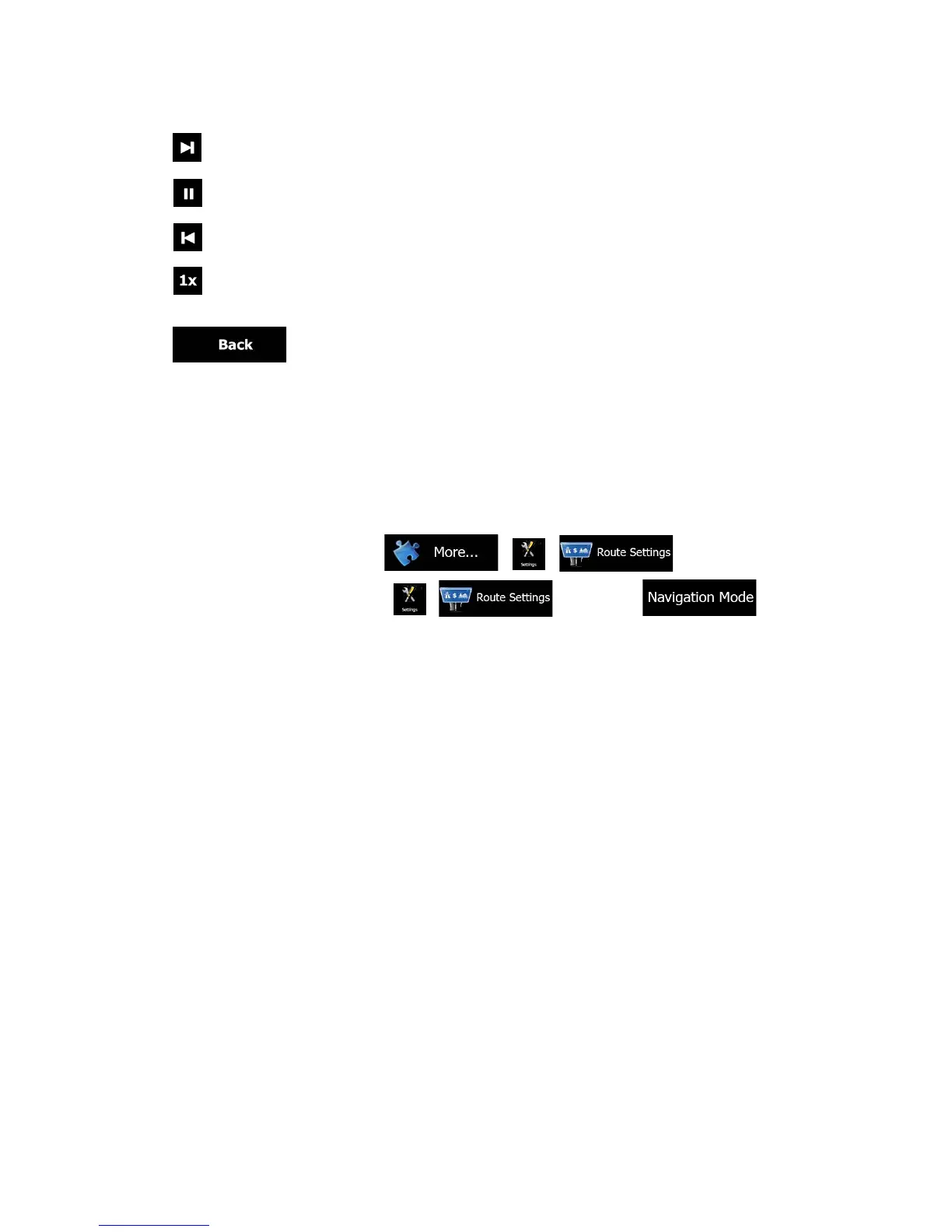
1. (optional) You have the following controls during the simulation (the control buttons
disappear after a few seconds but you can open them again if you tap the map):
• Jump to the next route event (maneuver).
• Pause the simulation.
• Jump to the previous route event (maneuver).
• Tap to increase the speed of the simulation to 4, 8 or 16 times faster.
Now tap again to return to the normal speed.
2. Tap to stop the simulation.
4 Off-road navigation
When first started, ALPHA-NAV navigation calculates routes using the road network of
the high quality vector maps provided with the product. You can switch the application
to off-road mode in Navigation settings in one of the following ways:
• From the Main menu, tap and then
• From the Map screen, tap and then
Most of the procedures described for on-road navigation also apply to off-road
navigation. However, there are some that are not available in this navigation mode
(for exam ple you cannot open the itinerary as you have no maneuvrers just route
points and straight lines between them).
4.1 Selecting the destination of the route
Selecting the start point or a destination (waypoint or final destination) is the same as
described at on-road navigation. The only difference is that route points are linked to
form a route with straight lines regardless of the road network and traffic regulations.
4.2 Navigating in off-road mode
The real difference between the on-road and off-road modes is the navigation itself.
When you are on the Map screen with an off-road route:
• your position and heading is not aligned with the nearest road and
• there is no turn by turn navigation just a recommended direction.
You see a orange line drawn between your current position and the next destination
to reach. The Turn Preview field in the top left corner shows a compass with your
bearing and the distance of the next destination


 To Next Page