8
2.2 Buttons and other controls on the screen
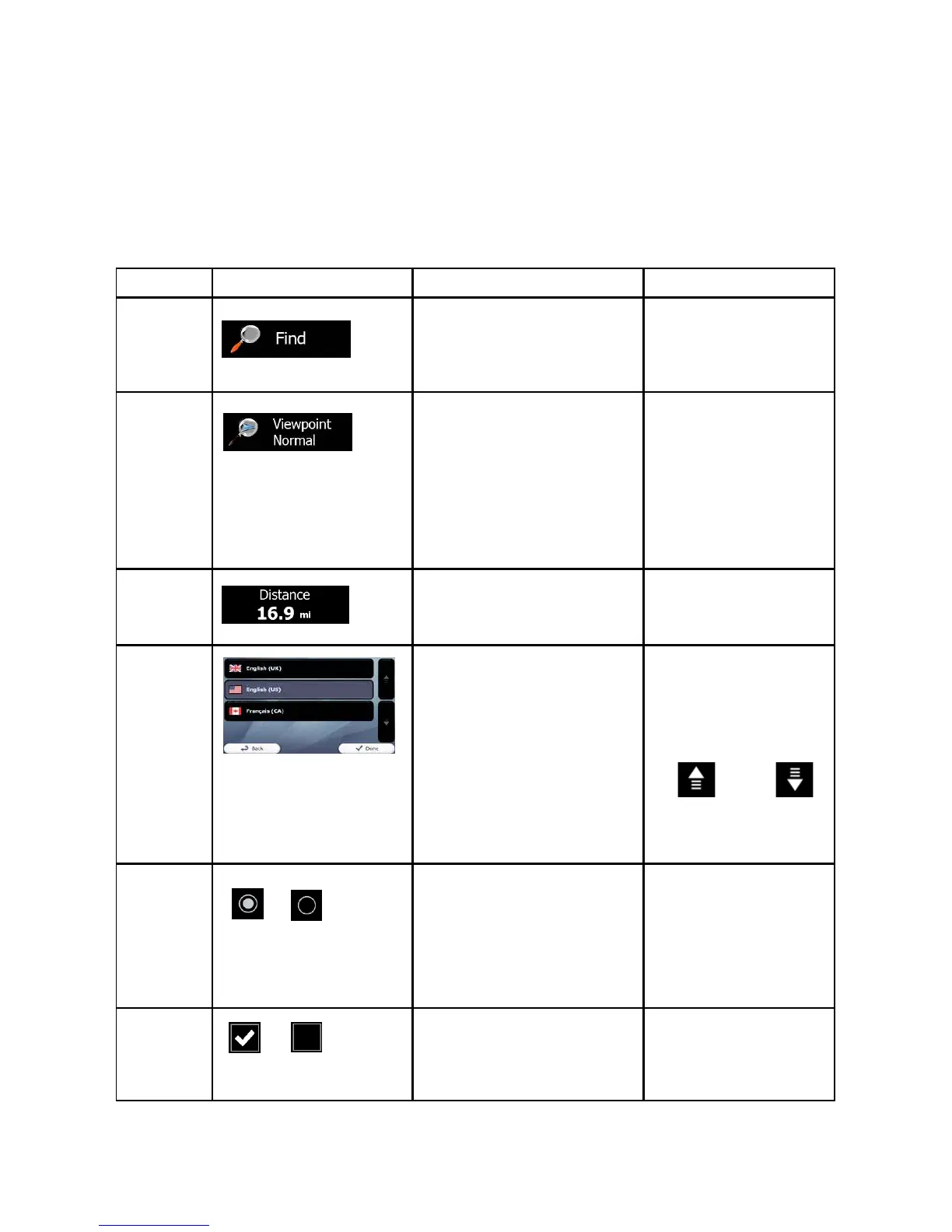
When you are using ALPHA-NAV navigation, you usually tap buttons on the touch
screen.
You only need to confirm selections or changes if the application needs to restart, it
needs to perform a major reconfiguration, or you are about to lose some of your data or
settings.Otherwise, ALPHA-NAV navigation saves your selections and applies the new
settings without confirmation as soon as you use the controls.
Type
Example Discription How to use it
Button
Tap it to initiate a
function, to open a
new screen, or to set a
parameter.
Tap it once.
Some buttons display
the current value of a
field or setting. Tap
the button to change
the value. After the
change, the new value
is shown on thebutton.
Tap it once.
Button
with value
Shows status informationIcon
Some icons also
function as a button.
Tap them once
When you need to
select from several
options, they appear in a
list.
Grab the list any-
where and slide your
finger up or down.
Alternatively move
between pages with
the
and
buttons and tap the
value that you want.
List
When there are only a
few choices, radio
buttons may be used
instead of lists. Only one
value can be selected.
Tap one of the
buttons to select a
new value
Radio
Button
When there are only
two choices, a checkmark
shows whether the feature
is enabled.
Tap it to turn the
switch on or off
Switch


 To Next Page