32-EN
Setting an Anti-theft Code
You can guard the operation with a four-digit security
code so that a third party cannot operate this
machine. When you have set an Anti-theft Code, you
must input the password after turning the power
ON. (See Page 6).
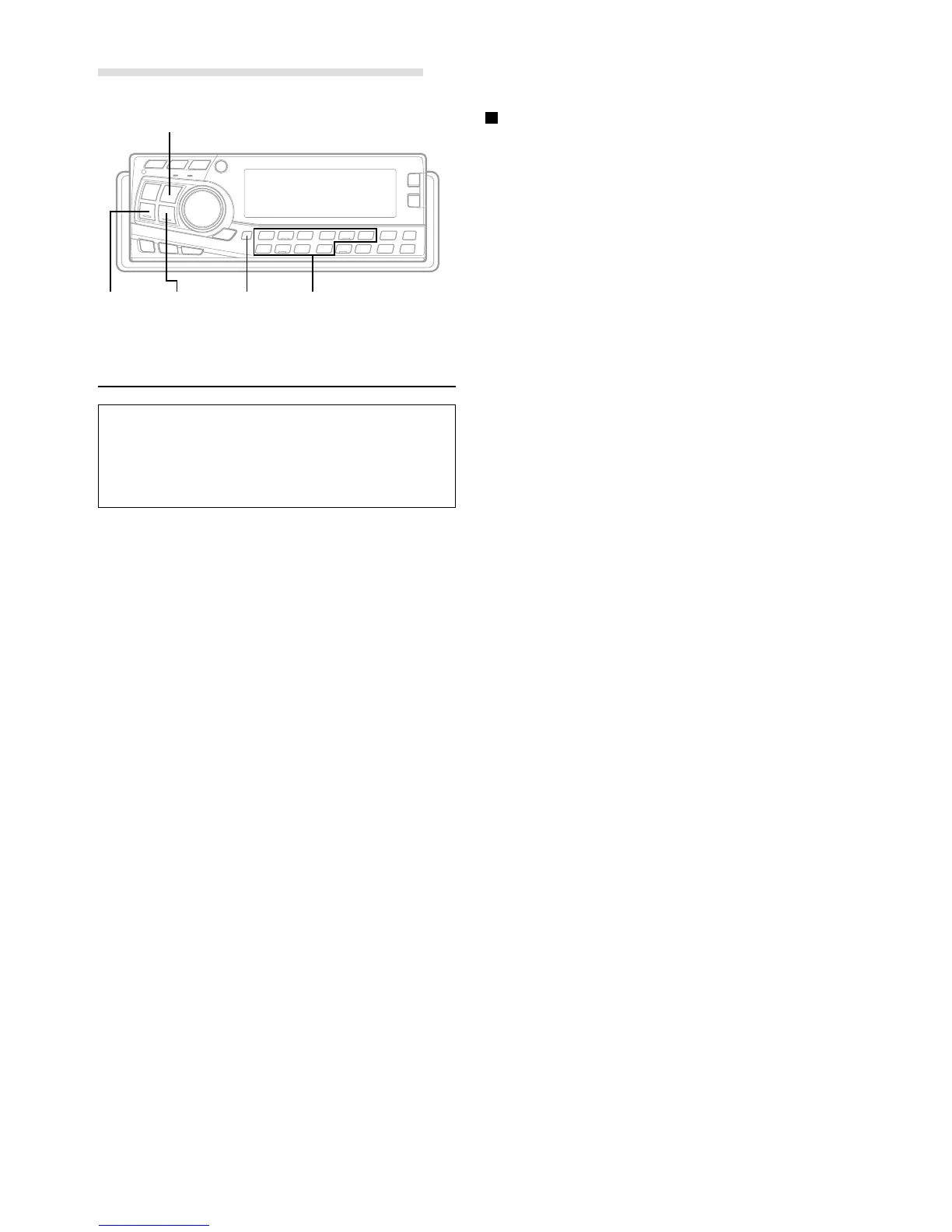
1 Press and hold the SETUP button for at least 3
seconds.
2 Press the g DN or f UP button to select “ANTI-
THEFT”.
3 Press the BAND button to toggle the mode between
OFF and ON.
OFF: You do not use the Anti-theft function. Proceed to
the Step 6 to cancel the SETUP mode.
ON: You use the Anti-theft function. You must input the
password when turning the power ON for the first
time or when resetting. Proceed to the next step
for the way to set a password.
NOTE
The initial setting at the factory is “OFF”.
SETUP Operation
How to set a password
4 Press the g DN or f UP button to select
“PASSWORD”.
5 Press the Preset buttons (0 through 9) when
“PASSWORD” is displayed, and input a four-digit
number.
NOTES
• Make sure to input a four-digit number for a password.
• The initial setting of the password at the factory is “0000”.
• If you should have failed the input of password three times,
the display returns to the ANTI-THEFT ON screen. Press
the g DN or f UP button to display the PASSWORD
input screen and input the password again.
• Keep the password you have set in custody, for example, by
taking a note, so that you may not forget it. If you forget
your password, consult the Call Centre or your nearest
Alpine office/ Alpine dealer.
6 Press the SETUP button to return to the normal mode.
NOTES
• This function protects your machine from a theft, but does
not prevent a theft.
• Never tell the password you have set and the way to cancel
it to others.
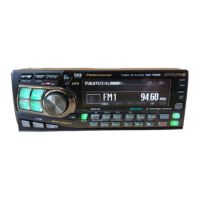
BAND
Preset buttons
(0 through 9)
g DN f UP SETUP


 To Next Page