15
(4.6) App Control
IMPORTANT: To ensure the best possible experience with
the app, use the most current Android OS or iOS on your
device.
Follow these steps to download the free app on your
device:
1. Open the Apple App Store or Google Play on your device.
Then, search for the ALTO Pro App.
2. Follow the on-screen instructions to download and install
the app. Once downloaded, the ALTO Pro App will
appear on your device's home screen.
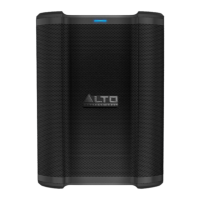
3. Connect your device to Busker via Bluetooth. See the (4.1)
Pairing a Bluetooth® Device to learn how to do this.
4. Open the ALTO Pro App. If prompted, allow the app to
access your device's Bluetooth and Location Services.
5. Follow directions in the app to connect Busker and begin
using the app.
6. Select the Busker icon to go to the next screen, where you
can use the app to control various functions of the speaker
such as:
• Volume: Adjust the speaker’s overall volume.
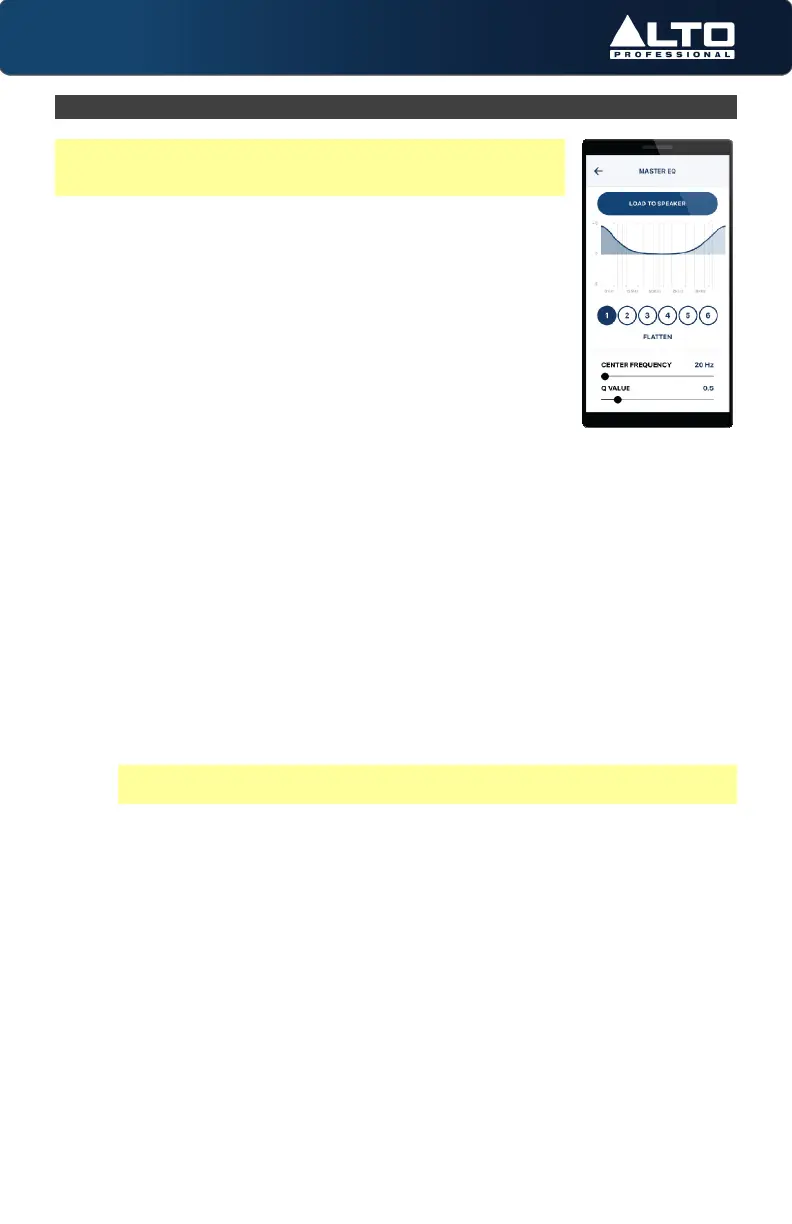
• EQ: Adjust the speaker's overall equalization.
• Channel 1, 2, & 3 Volume: Adjust the incoming volume for the 1/4" (6.35
mm), XLR, Bluetooth, and Aux sources.
• Channel 1, 2, & 3 EQ: Adjust the low, mid, and high EQ for each channel.
• Channel 1 & 2 FX Volume: Adjust the FX amount sent to CHANNELS 1 and 2.
• Speaker Placement: Cycle through the different DSP presets.
• TWS Link: Select this to Stereo-Link™ two speakers.
Note: You will also need to connect your second Busker unit to the ALTO
Pro App via the steps provided above to Stereo-Link™ both speakers.


 To Next Page