CONTROL UNITS UTR230868 / UTR4008681616
SETTINGS
6.2.2. CHANGING RECORDED REMOTE CONTROL COMMANDS
F4 — Changing the control commands of all buttons on the remote control
by the recording number of the remote
Y
It is necessary to know the remote record number in the control unit!
No remote required.
Table7
1
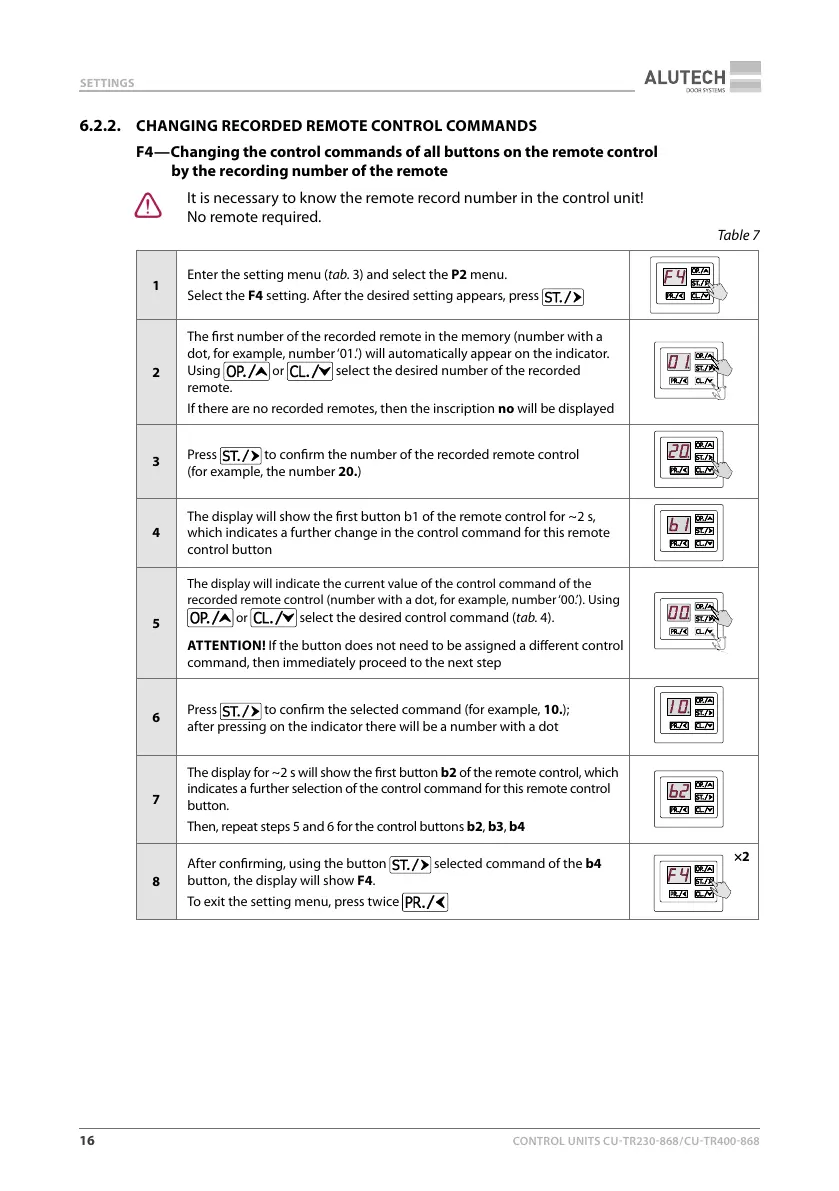
Enter the setting menu (tab.3) and select the P2 menu.
Select the F4 setting. After the desired setting appears, press
2
The rst number of the recorded remote in the memory (number with a
dot, for example, number ‘01.’) will automatically appear on the indicator.
Using
or select the desired number of the recorded
remote.
If there are no recorded remotes, then the inscription no will be displayed
3
Press
to conrm the number of the recorded remote control
(forexample, the number 20.)
4
The display will show the rst button b1 of the remote control for ~ 2s,
which indicates a further change in the control command for this remote
control button
5
The display will indicate the current value of the control command of the
recorded remote control (number with a dot, for example, number ‘00.’). Using
or select the desired control command (tab.4).
ATTENTION! If the button does not need to be assigned a dierent control
command, then immediately proceed to the next step
6
Press
to conrm the selected command (for example, 10.);
after pressing on the indicator there will be a number with a dot
7
The display for ~ 2 s will show the rst button b2 of the remote control, which
indicates a further selection of the control command for this remote control
button.
Then, repeat steps 5 and 6 for the control buttons b2, b3, b4
8
After conrming, using the button
selected command of the b4
button, the display will show F4.
To exit the setting menu, press twice
×2


 To Next Page