40
• Calendar: This calendar allows the user to select days to designate as holidays. Once a day is designated, it can be
customized to stop recording or snapshots for that day by using the Record and Snapshot checkboxes.
To refresh the page, click the Refresh button. To save the settings, click the Save button.
Destination
This menu controls where recorded media is stored. There are 4 tabs in this menu: Path, SD Card, FTP, and NAS.
Path
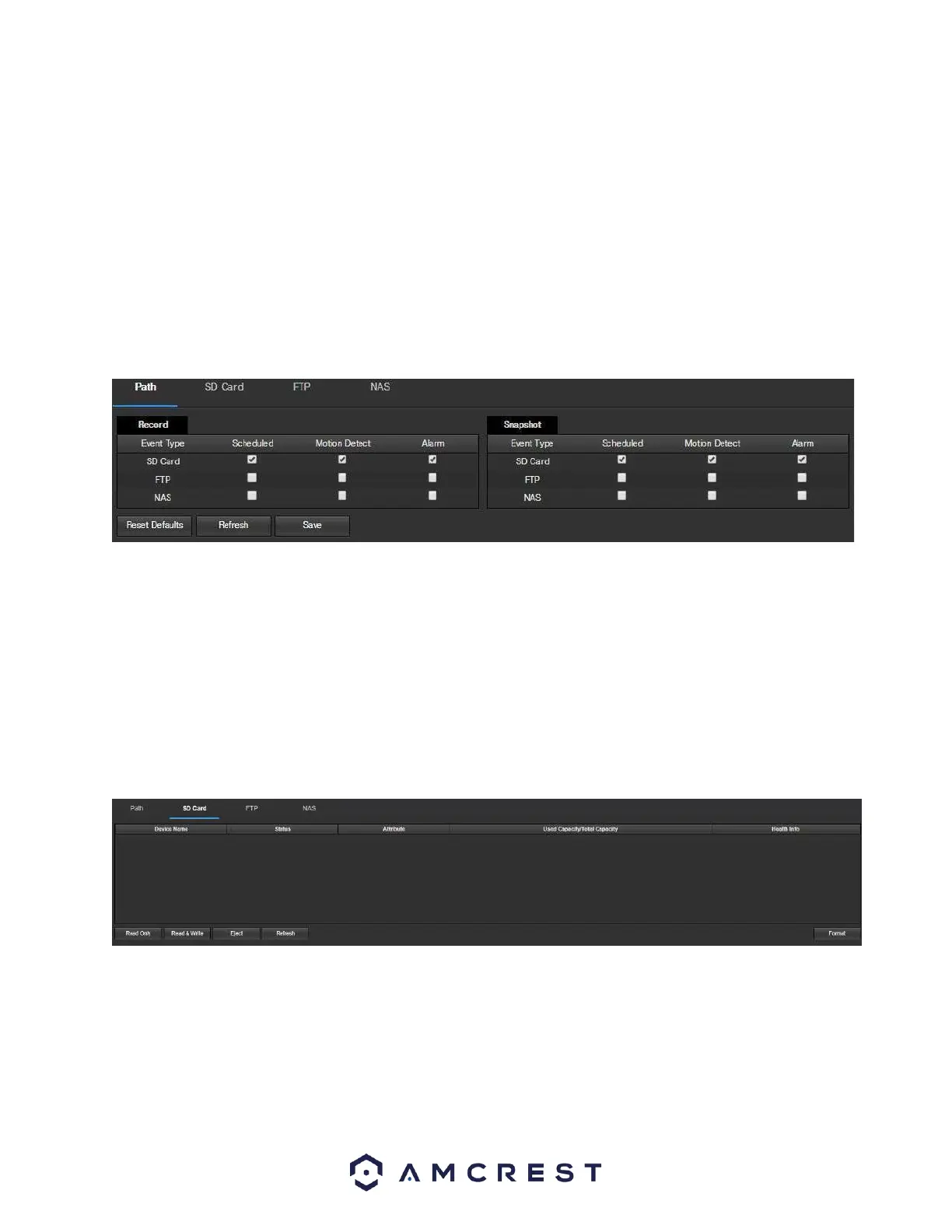
This tab is where the user can designate a path for recorded video and snapshots to reside in. Below is a
screenshot of the Path tab:
Below is an explanation of the fields on the Path settings tab:
• Event Type: This column designates storage options available to the camera. The options are SD Card, FTP, and
NAS.
• Record Type: These columns designate which recording type should be recorded to which event type. Check the
box at the intersection of the record type and event type to designate where that recording should be sent to.
To reset to default settings, click the Reset Defaults button. To refresh the page, click the Refresh button. To save
the settings, click the Save button.
SD Card
This tab is where the user can change SD card settings. Below is a screenshot of the SD Card tab:
Below is an explanation of the fields on the SD Card settings tab:
• Device Name: This column designates the name of the SD card that is currently in the camera.
• Status: This column designates the status of the SD card.
• Attribute: This column designates the read/write attributes for the SD card. By default, this is Read & Write.
• Used Capacity/Total Capacity: This column shows the available memory on the SC card.
• Health Info: This column displays the current status information for your microSD card.











 To Next Page