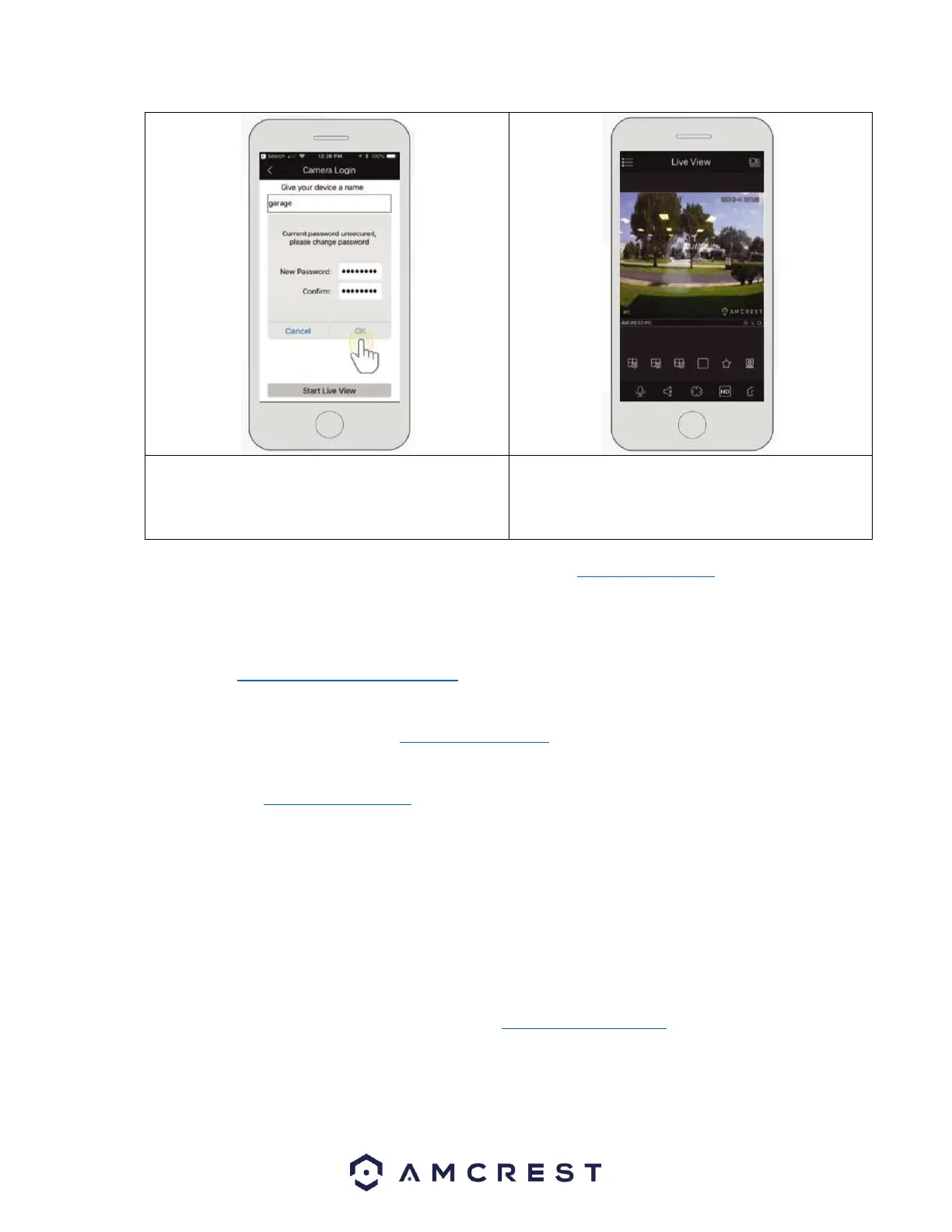
12. The app will prompt you to change the password
for your camera. Enter a password between 8 and 32
characters and confirm the password. Press OK to
continue.
For more information about Amcrest View Pro and its functionalities visit amcrest.com/support
For more information on alternative setup methods for your camera in the Amcrest View Pro app visit the
following links:
IP/Domain/DDNS App Setup: Used to establish a connection without using P2P. For more information on this
setup method visit, amcrest.com/IPDomainDDNSsetup
WiFi Configuration Setup: Used as a secondary option for establishing a WiFi connection to a WiFi camera. For
more information on this setup method visit, amcrest.com/wificonfig
P2P Setup: Used for setting up already connected devices to the Amcrest View Pro app. For more information on
this setup method visit, amcrest.com/p2psetup
Desktop Access Setup
This camera features the latest in JS technology which allows you to access your camera via a wide variety of web
browsers including, Google Chrome, Firefox, Safari and other mainstream web browser via your PC or Mac
computer. For more information on how to access your camera from your computer please refer to the
information below.
To access your camera from your computer you will need to first locate the camera’s IP address. To locate the
camera’s IP address is it highly recommended to download our free Amcrest IP Config Tool software. The Amcrest
IP Config Tool can be downloaded at the following web page: amcerest.com/downloads
In the All Downloads menu, click on IP Config Software to begin the free download. Once the download has
completed installing, locate the IP address associated with the device you would like to view in the browser.










 To Next Page