ATC200-Lite Teletilt
®
Remote Control Downtilt System Section 8–Saving Site Report/Congurations
Bulletin 639510 May 2005 8-5
8.2 Saving/Viewing a Site Report Formatted to Open in Excel.
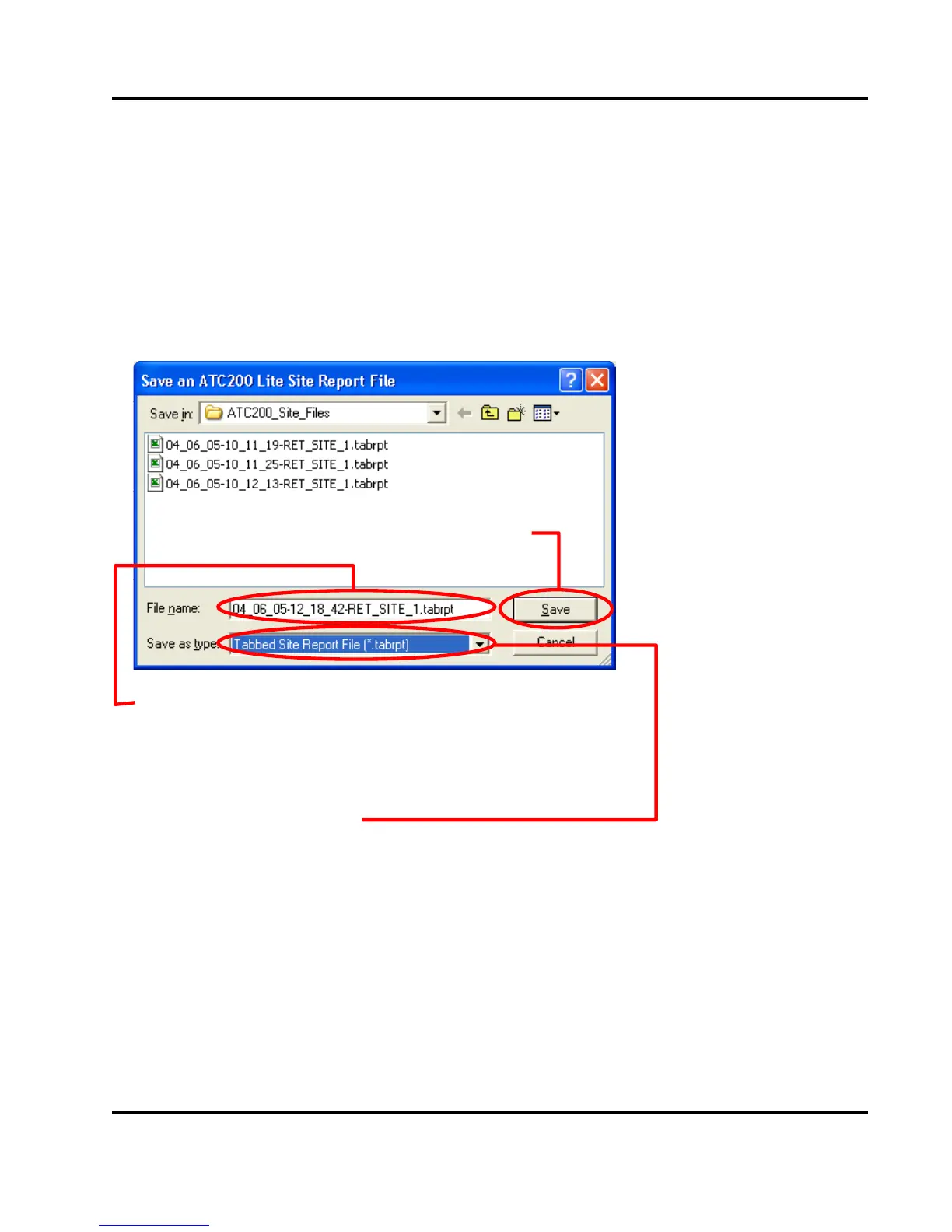
1. To save a report that can be opened in Excel (or any other spreadsheet software program),
go to ‘File, Save Site Report’ from the main menu (Figure 8-1).
2. Assign a lename for the report. The default lename consists of the date, time, and the
site ID of the rst actuator (Figure 8-5).
3. Select ‘Tabbed Site Report File (*.tabrpt)’ from the ‘Save as type’ drop down selection, if
not already selected.
4. Click ‘Save’.
1. Assign a filename to the report.
The date, time, and the SiteID of the first
configured actuator are used for the suggested
filename.
3. Click ‘Save’.
Note: All site reports are
saved to
C:\ATC200_Site_Files.
This directory is created
if it does not pre-exist
on the computer.
2. Select the file type.
Files saved in the ‘*.tabrpt’ format can be opened in
Excel or any other spreadsheet software program.
Figure 8-5. Selecting the File Format for Excel.



 To Next Page
 Loading...