65 66
( -166)picture
Vehicle setting functional operation
In the system setting interface, click
“vehicle setting “icon enter into the
vehicle setting interface, as (picture-166)
Click , icon or (home)
button or (back) to exit.
1) You can set license number, vehicle attribution, brake warning in vehicle
setting.
2) In the illegal inquiry procedures, you can directly input the setting license
number in the illegal query website (some models do not support this feature)
3) Using the illegal inquiry procedures, you can visit the corresponding illegal
query website through setting the vehicle attribution.
4) Select “brake warning" icon, the brake automatically prompts.
Confidentiality setting function operation
In the system setting interface, click
“confidentiality setting “icon enter to the
vehicle setting interface, as (picture-167)
Click , icon or (home)
button or (back) to exit.
1) Confidentiality setting contains
borrowing car mode switch, code
protection switch and protection code
setting.
2) Click “open borrowing car mode” icon
enter into confidentiality setting interface,
as(picture-168):
3) Open borrowing car mode, the user's
phone book, call records, e-mail functions
are protected and cannot be used
4) Open password-protected, closing the
borrowing car mode requires user input
the password.
( -167)picture
( -168)picture
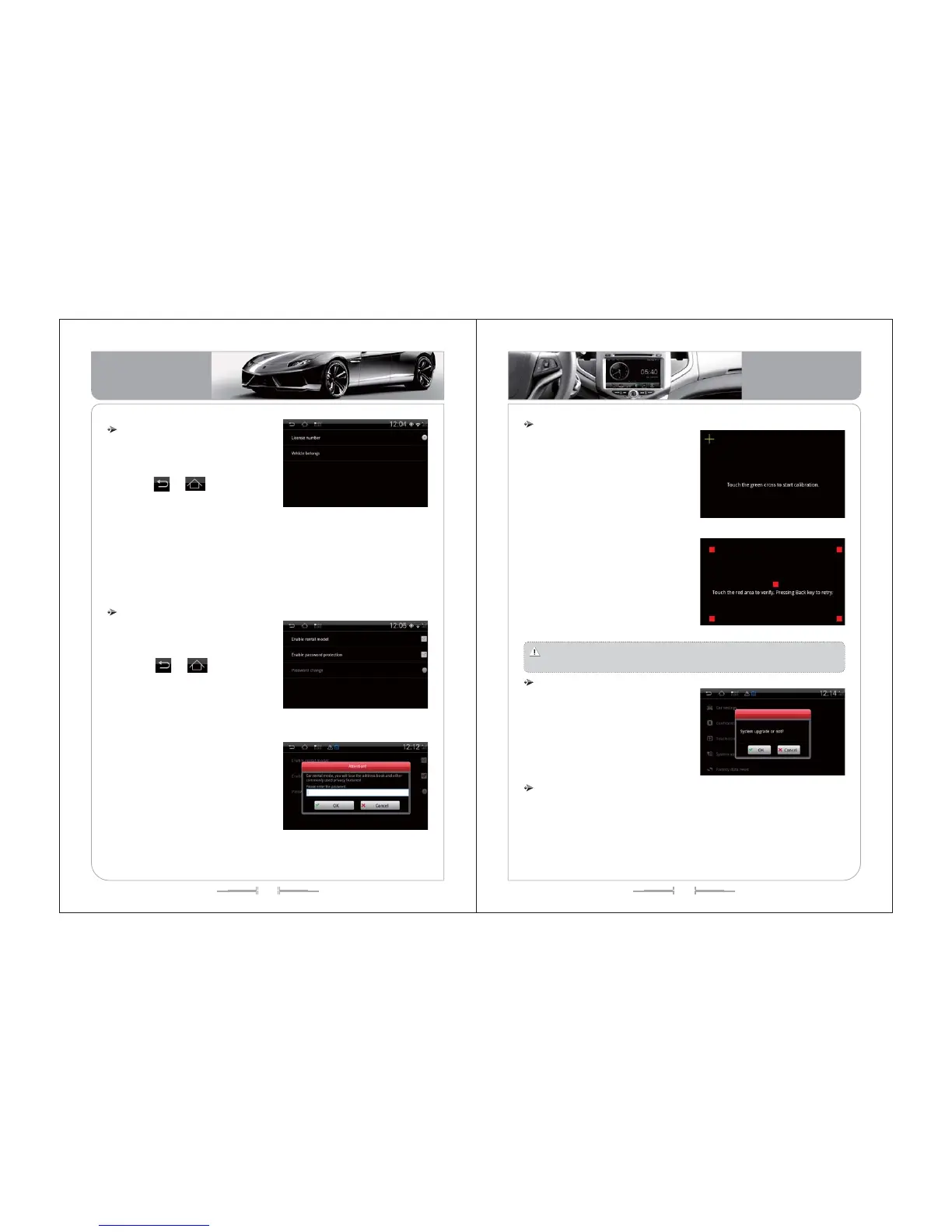
Touch screen calibration function operation
In the system setting interface, click
“touch screen calibration” interface, as
(picture-169,170);
Click the center of the cross into
calibration using the nib or tip of something,
the target will automatically move, when
finish the screen calibration will exit
( -169)picture
( -170)picture
Attention: when calibrate, the center of the cross must require accurate,
otherwise it will affect the touch calibration accuracy.
System update functional operation
In the system setting interface, click
“system update” enters into system update
interface, as (picture-171):
Click the "OK", upgrade automatically!
(Must insert the upgrade card)
( -171)picture
Restore factory setting functional operation
In the system setting interface, click “restore factory setting” icon enter into
restore factory setting interface, as (picture-172):
1) Click “restore factory setting” icon will appear the menu of restore factory
setting, click “OK” icon to restore, at that time the system will automatically
restart.
Basic Operation
Basic Operation


 To Next Page