15
INNI_USER MANUAL_191225PS
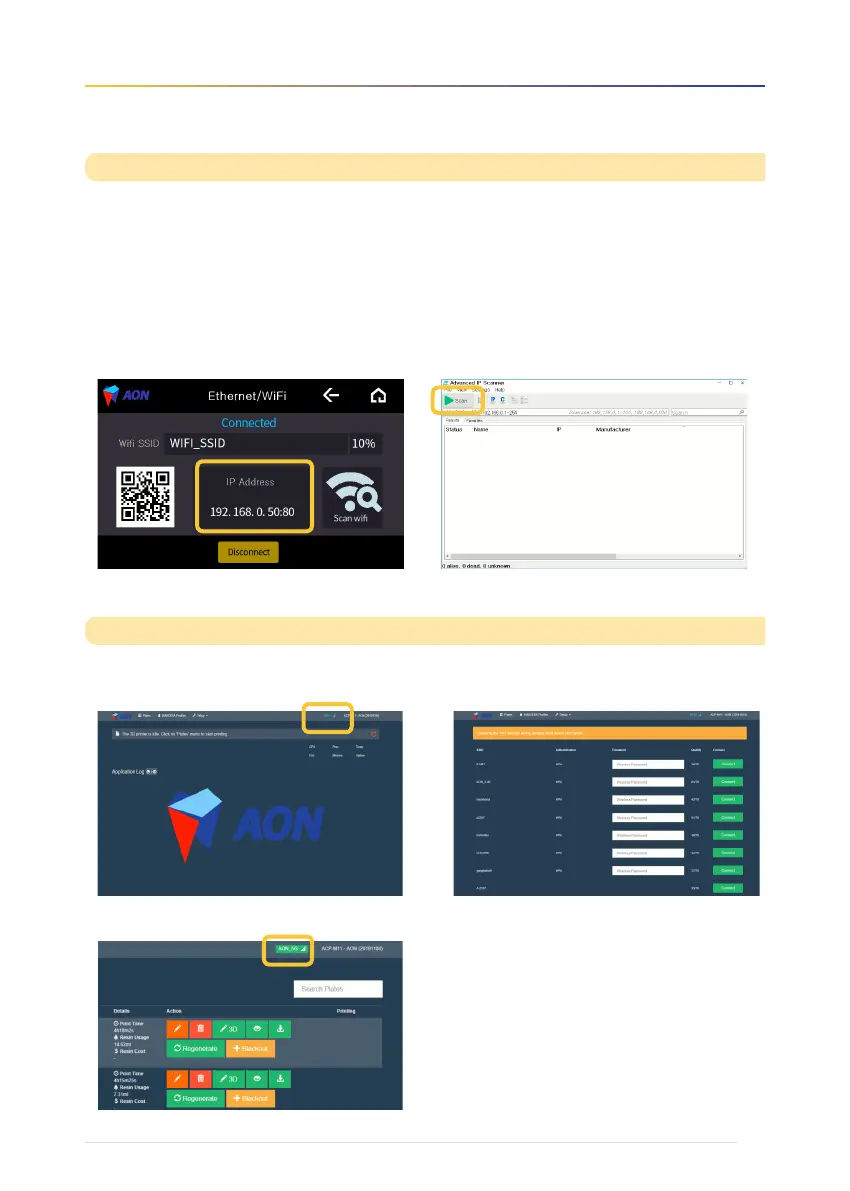
① Click on "Wi-Fi" (located in the upper right corner).
③Confirm that the connection was successful by checking that "Wi-Fi" has changed to a green icon.
2. Check via IP Scanner
Go to www.advanced-ip-scanner.com →
Download “Advanced IP Scanner” → Click “Scan” →
Find the IP Address for “Raspberry Pi Foundation” → Enter
the IP Address into a web browser
② A list of networks will appear. Choose a network and
input the password. Click on the ‘Connect’ button.
After connecting the printer and the PC, find and copy the printer's IP address to input into your web browser.
AON's Slicer program will then onto the screen.
Printer IP address
Wi-Fi connection on AON Slicer
1. Check via 3D printer
Tap the touch screen to begin → Press the wi-fi icon
→ Copy IP address and enter into a web browser.
※ When entering the IP address in a web browser,
do not enter the last two digits.


 To Next Page