2021.08.19 REV. PRESSURE CONTROLLER OPERATING MANUAL 11
Displaying Live Data
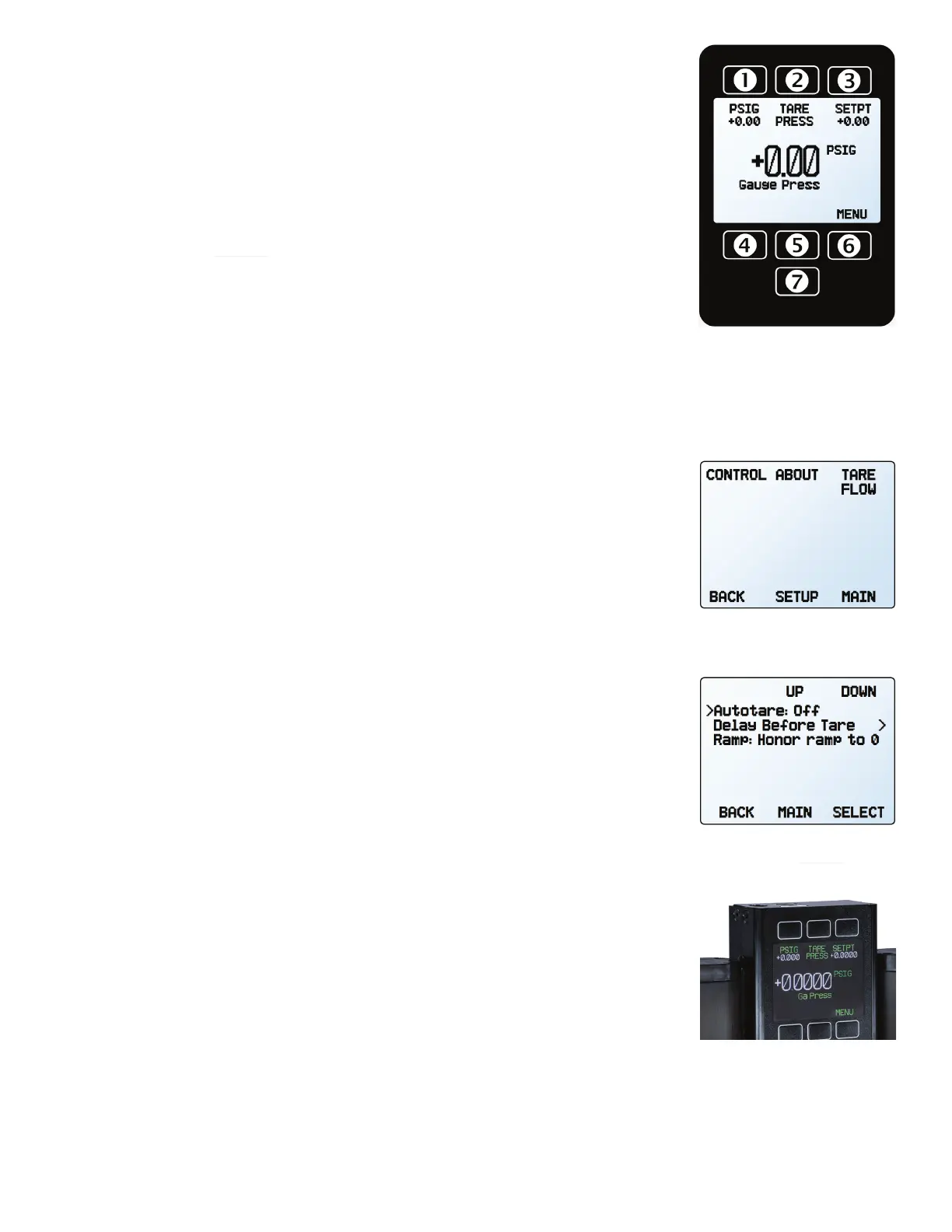
Main Display
The main display has four primary functions:
• Displaying live pressure data
• Setting the pressure controller’s setpoint
• Taring the pressure (page 11)
• Accessing the main menu (
MENU)
Live data is measured 1000 times per second, and the LCD display is updated 10 times per
second. The button next to the measurement highlights its value in the center.
Taring Your Pressure Controller
MENU → TARE PRESS or TARES
Taring ensures your pressure controller ensures its most accurate measurements. This
function gives the pressure controller a zero reference for pressure measurements.
How to Tare
MENU → TARES → TARE PRESS
•
Tares should be performed with the pressure controller open to atmosphere with no flow.
•
Absolute pressure devices can be tared if purchased with the optional internal barometer,
and then opened to atmosphere with no flow.
• Dierential pressure devices require zero dierential pressure between the P1 and P2
ports. They must be either open to atmosphere on both ports, or connected to the same
pressure source.
When to Tare
• Before every new pressure measurement cycle
• After significant changes in temperature or pressure
• After dropping or bumping the pressure controller
• After installing the controller in a dierent orientation
Option: Color TFT Display
Instruments ordered with a color display are functionally the same as standard backlit
monochrome instruments. The color enables additional on-screen information.
Multi-Color Display Indicators
• GREEN: Parameter labels and adjustments associated with the button directly above or
below the label are presented in green.
•
WHITE: The color of each parameter will be displayed in white when the device is
operating within device specifications.
• RED: The color of a parameter will be displayed in red when its value exceeds 128% of
the device’s specifications.
•
YELLOW: Menu items that are ready to be selected appear in yellow. This color replaces
the > symbol in selections on monochrome display.
✓
Note: Press the bottom button to turn o the color display backlight. The pressure
controller remains in operation while the backlight is o.
✓
Note: Color displays will require an additional 40 mA when using a 12 Vdc power supply.
All other device specifications from your device’s specification sheet remain in eect.
The main display. Note the bottom
button (7), which toggles the
device backlight.
The zero setpoint (autotare) menu
with Autotare on (page 13).
Tare pressure by selecting TARE
PR ESS from the main menu.
A pressure controller with an
optional TFT screen.



 To Next Page