2021.08.19 REV. PRESSURE CONTROLLER OPERATING MANUAL 19
Display Setup
MENU → SETUP → Display
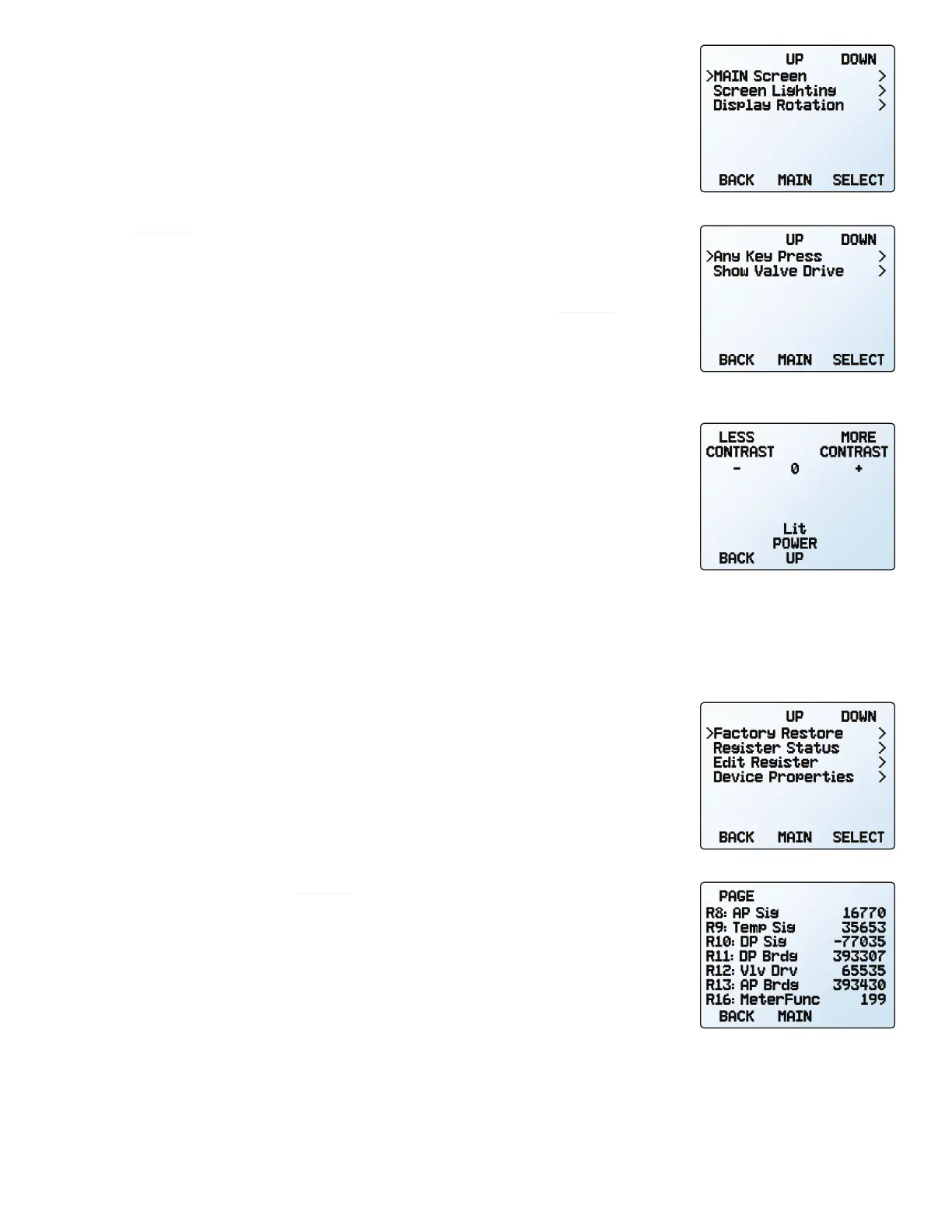
The options in the display setup menu adjust the contrast/brightness of the display and
enable screen rotation.
Main Screen Options
SETUP → Display → MAIN Screen
• Any Key Press changes what happens when any of the parameter buttons on the main
display (page 11) are pressed (pressure or temperature, for example). By default,
these buttons highlight their measurement in the center of the display. If this option is
set to
Show Actions Menu, an option to change that parameter’s engineering units will
be shown, as well as an option to highlight the parameter.
•
Show Valve Drive shows or hides the valve’s drive percentage. See page 15.
•
Top Left Key Value and Bot Left Key Value will show if the device has an optional
barometer installed. This option configures which type of pressure (barometric, gauge,
absolute) is displayed.
Screen Lighting
SETUP → Display → Screen Lighting
The options and wording in the screen lighting menu will vary for monochrome versus
color displays.
•
On monochrome displays, press LESS CONTRAST or MORE CONTRAST to adjust the contrast
levels and move the contrast indicator left or right. POWER UP Lit or Dark toggles whether
the backlight of the unit will be on when the device powers on.
•
On color displays, press DIMMER or BRIGHTER to adjust the brightness level and move the
brightness indicator left or right.
Display Rotation
SETUP → Display → Display Rotation
The device has the option of inverting (flipping) the screen upside-down, as configured in
this menu.
Advanced Setup
MENU → SETUP → Advanced
The advanced setup menu contains settings and detailed information that are useful when
troubleshooting with customer support.
Factory Restore
SETUP → Advanced → Factory Restore
This will immediately take you to a confirmation screen. When troubleshooting, an appli-
cations engineer may recommend doing a Factory Restore. If something is not acting as
expected, please contact support (page 16) prior to doing a Factory Restore.
Register Status
SETUP → Advanced → Register Status
The Register Status screen displays live values for the internal device registers. Many of
these values can help an applications engineer diagnose operational issues over the phone.
Some register values clearly distinguish between hardware and operational problems, which
speeds up the troubleshooting process.
Edit Register and Device Properties
SETUP → Advanced → Edit Register
SETUP → Advanced → Device Properties
!
Warning: Editing these settings may cause the device to become inoperable. Do not
modify them without working with an applications engineer.
The advanced setup menu.
The register status list.
The display setup menu.
The options for pressing buttons
on the main display.
The monochrome contrast menu.



 To Next Page