46 Chapter 4
To change the color of an object, you use the Graphic Inspector and the Colors window.
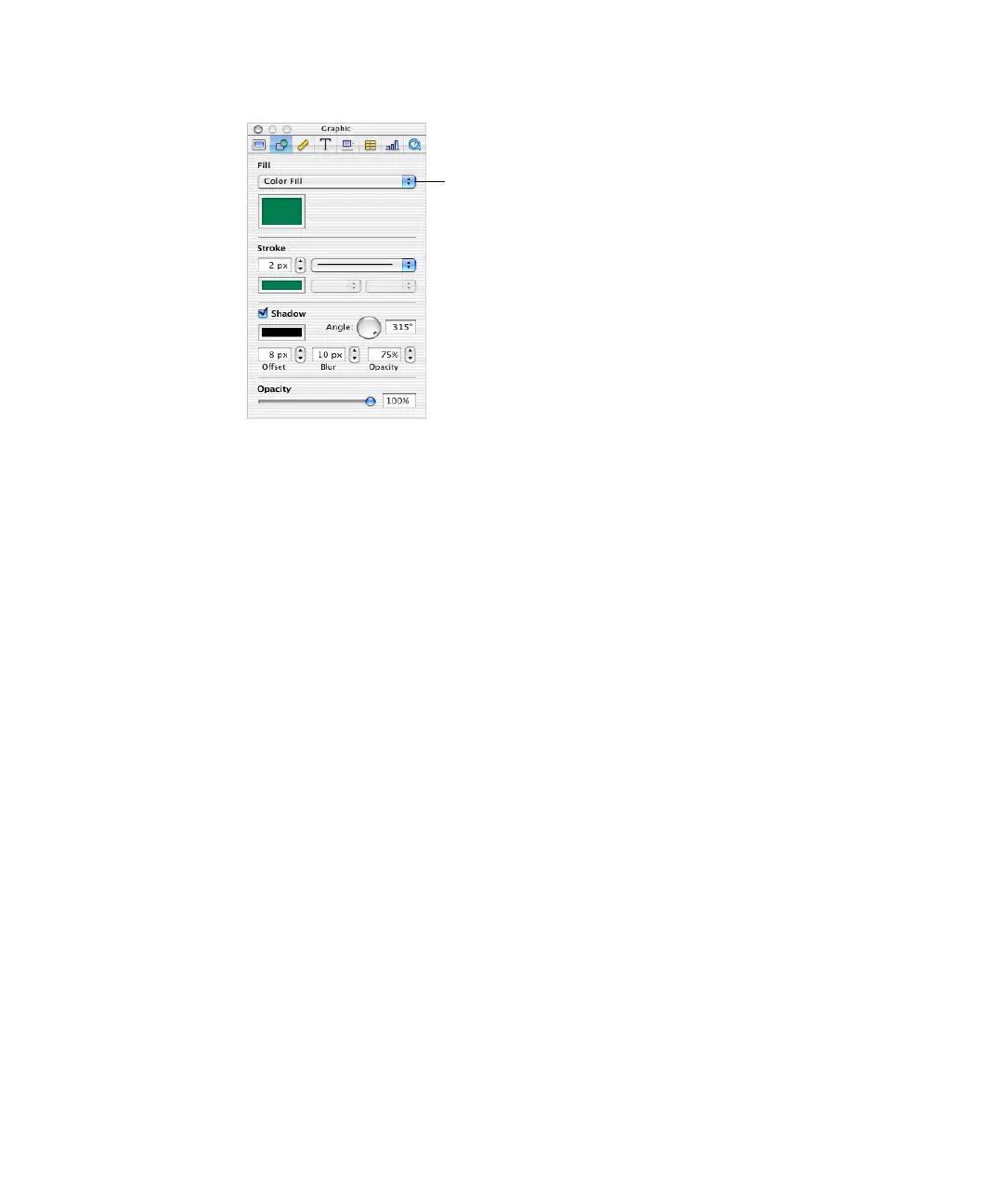
To open the Graphic Inspector:
m Choose View > Show Inspector (or click Inspector in the toolbar), and then click
Graphic in the Inspector window.
Filling an Object With Color
Objects can be filled with solid color or a color gradient, in which two colors blend with each
other. You can choose colors using the standard Mac OS X Colors window.
To set the solid fill color of an object:
1 On the slide canvas, select the object whose color you want to change.
2 In the Graphic Inspector, choose Color Fill from the Fill pop-up menu.
3 Click the color well below the Fill pop-up menu to open the Colors window.
4 Select a color in the Colors window.
Choose a solid color, a color
gradient, or an image to fill a
drawn object.



 To Next Page