Changing Object Properties 53
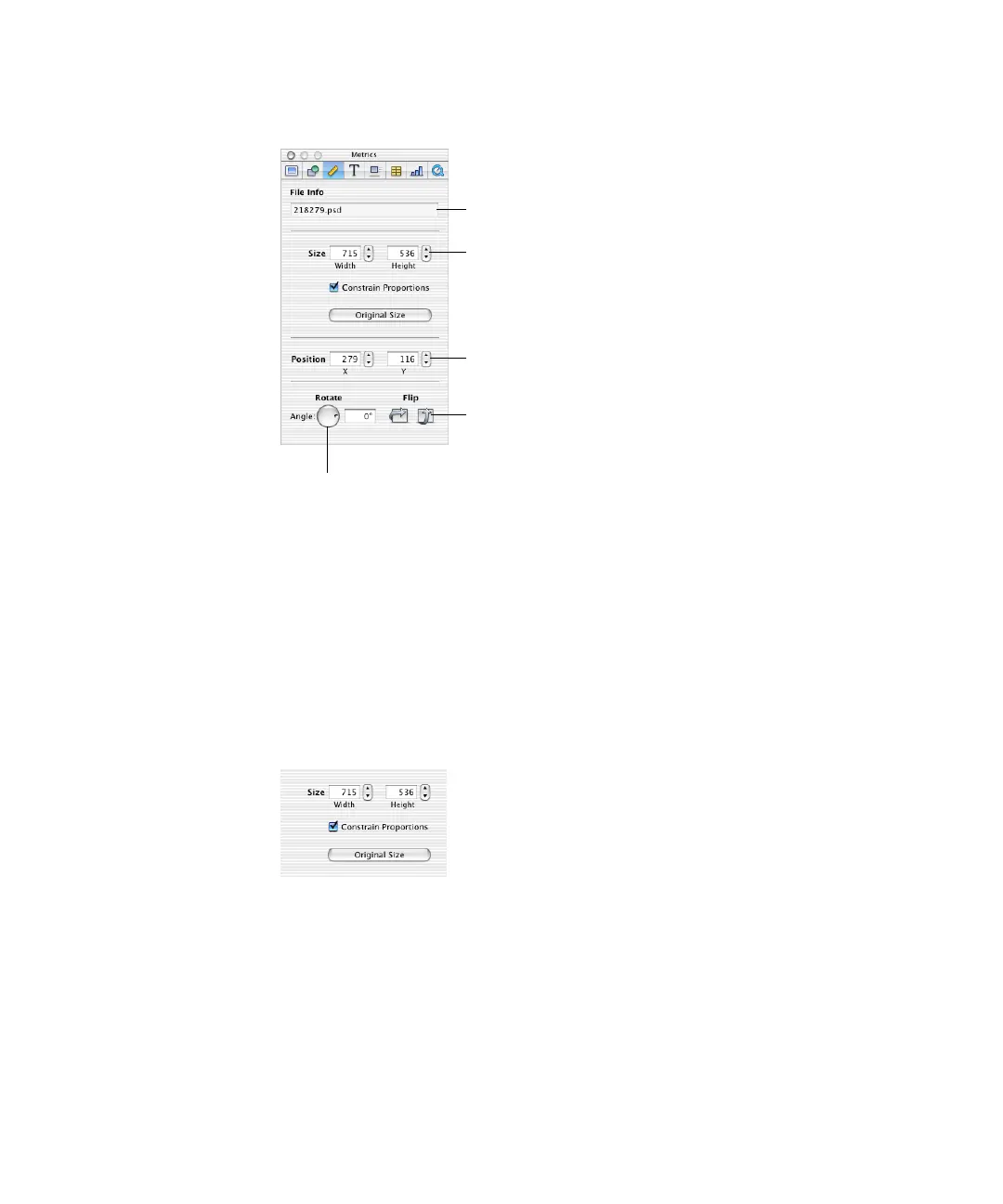
To open the Metrics Inspector:
m Choose View > Show Inspector (or click Inspector in the toolbar), and then click Metrics.
To flip or rotate an object:
1 Select the object you want to rotate.
2 In the Metrics Inspector, use the Angle wheel to set the direction of the object, or click the
horizontal or vertical Flip buttons to flip it horizontally or vertically.
Adjusting Size and Position
Use the Metrics Inspector to make precise adjustments to the size and position of objects on
the canvas.
To set the precise size of an object:
1 Select the object you want to resize.
2 Type a height and width in the Size fields in the Metrics Inspector.
Be sure the Constrain Proportions checkbox is selected if you want to keep the same height/
width proportions for images and movies.
Resize images and movies to
exact dimensions by specifying
height and width.
Flip an image sideways or upside
down using these buttons.
Find the name of the selected
image or movie here.
Rotate an object with this wheel.
Place an object precisely on the canvas
by specifying X and Y coordinates.



 To Next Page