54 Chapter 4
To return an image or movie to its original size:
m Select the image or movie and click Original Size in the Metrics Inspector.
To set the precise position of an object:
1 Select the object you want to position.
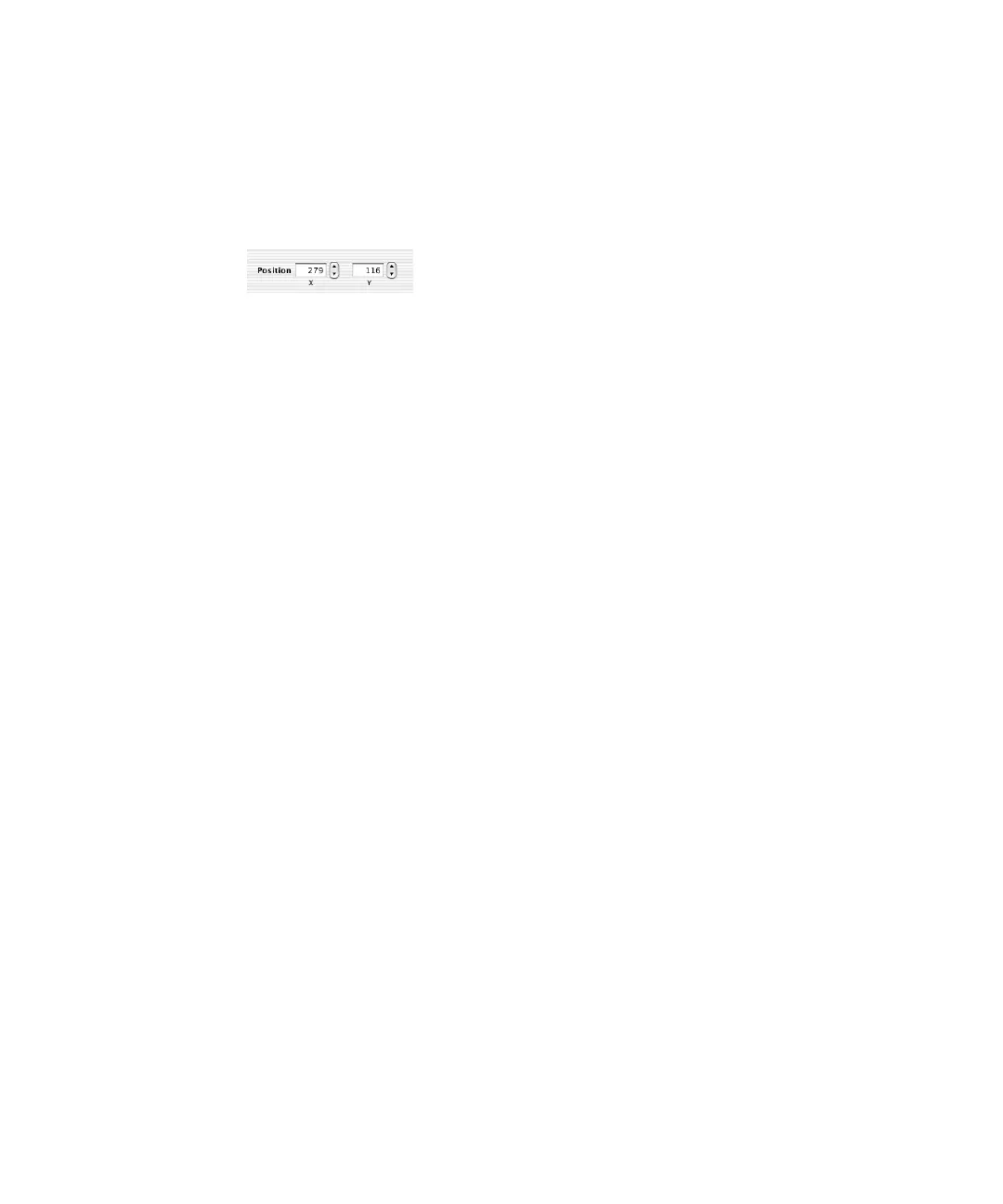
2 Enter X and Y values in the Position fields in the Metrics Inspector.
The object is positioned with its upper-left corner at the specified coordinates.
m The X value is measured from the left edge of the slide canvas.
m The Y value is measured from the top edge of the slide canvas.
If the object is not rectangular, then the object is positioned with the upper-left corner of its
container box at the specified coordinates. If an object has been rotated, it is positioned with
the upper-left corner of its “rotated” container box at the X and Y coordinates. That is, the
rotated shape is considered to have a new container box around it that encompasses it as
though it were a new shape (for example, a square rotated 25º appears as a diamond),
though you cannot see or manipulate selection handles for this rotated container box.



 To Next Page