Viewing Your Slideshow 83
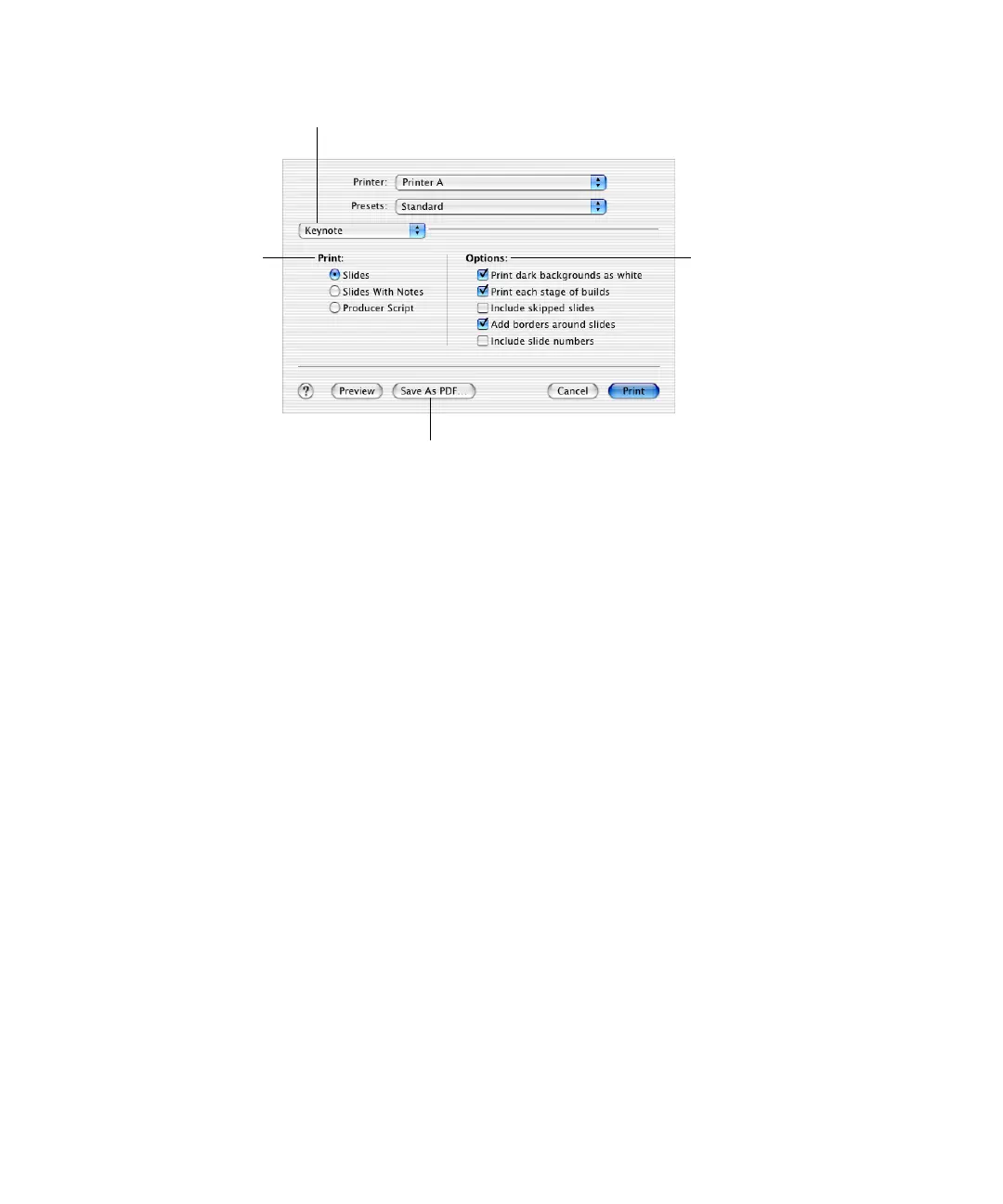
2 Choose Keynote from the Copies & Pages pop-up menu.
3 Select the slide layout you want.
m To print one full slide per page, select Slides.
m To print one slide per page with the slide notes, select Slides With Notes.
m To print four slides per page, with space for handwritten notes, select Producer Script.
4 Select the print formatting options that apply.
m “Print dark backgrounds as white” reverses light text against dark slide backgrounds to
improve readability: dark slide backgrounds print as white and light text prints as black.
This is especially useful for printing colorful slides on black-and-white printers. On color
printers, imported graphics files on each slide will still print in color.
m “Print each stage of builds” prints one slide image at each stage of its object build. If a
slide has a three-stage object build, it will print as three slides.
m “Include skipped slides” prints all the slides in the slide organizer, even if they are marked
as skipped.
m “Add borders around slides” prints a border around the edge of each slide.
m “Include slide numbers” prints the number at the bottom of each slide.
Printing Outline View
To print just the bulleted text on all of your slides:
m Choose File > Print Outline.
The printout shows the outline of bulleted items that appears in outline view in the slide
organizer.
Convert the set of slides to a PDF file.
Select print formatting options.
Choose Keynote from this pop-up menu.
Select which layout of
slides and notes you
want to print.



 To Next Page