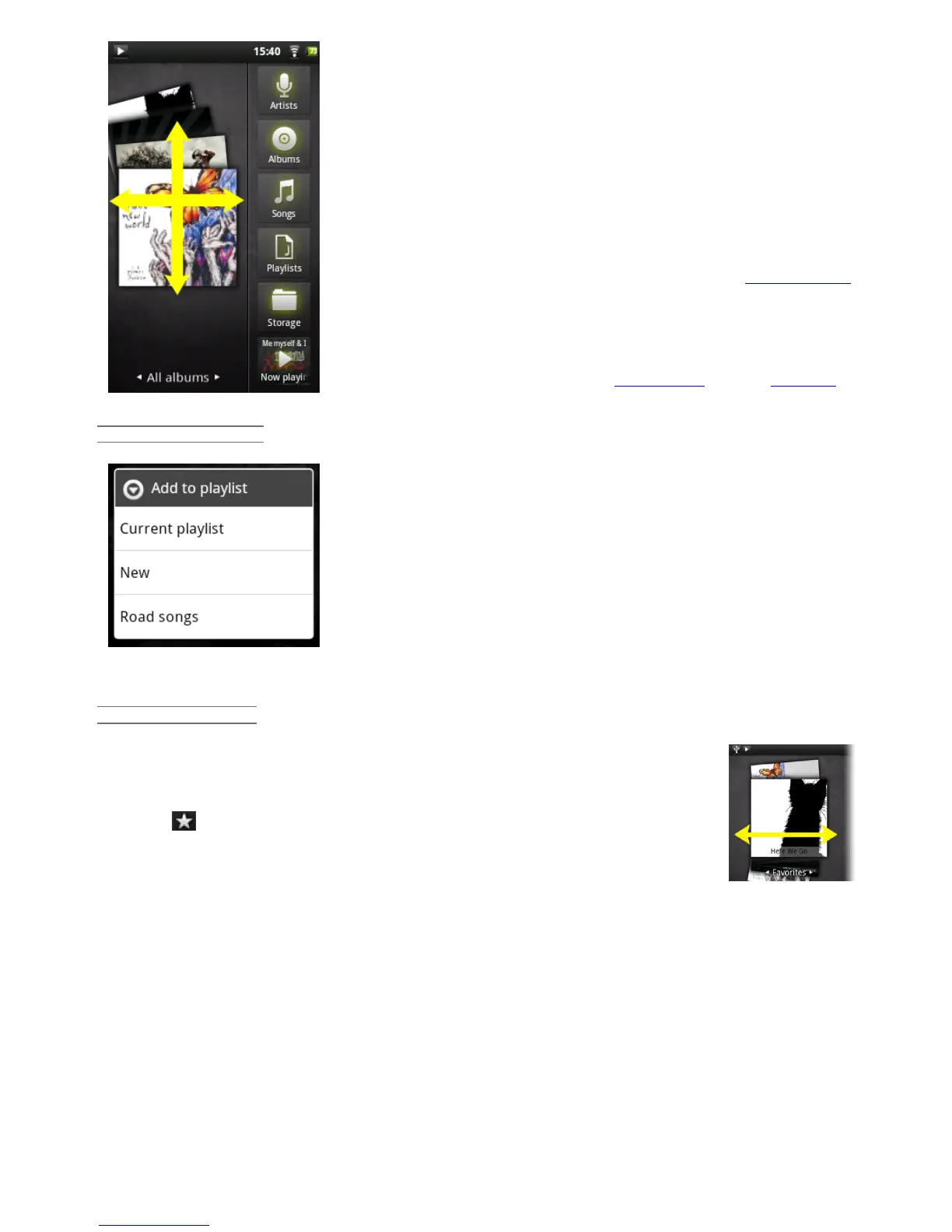
Here you see the music library screen with the cover-roll album art
display on the left. Scroll the albums vertically to see all the albums
stored on your device or scroll it horizontally to see your Favorites,
Recently added, Recently played, or All albums. If your music files do
not include cover art, then a standard cover icon will appear.
You can browse through your music by album, artist, or song name, via
your created play lists, your favorites, or as files and folders in the
storage* system. If some of your music files do not contain
information tags, they will be classified as (Unknown) in the Music
Library. If not already present, the music player widget can be placed
on one of the five home screens to give you quick access to your
recently added and recently played music.
* In addition to the internally stored music, you will see the option External in
Storage. This allows you to play music from media servers or from a file server
over your WiFi network.
CREATING PLAYLISTS
A playlist is a list of audio tracks that the music player will
automatically play one after the other (in order or randomly). You can
play, create and edit as many playlists as you want. To create or add
to a playlist, find a song or an album in the music browser and hold
your finger down on it to bring up the list of options. Select Add to
playlist, and then you have the option of putting it into an already
established playlist or creating a new play list.
When you delete a playlist (hold your finger down on the name of
playlist then select delete), you are only deleting the list and not the music itself.
THE FAVORITES LIST
The "Favorites" is where you keep the music you play the most often. To add a
title, an album, or an artist to your favorites list, just hold down on the item and a
few options will appear. Choose Add to favorites. The item will be marked with a
star icon . To access your favorites list at any time, go to the cover-roll
browsing screen and flick the albums left/right until you see the music called
Favorites. To remove an item from your favorites list, roll it into view and then
hold your finger down on it and choose Remove from favorites.
9.2. Music playback
12/5/2010 ARCHOS 101 User Guide
archos.com/manuals/A101_EN_v1.1.htm 17/25





 To Next Page