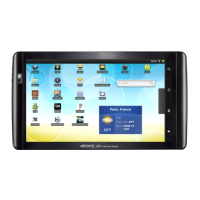
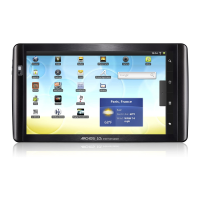
3. Shortcut to a free game that was downloaded from the AppsLib store.
4. Shortcuts to the enhanced Android™ applications (can be moved or deleted).
5. AppsLib store: An on-line library of hundreds of games & useful apps to download to your
device. Some are free and some must be purchased (WiFi Internet connection needed).
6. Widgets: Small programs that run continuously and have a small interface that stays on one of the
home screen panels. This widget will do a Google web search.
7. Settings shortcut: To access all the major settings of the device.
8. User Manuals: Special app to allow you to read the user manual on your device.
9. Web site bookmarks: You can create these to open the web browser and go directly to a
particular web site.
10. Applications Tab: shows all the applications that are installed on your device.
Switch between apps: Hold down on the home icon to display the recently used applications.
You can then tap on any one of them to go back into that app.
CUSTOMIZING THE HOME SCREEN ITEMS
Change the Wallpaper: Tap on the menu icon and then select Wallpapers.
Move an item to another part of the screen. Hold your finger on it until it enlarges, then drag it to
the desired location (make sure there is enough space), and release it.
Make an app shortcut: Open the Applications Tab and press and hold down on one of the
applications. It will enlarge and jump to the home screen. Slide it to an empty place on one of the
five home screens and then let go.
Make a shortcut or a bookmark: Hold your finger on the screen at an empty location and then
choose from the list.
Delete a screen item: Hold down on the item until it enlarges and then drag it to the Applications Tab
which has become a trash bin.
2. MAKING A WIFI CONNECTION
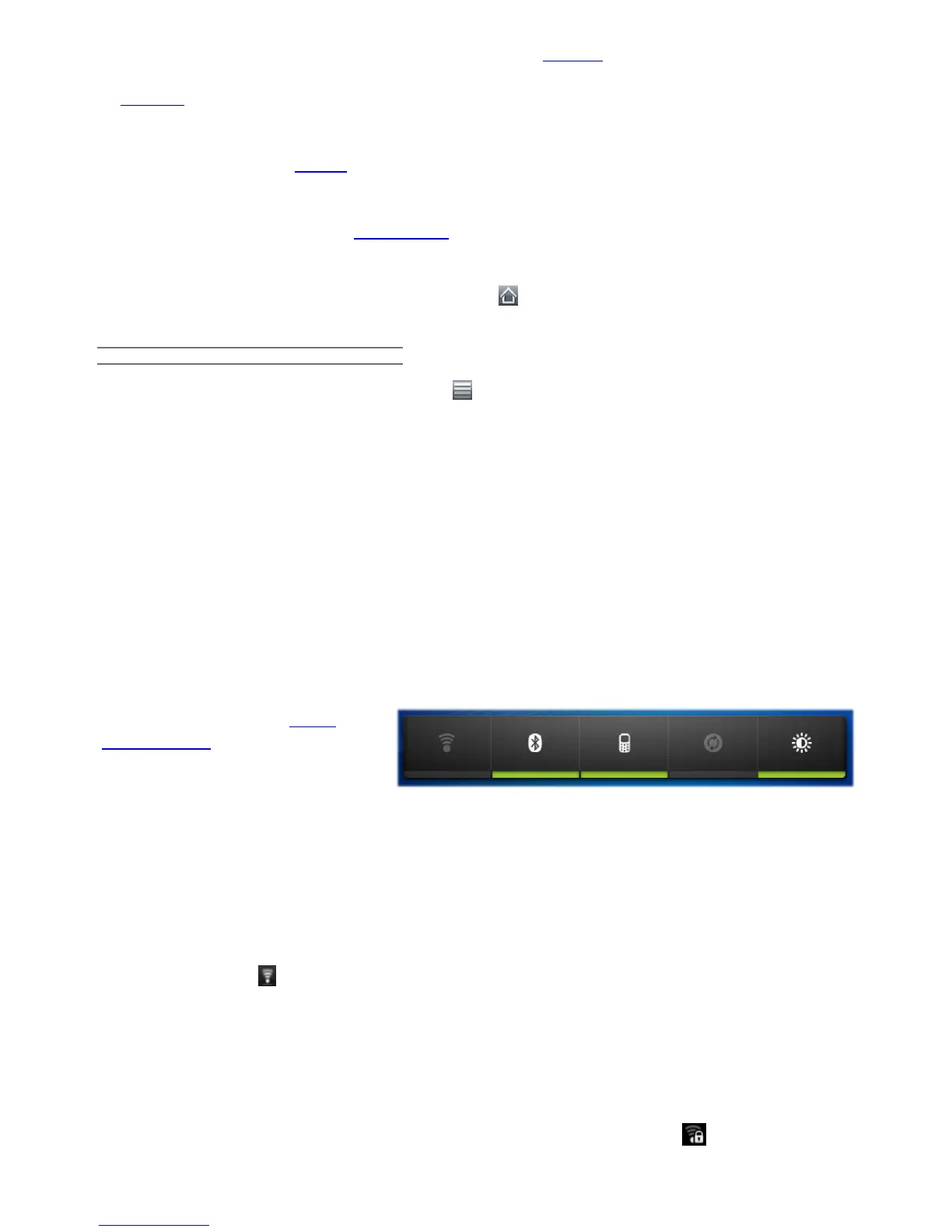
When you do not need the WiFi or Bluetooth® connections, remember to deactivate them in order to
save battery power. The Power
control widget found on the far left
home screen allows you to turn the
WiFi on and off (WiFi, Bluetooth®*,
Tethering, Sync, Brightness) as needed. To configure a WiFi connection, you need to be in a WiFi
zone that will allow you to connect to it. Every time the ARCHOS is in range of a network that you
have already configured once, it will attempt to make a connection (so long as the WiFi setting is
enabled).
2.1. Enabling WiFi
Before launching an Internet application such as the web browser, check to see if you already have a
connection. The icon in the top right of the screen is on when your device is connected to a WiFi
network. If not connected, you first need to activate the WiFi and configure a WiFi network.
1. Go to the Home screen, tap on the Menu icon and then select Settings.
2. In the Settings screen, select Wireless & networks.
3. If the WiFi is off, tap on the Wi-Fi line to turn it on. Then select Wi-Fi settings. The ARCHOS will
scan automatically for available WiFi networks and show all the wireless networks in range of your
device. The list is refreshed continuously.
4. Tap on the network you want to connect to. Networks shown with the icon are secured
connections (requires a password). If it is a secured network, tap the password field to make the
12/5/2010 ARCHOS 101 User Guide
archos.com/manuals/A101_EN_v1.1.htm 4/25






 To Next Page