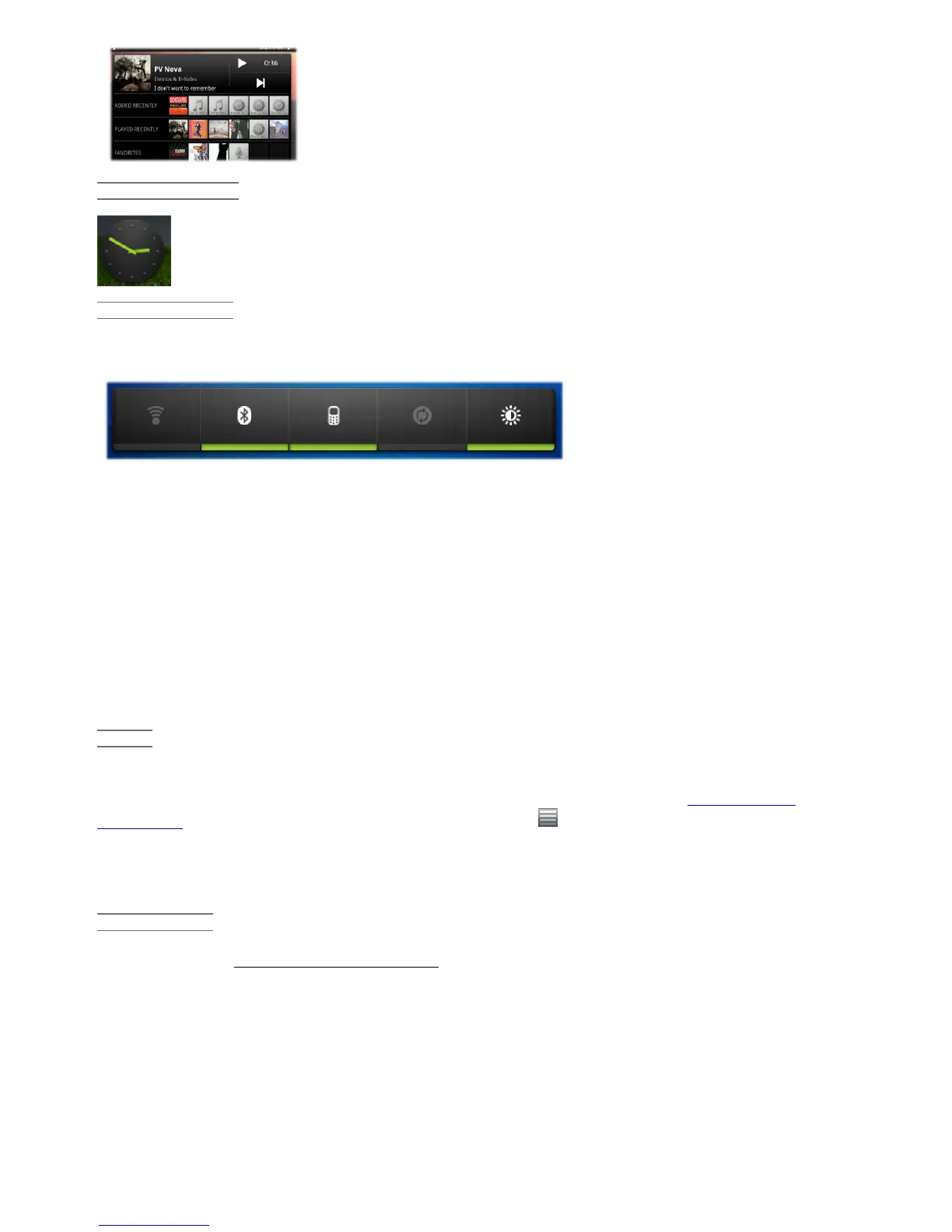
A quick method to access your music instead of opening the Music
player. There are also similarly looking widgets for the Gallery (photo
viewing) and the Video player.
ANALOGUE CLOCK
An alternative clock.
POWER CONTROL
This very useful widget allows you to easily shut on/off modules of the ARCHOS that take up power.
You can thus extend the usable battery charge of your device. From the left to right.
WiFi: Turn on/off the WiFi module.
Bluetooth: Turn on/off the Bluetooth® module.
Teather: Connect or disconnect your ARCHOS from your mobile phone's bluetooth connection for
Internet access.
Sync: Shut off the synchronizing that often goes out to the web to synchronize application data.
Brightness: Allows three levels of screen brightness.
18. UPDATING THE DEVICE (FIRMWARE)
The firmware is the operating system (OS) of your ARCHOS. It is periodically updated to bring new
features, improvements and bug fixes. There are two main ways to update your product’s firmware:
DIRECT
Update directly on the ARCHOS (WiFi connection needed). This is the easiest way to update the
firmware. For this to work, you only need a connection to a WiFi network. See Making a WiFi
Connection. From the Home screen, tap on the Menu icon , select Settings, and choose About
device. Tap on the Firmware update button. The ARCHOS will search on-line for a new firmware. If
there is one available, it will start downloading, and it will be installed automatically. Follow the on-
screen instructions.
VIA COMPUTER
On your PC, go to www.archos.com/firmware. Search for the latest firmware available for your
ARCHOS. Compare the latest on-line version with the one installed on your ARCHOS (your ARCHOS
firmware version number appears in the About device settings screen). If the on-line version is more
recent than yours (has a higher number), follow the instructions to download it and copy it to your
ARCHOS. Your Internet browser may warn you that the contents of the firmware file could harm your
computer. ARCHOS has taken precautions to insure that this file will not harm your computer.
19. TROUBLESHOOTING
19.1. Resetting your ARCHOS
12/5/2010 ARCHOS 101 User Guide
archos.com/manuals/A101_EN_v1.1.htm 23/25







 To Next Page