Volume Verification Setup
Add a Volume Verification Plate Layout
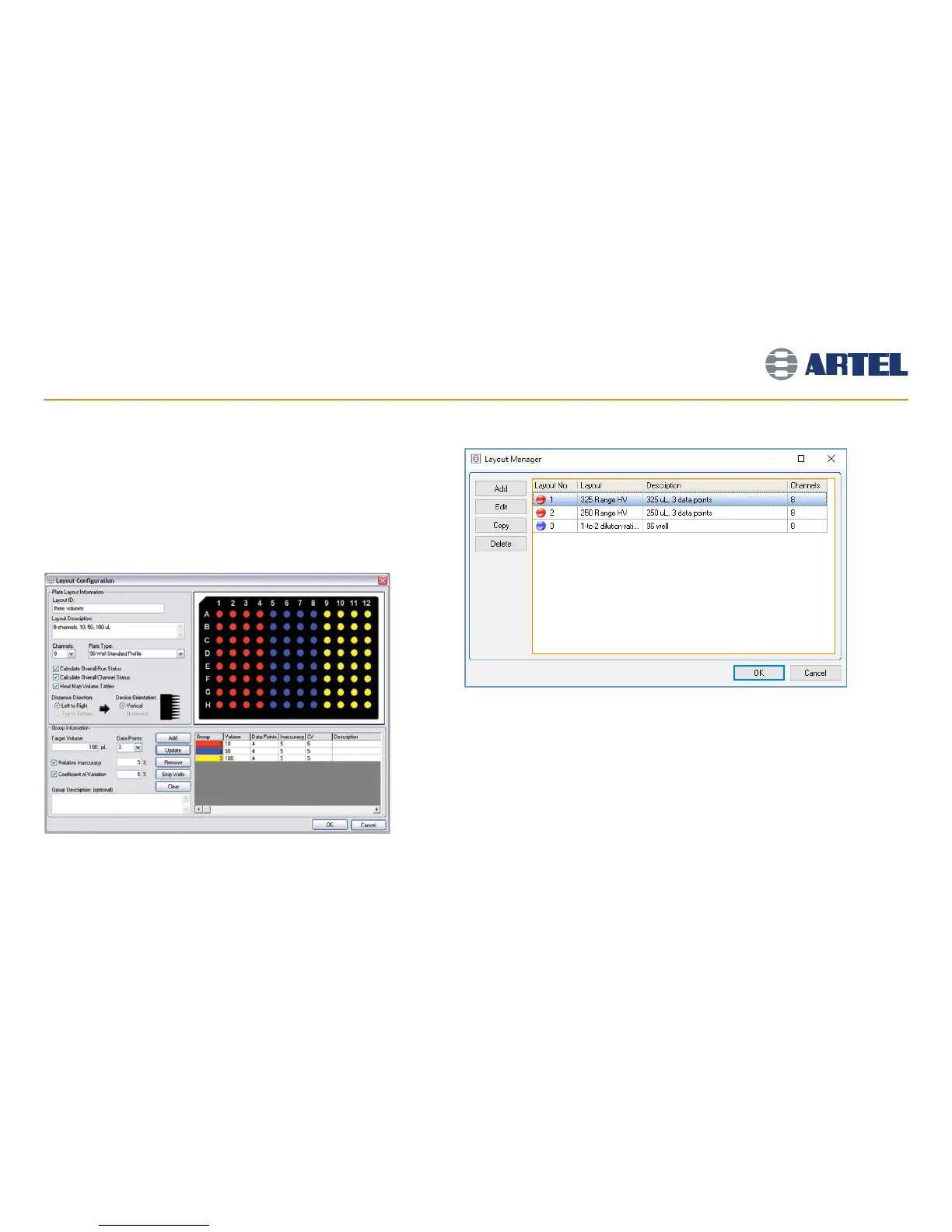
• Enter a unique Layout ID, a Layout Description, and then select the number of
Channels and the Plate Type for the Plate Layout.
• If desired, check the boxes to calculate the Overall Run Status and/or the Overall
Channel Status. If both are unchecked, no pass/fail status will be applied.
• If desired, check the box to display the Heat Map.
Plate Layout Setup
• At the main Data Manager screen, select File | Plate Layout Setup.
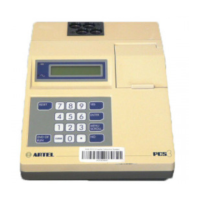
• The Layout Manager will open (see screen image at right).
Red coded entries indicate volume verification layouts, while blue
coded entries indicate dilution layouts.
• Click Add and select Volume Verification Layout to display the
Layout Configuration window (see screen image below).
9


 To Next Page