Y1-03-0273 Rev. D A3-06-2825 Handheld Test Set Operations Manual
Company Confidential Page 10
9. Open Computer/OS (C:)/ProgramFiles(x86)/Palm/”
Select Correct
User”
/Backup
• Example: Computer/OS (C:)/ProgramFiles(x86)/Palm/User/Backup
• NOTE: You will not see the backup folder unless you use “Salcalc
Desktop”
• Select Sarcalc.pdb and Open
10. Tests are found on left side and are listed by date then time.
11. Select test and then print icon.
NOTE: The Meazura unit must be HotSync'd with the Palm Desktop software to load the
database from the Meazura unit to the PC. Once sync'd, the database can be opened
on the PC by starting the SarCalcDesk.exe application and opening the database from
the file menu. The Palm HotSync will usually store the database file in
C:\ProgramFiles\Palm\Artex\Backup\ (where Artex is the Meazura user name. Be sure
to use the “Artex” user name whenever performing a “HotSync”. All Artex provided
software is loaded to the Meazura using this user name.) The database will be named
SarcalcDB.PDB. If the Meazura was set-up on the PC with a different User Name than
“Artex”, check the folder for that User Name to locate the Backup file to find the Sarcalc
and Artex database information.
3.4 Hot Sync
Once installed and configured, the Palm™ Desktop Software will allow installation of
additional software applications as well as performing the hot sync function to transfer
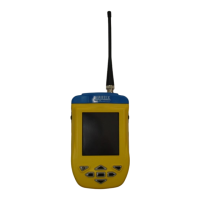
data to and from the ETS (Meazura unit). Artex provides a USB cable (452-0103) to
connect to a PC.
1. Connect test set to PC using USB Cable. Windows may not recognize the
device and will require a driver.
2. Open desktop browser and go to www.aceeca.com
3. Select options in the following order:
• Support
• Downloads
• Drivers
• 64 bit USB Windows Driver for Palm/Garnet OS or 32 bit USB
Windows Driver for Pam/Garnet OS
• Download Now
4. Unzip File Folder DVR_WINX64_USB_GN4_GN5_20110322.ZIP
• Follow instructions found in 64bit USB Driver Installation Guide
20110607
5. Ensure Palm Desktop is open.


 To Next Page