23
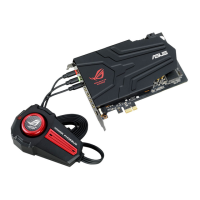
ASUS Xonar Phoebus
6. Xonar Phoebus Driver Guide
6.1 Introduction to the Xonar Phoebus Audio Center GUI
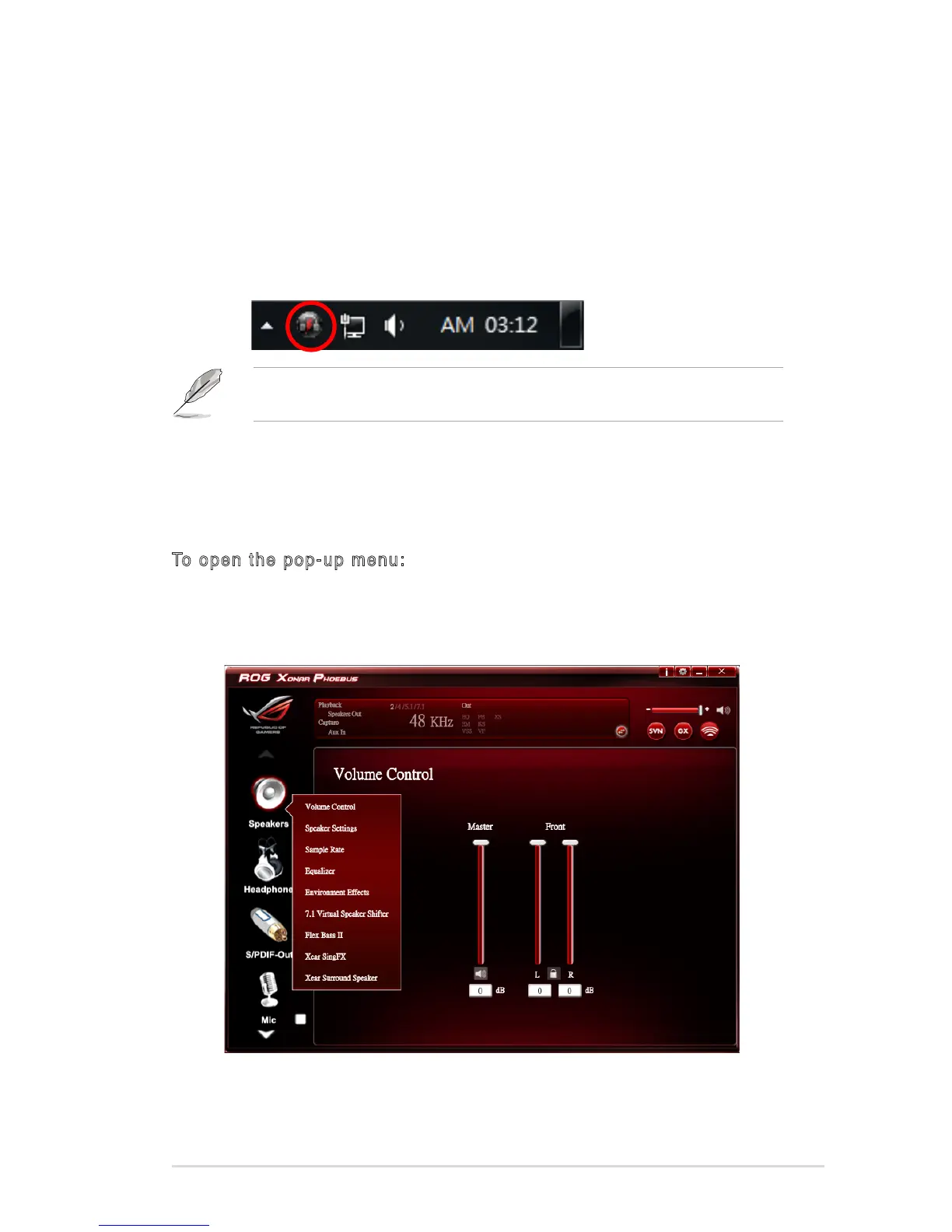
1. Afternishingthedriverinstallationandrebootingyourcomputer,youwill
ndtheXonarPhoebusAudioCenter’siconinthesystemtrayonthebottom
right-hand corner of the screen. Double click this icon to open the Xonar
Audio Center utility.
If the icon could not be found in the system tray, go to the Windows Control
Panel and double click the “Xonar Phoebus Audio Center” icon.
6.1.1 Function Pop-up Menu
Xear Audio Center provides serveral sound effects. There is a pop menu for each output /
input device and you can enter the sound effect page to enjoy music, movie and gaming.
To open the pop-up menu:
1. Double-click the left button of the mouse on the Device icon.
2. Left-click the mouse on the Device icon.


 To Next Page