24
ASUS Xonar Phoebus
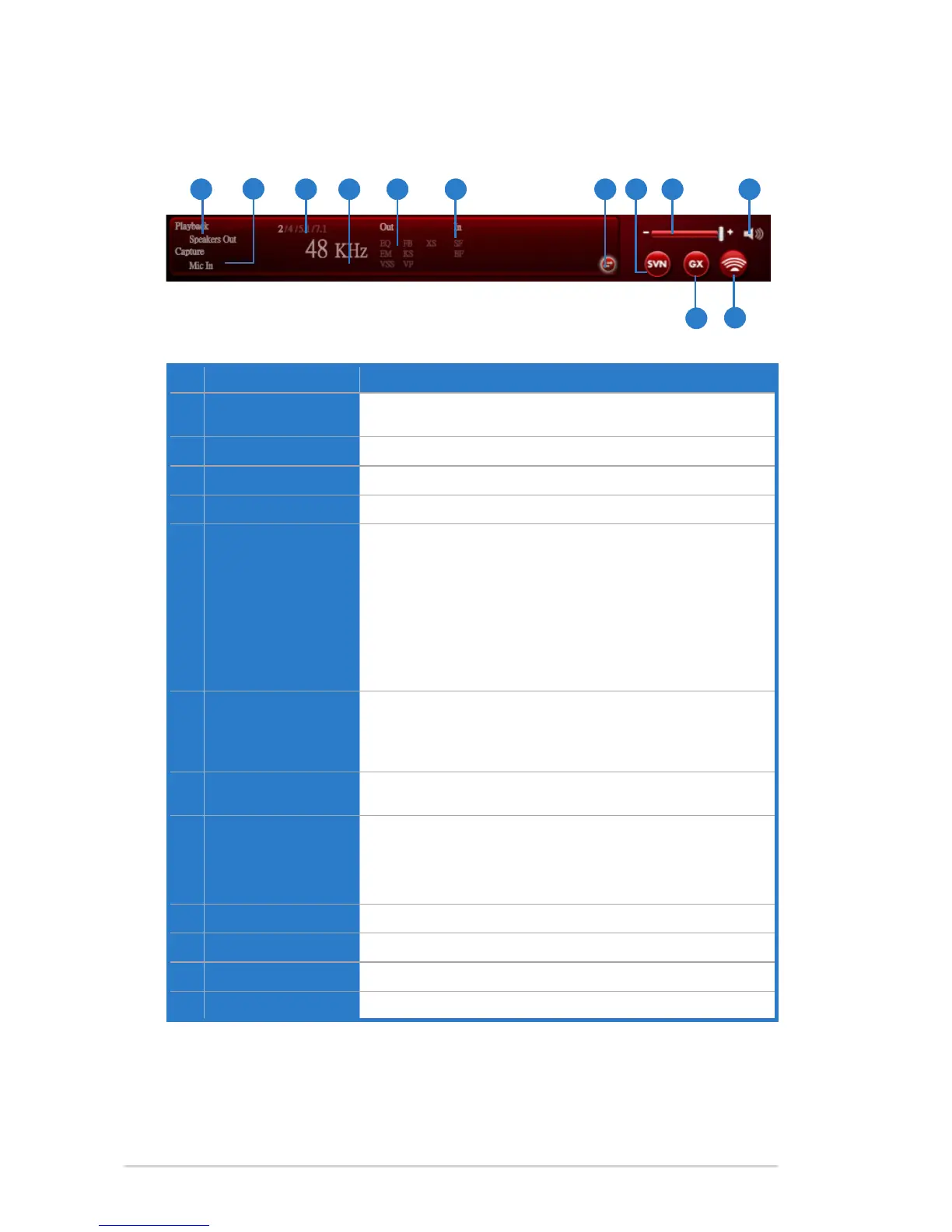
No Item Description
1 Playback (Speaker
Out)
Indicates the output default device.
2 Capture (Mic In)
Indicates the input default device.
3 Speaker Numbers
Indicates the speaker numbers for Speaker device only.
4 Sample Rate
Indicates the sample rate of playback sources.
5 Audio Output effect
indicator
Indicates the playback sound effect status.
Abbreviation of Sound effect:
EQ: Equalizer
EM: Environment Effects
VSS: 7.1 Virtual Speaker Shifter
FB: Flex Bass II
KS: Xear SingFX for key shifting
VF: Xear SingFX for vocal fading
XS: Xear Surround
6 In effect indicator
Indicates the playback sound effect status.
Abbreviation of Sound effect:
SF: Xear SingFX for microphone echo
SF: Xear SingFX for Magic Voice
7 Switch to Prole
Panel button
ClicktoswitchthestatusbartotheProlepanel.
8 Smart Volume
Normalizer (SVN)
(Vista / XP only)
Click to enable the SVN function. SVN is abbreviated from
Smart Volume Normalization, which normalizes the volume
of all audio sources into a constant level and also enhances
your 3D sound listening range and advantages in gaming.
9 Volume Adjust
Click to increase or decrease volume.
10 Mute / Unmute
Click to mute or unmute a device.
11 SonarMax
ClicktoenableSonarMaxwithamplied3D/2Dsounds.
12 GX
Click to enable GX 2.0.
6.1.2 Audio Status Panel
1
2
3 4 5 6 7 8 9 10
11
12



 To Next Page